
Email Carousel & Warm-up Setup
Email Carousel & Warm-up Setup
The Email Carousel lets you connect multiple email accounts and use them as a single sender in your nurture campaigns. Instead of all the volume going through one mailbox, the Carousel rotates the send across every account in it.
The product has three separate but related controls for outbound email at volume:
- Carousel spreads outbound across multiple connected mailboxes used as one sender.
- Warm-up is an automatic process that adjusts each account's daily sending limit based on warm-up stats.
- Daily sending limit is the per-mailbox cap you can also view and edit yourself on Settings > Integrations.
When to use the Email Carousel
The Email Carousel is designed for high-volume outbound, especially cold outreach to candidates. Sending a large daily volume of cold emails from a single mailbox increases the risk that messages land in spam. The Carousel splits that volume across multiple connected accounts so each individual mailbox stays within safer sending limits.
For example, 200 cold emails split across 5 mailboxes lets you send the full batch while keeping each mailbox at a moderate daily volume.
Set up the Email Carousel
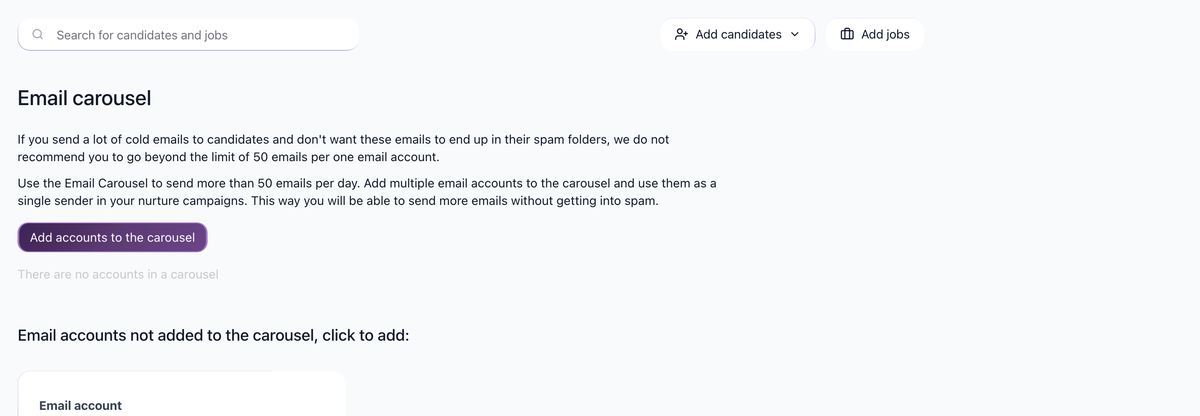
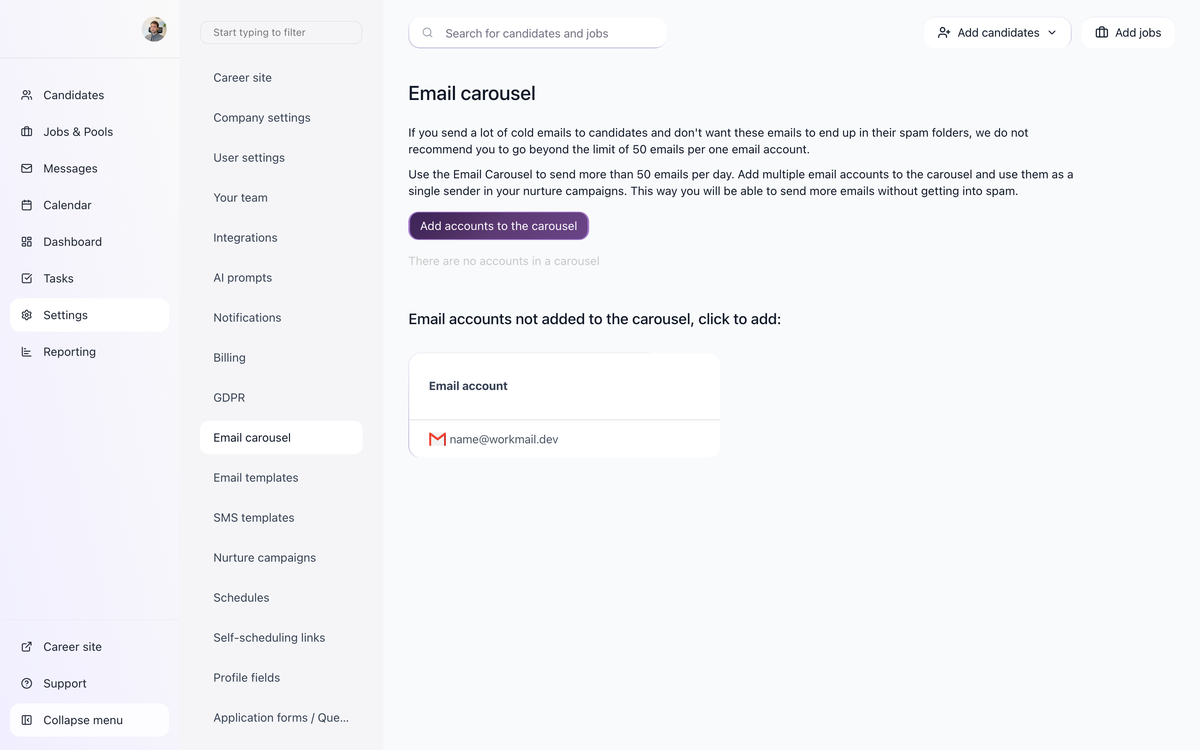
- Open Settings > Email carousel.
- The page lists the mailboxes you have already connected to 100Hires (via Settings > Integrations) that are not yet in the Carousel.
- Click an account in that list to add it to the Carousel. Repeat for each account you want rotating. The page also has a button at the top to add accounts to the carousel.
If the page shows that there are no accounts in the carousel, no account has been added yet.
Once accounts are in the Carousel, the Carousel becomes available as a single sender option when you configure a nurture campaign.
Warm-up and daily sending limits
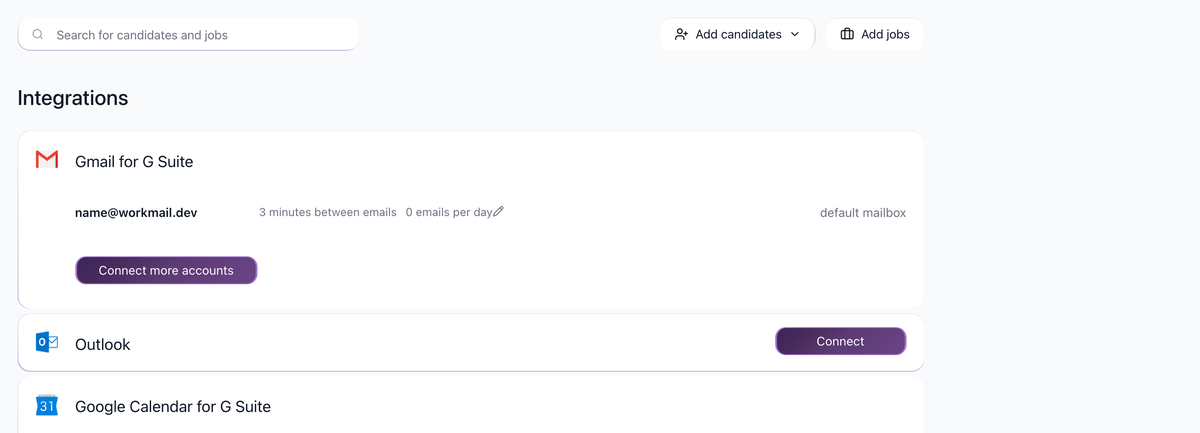
Email Carousel & Warm-up includes automatic email warm-up and automatic daily sending limit adjustment based on warm-up stats.
You can also view and edit each mailbox's daily sending limit yourself on Settings > Integrations. Next to each connected account, the page shows the current daily limit with a pencil icon. Click the pencil icon to adjust the daily sending limit on that mailbox.
Warning: setting limits too high with poor email reputation will cause emails to go to spam.
Cancel scheduled messages
To cancel all scheduled messages, go to Settings > Integrations and use the "Cancel scheduled messages" link.
Best practices
- Add multiple email accounts to the Carousel before sending high daily volumes of cold outreach from a single address. Splitting the volume across mailboxes reduces spam risk.
- Warm-up can automatically adjust each mailbox's daily limit, and you can edit that limit on Settings > Integrations.
Updated on: 07/08/2026
Thank you!