
How to Add Your Microsoft Teams or Google Meet Link to Interview Invitations
If you run interviews in a permanent meeting room, such as a Microsoft Teams link, a Google Meet room or a Zoom personal room, you can save that link once and have 100Hires add it to the interview email your candidates receive. This works for interviews you schedule yourself and for interviews candidates book through a self-scheduling link.
Step 1. Save your meeting link
- Go to Settings / User settings.
- Paste your permanent meeting URL into Your static web meeting link.
- Click Save.

Each teammate who interviews candidates saves their own link in their own user settings.
Step 2. Add the link to the interview email
The link appears in the candidate's email only after you add it to the email template.
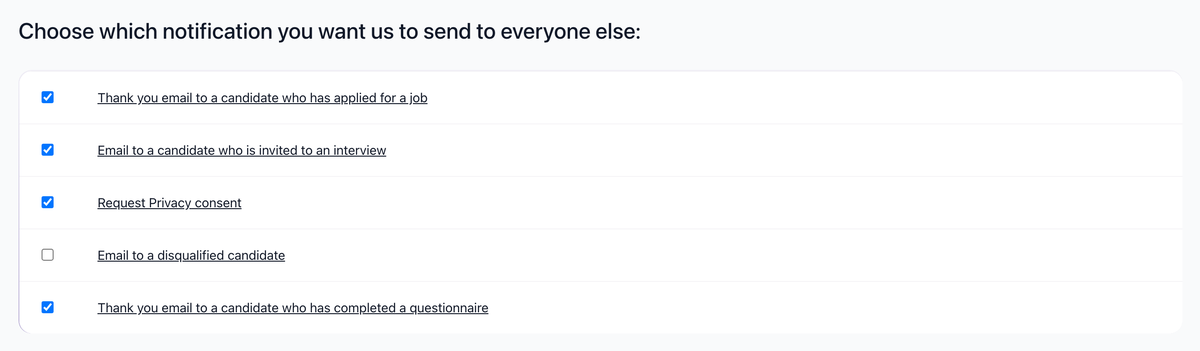
- Go to Settings / Notifications.
- Under Choose which notification you want us to send to everyone else:, make sure Email to a candidate who is invited to an interview is checked, then click its name to edit it.
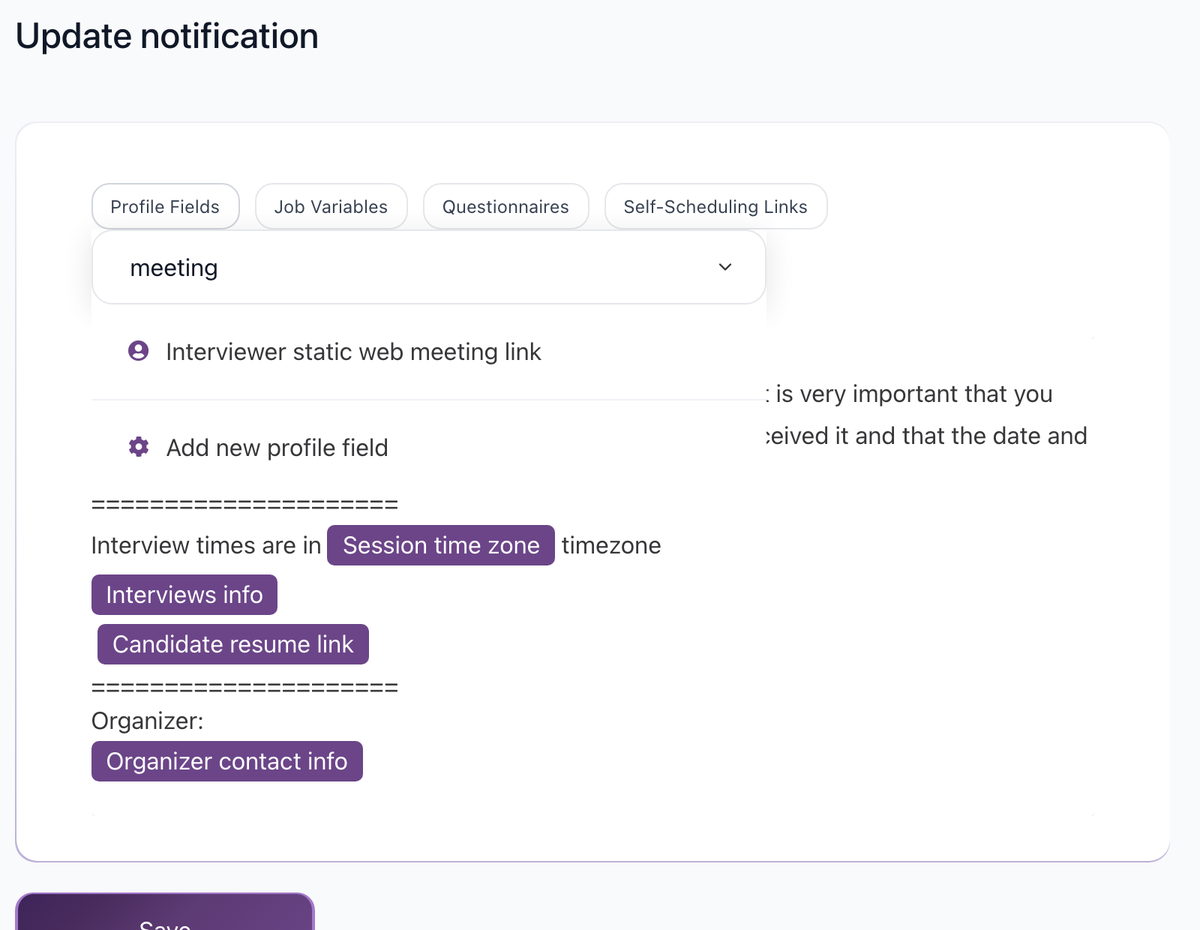
- Click Profile Fields, type
meetingand choose Interviewer static web meeting link. - Place the variable where you want the join link to appear, for example on its own line after Interviews info, and click Save.
What candidates see
When an interview is scheduled, 100Hires replaces the variable with the meeting link saved by the interviewer on that interview. If an interview has several interviewers, the link of the first interviewer who has one saved is used. Interviews booked through a self-scheduling link send the same email, so the link is included there too.
Good to know
- 100Hires does not create Teams or Google Meet rooms. It inserts the link you saved. Rooms are generated automatically only for Zoom, see How to Integrate with Zoom.
- In a self-scheduling link, the Call link option is for Zoom only. You do not need it if you use a saved meeting link.
- To set up self-scheduling, see How to Create and Use Self-Scheduling Links.
Updated on: 07/10/2026
Thank you!