
Integrate 100Hires with Google Calendar
Integrate 100Hires with Google Calendar
Connect Google Calendar to 100Hires so interviews scheduled in 100Hires land on your team's calendars, and so 100Hires can see interviewer availability when scheduling.
What syncs
Once connected, interviews scheduled in 100Hires create calendar events with the candidate, date and time, location or video link, and the selected interviewers as attendees. Before sending, "Save and Preview Invites" shows the calendar invite previews for interviewers and the candidate.
Connect Google Calendar

Go to Settings > Integrations, find Google Calendar, and click Connect. You'll be sent to Google's standard authorization screen - approve access and you're returned to 100Hires with the connection active.
If you already connected Google Workspace for email, the calendar connection runs through the same Google authorization and works without extra steps.
Per-user connect
Each user connects their own Google Calendar. This matters for scheduling: 100Hires can show interviewer availability only for users who have connected their calendar, and events land on each connected interviewer's own calendar.
If a teammate hasn't connected yet, you can ask them to do so - 100Hires has a built-in notification for "when your colleagues ask you to integrate your calendar".
Self-scheduling
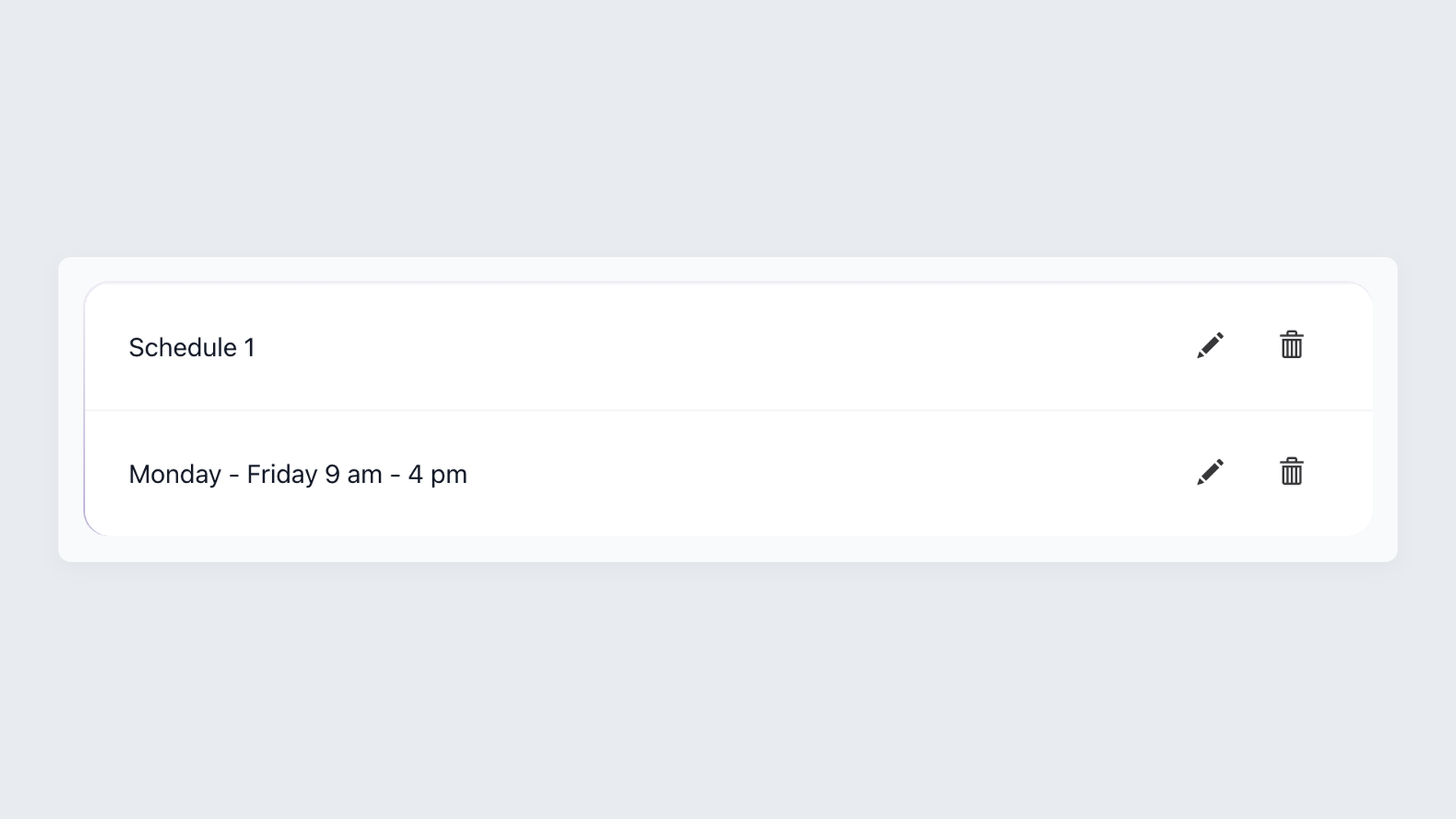
Self-scheduling links (a Calendly-like feature inside 100Hires) let candidates book interview slots themselves. When selected interviewers have connected calendars, 100Hires uses their availability to offer open slots, and the booked event lands on every selected interviewer's calendar at once. See the Self-Scheduling Links article for setup.
Availability check
When you schedule an interview manually, 100Hires can show interviewer availability based on the calendars connected by each interviewer, helping you avoid double-booking.
Outlook Calendar for Microsoft 365
If your team uses Microsoft 365, Outlook Calendar is available as a separate integration under Settings > Integrations. The flow is similar - authorize the connection on Microsoft's side, and once connected, scheduling and availability behave the same way as with Google Calendar.
Troubleshooting
Events aren't appearing on my calendar. Open Settings > Integrations and confirm Google Calendar shows as Connected. If it does, disconnect and reconnect to refresh the authorization.
Availability isn't checked for an interviewer. That interviewer hasn't connected their own Google Calendar - ask them to run the connect flow under their own login in Settings > Integrations.
If reconnecting doesn't help, contact support@100hires.com and we'll take a look.
Updated on: 16/06/2026
Thank you!