
How to Send Offer Letters
How to Send Offer Letters
This article explains how to send offer letters to candidates through 100Hires. Use email templates, custom variables, and automation to streamline your offer process.
Option 1: Email offer letters
Send offer letters as email attachments or formatted messages.
Creating an offer template
- Go to Settings / Email Templates
- Click Add Template
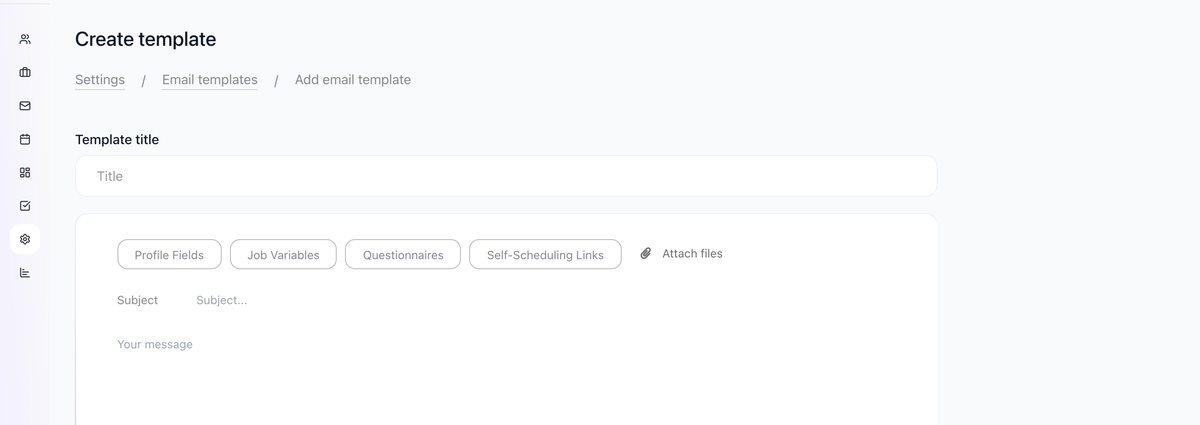
- Name it (e.g., "Offer Letter - [Position Type]")
- Write your offer content using variables

- Save
Using variables in offers
Personalize each offer with variables:
Variable | Inserts |
|---|---|
| Candidate name |
| Position title |
| Work location |
| Company name |
Custom job variables | Salary, start date, etc. |
Setting up custom offer variables
- Open the job
- Go to Optional tab
- Add custom variables:
{{salary}}- Compensation amount{{start_date}}- Proposed start date{{benefits}}- Benefits summary
- Fill in values for this job
Sending the offer
- Open candidate profile
- Go to Messages tab
- Select your offer template

- Attach formal offer letter PDF if needed
- Review and send
Option 2: Using Zapier for offer automation
For offers requiring additional workflow automation, use the Zapier integration to connect with other applications.
Setting up Zapier for offer workflows
- Go to Zapier and create a new Zap
- Trigger: Select "100Hires" as the trigger app

- Choose trigger: "New candidate in stage" and select "Offer" stage

- Action: Connect to your desired app (e.g., create tasks, send notifications, update records)


- Map the trigger fields to the action app

- Activate the Zap
How Zapier automates offer workflows
- Move candidate to "Offer" stage in 100Hires
- Zapier triggers automatically based on your settings
- Your connected app receives the data and performs the action
- Workflows complete without manual intervention
- Optional: Create multi-step Zaps for complex processes
Option 3: Manual process
For simple workflows:
- Prepare offer letter outside 100Hires
- Upload to candidate's profile (Notes tab)
- Send via email with attachment
- Track status by moving through stages
Tracking offer status
Use pipeline stages to track:
Stage | Status |
|---|---|
Offer Pending | Preparing offer |
Offer Sent | Waiting for response |
Offer Accepted | Candidate accepted |
Offer Declined | Candidate declined |
Hired | Process complete |
Setting up offer automation
Automate offer-related tasks:
- Go to job's Workflow tab
- Add automation to "Offer Sent" stage:
- Email to HR: Notify of pending offer
- Assign task: Follow up in 3 days

- Add automation to "Offer Accepted" stage:
- Email to hiring manager
- Email to candidate: Welcome message

Tips
- Keep offer templates updated with current benefits
- Use custom job variables for position-specific details
- Set up reminders for outstanding offers
- Document all offer communications in 100Hires
- Review offer letter templates for legal compliance
Updated on: 07/08/2026
Thank you!