
How to Set Up Twilio for SMS and Calls
How to Set Up Twilio for SMS and Calls
Connect your Twilio account to 100Hires to text and call candidates without leaving your ATS. Outbound SMS, click-to-call, incoming call routing, and voicemail all run through the phone numbers you already own in Twilio.
What the integration does
- Send SMS to candidates from the candidate profile.
- Place outbound calls from the candidate profile with a click.
- Route incoming candidate calls through a cascading forwarding chain to your hiring team, with voicemail fallback.
- Log calls and voicemail on the candidate's Discussion timeline when the caller's number matches a candidate in your account.
What you'll need
- An active Twilio account.
- At least one Twilio phone number with both SMS and Voice capabilities.
- For SMS to US recipients, A2P 10DLC registration completed in Twilio (see Register A2P 10DLC in Twilio below). Approval is decided by The Campaign Registry and the carriers - neither Twilio nor 100Hires can bypass it.
Step 1: Connect Twilio in 100Hires
- Go to Settings > Integrations.
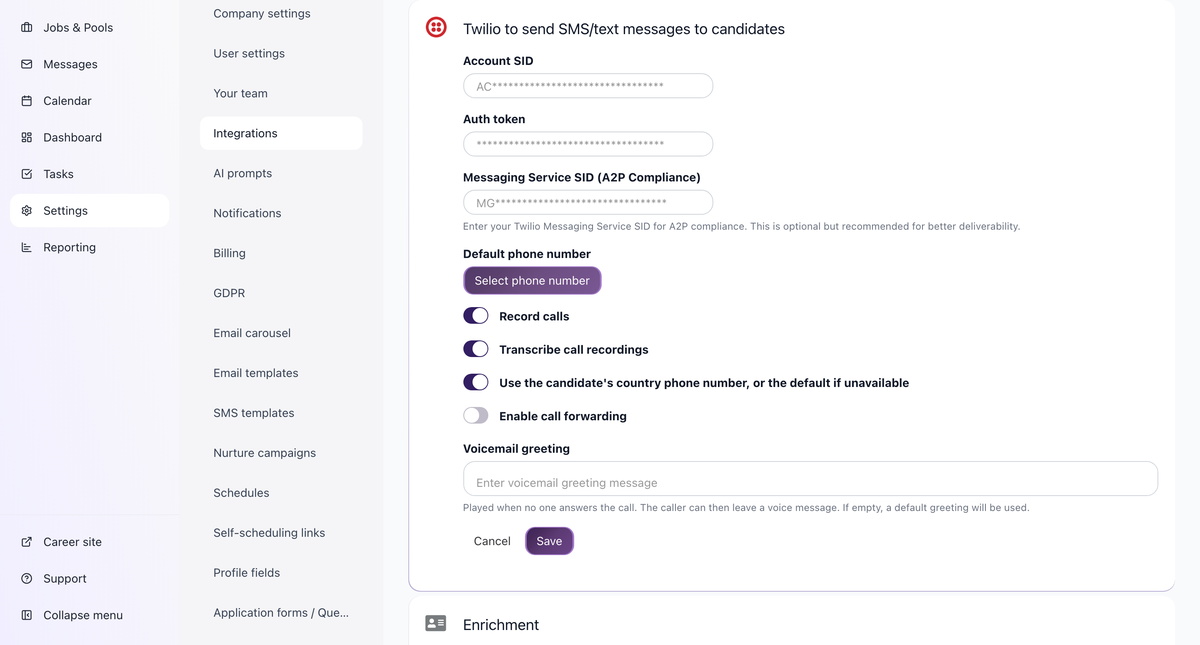
- Find Twilio to send SMS/text messages to candidates and click Connect.
- Enter your Twilio Account SID and Auth Token - both are on your Twilio Console dashboard.
- Add your Twilio phone number, including the country code and no spaces (for example, +14155550123).
- Save.
Step 2: Send SMS from a candidate profile
- Open a candidate profile.
- Go to the Messages tab.
- Turn on the SMS toggle (instead of email).
- Write your message or pick an SMS template.
- Send.
Step 3: Add SMS to nurture campaigns
Want automated text follow-up? Add an Sms step to a nurture campaign - for example, "if no reply, send an SMS after 2 days." Nurture steps can also leave a Voicemail. Keep messages short, relevant, and compliant with local consent rules.

Step 4: Call a candidate
Open a candidate profile and click the phone icon in the header ("Call this candidate"). The call is placed through Twilio and logged on that candidate's Discussion timeline. Your browser needs microphone access for the call to connect.

Step 5: Forward incoming calls to your team (cascade forwarding)
When a candidate calls your Twilio number, 100Hires can ring your hiring team in sequence instead of a single phone.
- Go to Settings > Integrations > Twilio.
- Check Enable call forwarding.
- Click + Add number and enter a real phone number (for example, a recruiter's mobile).
- Pick a ring timeout - 10, 15, 20, 30, 45, or 60 seconds - for how long that number rings before the next one.
- Add more fallback numbers in the order you want them tried, and use the up/down arrows to reorder.
- Save.
What happens on an incoming call:
- The call is logged and matched to a candidate by the caller's number, then shown on the candidate's Discussion timeline.
- Twilio rings the first number; if it isn't picked up within its timeout, it rings the next, and so on.
- If nobody answers and a voicemail greeting is set, the caller hears the greeting and can leave a message.
- If the call is answered, it's marked as answered on the Discussion timeline.
- Voicemail and answered-call recordings attach to the same call record and are playable from the candidate's Discussion timeline.
Voicemail greeting
On the Twilio integration page, add a Voicemail greeting (up to 500 characters). Twilio reads this to callers with text-to-speech when nobody answers.
- If the greeting is empty and forwarding is off (or no numbers are added), the call is simply dropped.
- Caller voicemails are limited to 120 seconds; 10 seconds of silence ends the recording automatically.
- Voicemail audio is stored with the call record and playable from the candidate's Discussion timeline.
Incoming call notifications
Two notification types are available - Incoming call and Missed call. They're off by default; each user turns them on in Settings > Notifications. The notification shows the caller's number, your Twilio number, and a link to the matched candidate (if one was found).
Register A2P 10DLC in Twilio (required for US SMS)
A2P 10DLC is a US carrier compliance program for application-to-person texting sent from a US 10-digit local (10DLC) number to US recipients. Before you can text US recipients from a US 10DLC number - whether through 100Hires or any other app - you register your business, your brand, and your messaging use case with The Campaign Registry (TCR) through Twilio. Twilio blocks unregistered US 10DLC traffic (you'll see error 30034), so registration isn't optional if you text US candidates. (Toll-free and short-code messaging follow separate programs.)
Registration also improves delivery: registered traffic gets better throughput and less carrier filtering. All the major US carriers require it.
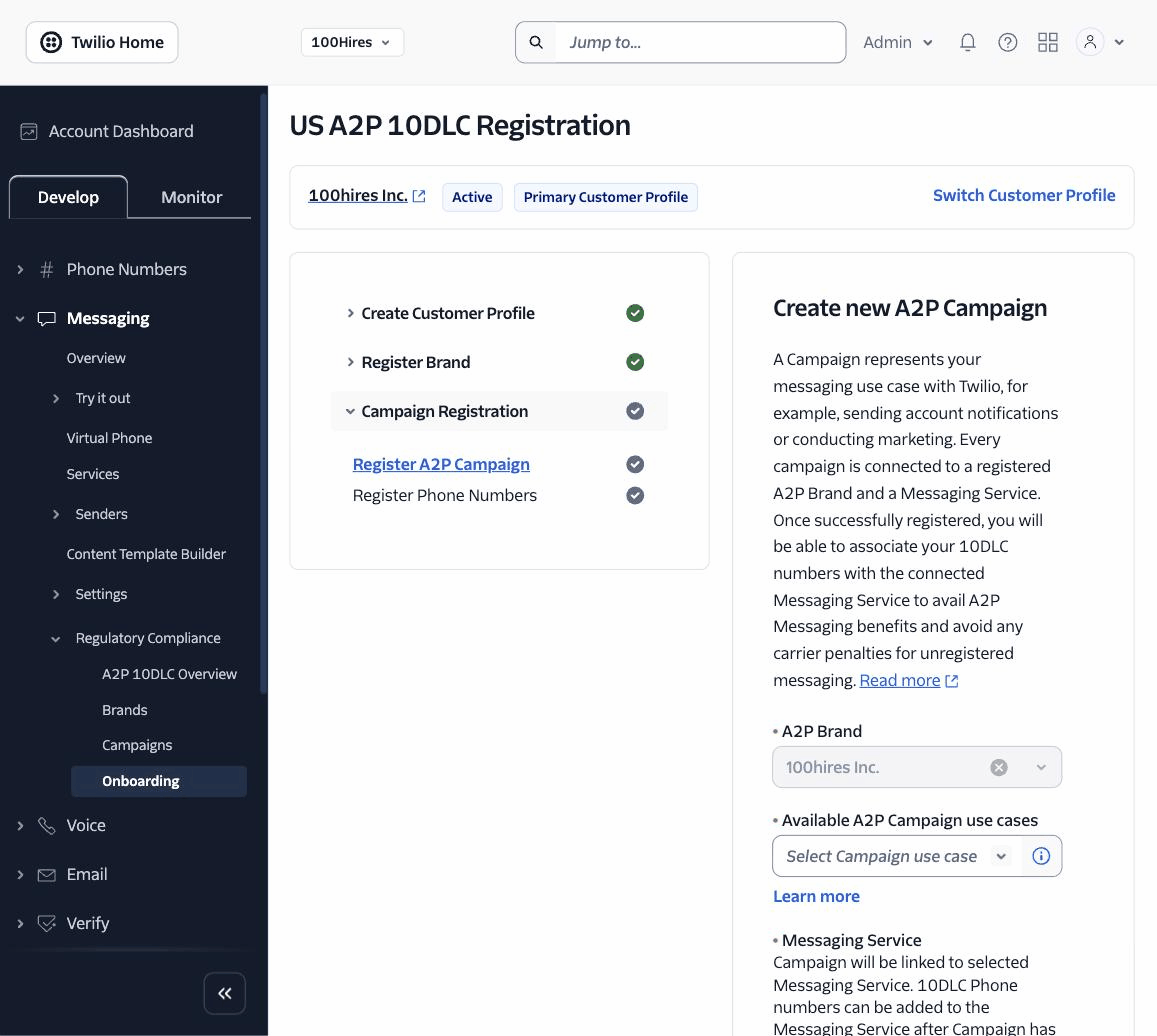
You do this in the Twilio Console, under Messaging > Regulatory Compliance > Onboarding, which walks you through each step.
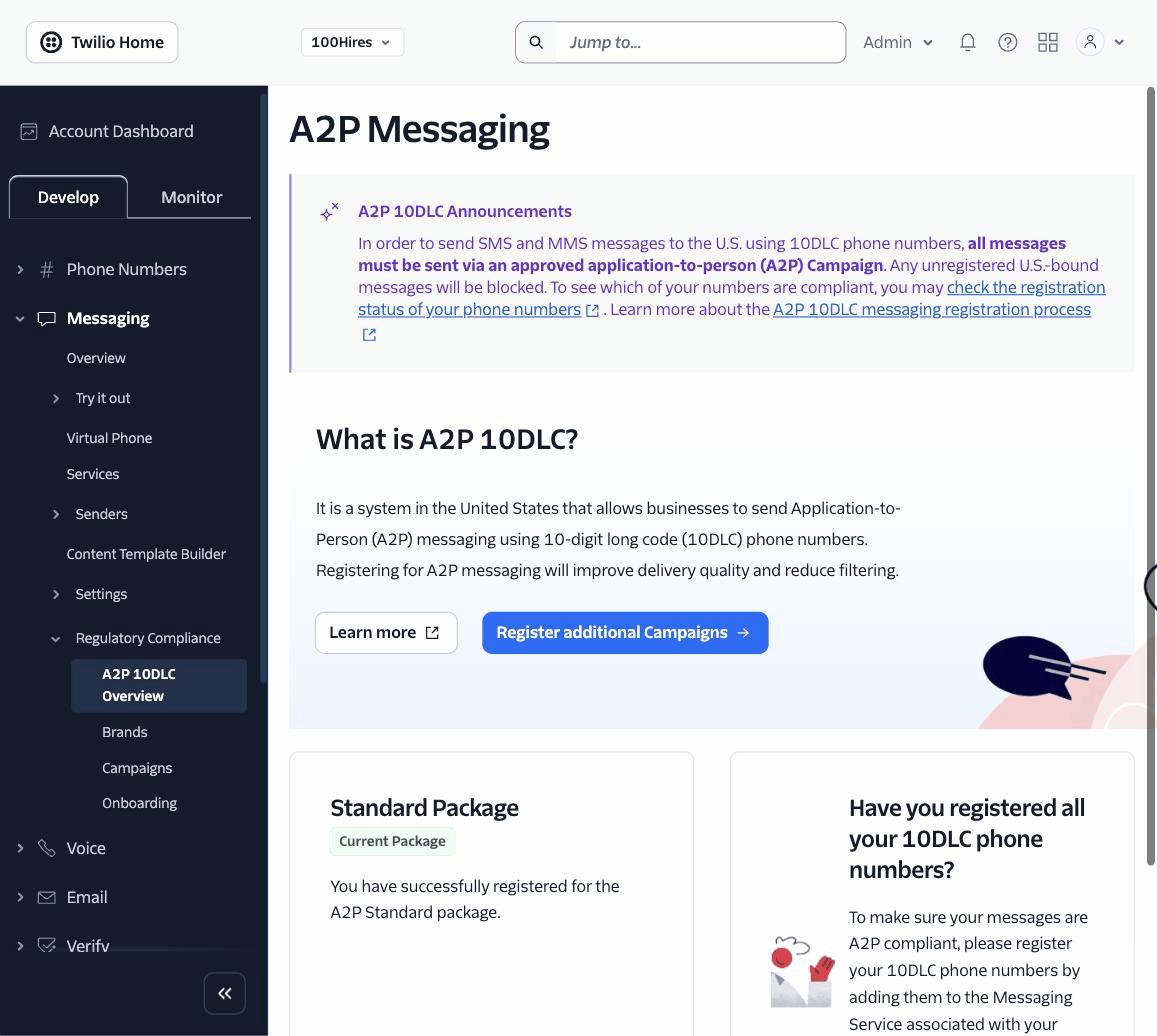
Before you start: upgrade to a paid Twilio account (trial accounts can't register) and buy a US 10DLC number with SMS and Voice enabled.
The four steps
- Create a Customer Profile. Complete your business profile - legal business name, address, website, and a business contact. This is your Trust Hub customer profile.
- Register your Brand. Submit your business details plus your business Tax ID - an EIN for US companies (or a Canadian Business Number). TCR usually approves brands within a few minutes. You'll complete a verification step: Standard and Low-Volume Standard brands verify through their business contact, while Sole Proprietors confirm a one-time code sent to a mobile number.
- Register a Campaign (your use case). During campaign registration you select or create a Twilio Messaging Service the campaign will run on, and you describe how you'll text candidates. Campaign review currently takes several days - often around 10-15 days because of registration volume.
- Add your number to the Messaging Service. Put your 10DLC number in the Messaging Service's sender pool so approved traffic can send from it. You can add the number during registration or once the campaign is approved.
Which registration type? A US or Canadian business with a Tax ID (EIN / Canadian Business Number) registers as a Standard brand - or Low-Volume Standard for lighter volume. Sole Proprietor is only for a US or Canadian individual or sole proprietorship that has no business Tax ID.
Choosing your campaign use case
There is no "Recruiting" or "Human Resources" use case - don't go looking for one. Pick the use case that matches your brand type and what you actually send:
- Standard brands: recruiting traffic usually fits Mixed, since you're blending application updates, scheduling, and outreach. If you only send promotional job blasts, that's Marketing.
- Low-Volume Standard brands: use Low Volume.
- Sole Proprietor brands have their own use case.
What your campaign needs
- A clear campaign description - avoid one-word answers.
- Two sample messages that show your business name and an opt-out option (for example, "Reply STOP to unsubscribe").
- A message flow (40-2,049 characters) describing exactly how candidates opt in.
Document how candidates opt in
This is where most registrations fail. Twilio's reviewers verify your opt-in process, so give them evidence that matches where the opt-in actually happens.
Where candidates opt in | What to provide |
|---|---|
Public website or careers form | A URL to the page - it must load without a login |
Form behind a login | A screenshot hosted at a publicly viewable link (for example, Google Drive set to "anyone with the link can view") |
Application form | A screenshot showing the opt-in checkbox |
Verbal consent | The full script of what you say and how the candidate confirms |
Your message flow must cover the opt-in method, clear opt-in language (no pre-checked boxes), message frequency, a "message and data rates may apply" statement, and a working link to your opt-in page or screenshot.
Example message flow for a recruiting team:
Candidates opt in to receive recruitment messages by providing their phone number during the job application process at yourcompany.com/careers. The application form displays: "By providing your phone number, you consent to receive SMS messages about your application status and job opportunities. Message frequency varies. Message and data rates may apply. Reply STOP to opt out. Reply HELP for help. Privacy Policy: yourcompany.com/sms-privacy. Terms: yourcompany.com/sms-terms." Candidates may also opt in by texting JOIN to our recruitment number.
Privacy policy and terms
Registrations without both a privacy policy and terms get rejected, and both links must load without a login.
Your privacy policy must include what data you collect and how you use it, message frequency, a "message and data rates may apply" disclosure, and - required by CTIA - a statement that mobile information will not be shared with third parties for marketing purposes.
Your terms should include your program or brand name and description, the rates disclosure, message frequency (for example, "Message frequency varies based on application activity"), a support contact, HELP and STOP instructions in bold, a link to your privacy policy, and a note that carriers are not liable for delayed or undelivered messages.
Tip: create dedicated pages - for example /sms-privacy and /sms-terms - instead of editing your main company documents. They're easier to keep current when requirements change.
Consent rules
- Transactional messages (interview confirmations, application updates, scheduling) need basic consent. A phone number given during an application can count, as long as you disclosed it properly.
- Marketing messages (promotional job alerts) need explicit, documented consent - a checkbox, form submission, or keyword opt-in.
- Consent must be voluntary. Never require an opt-in to complete an application.
- Consent is campaign-specific. Consent for application updates does not cover promotional job alerts.
- Pre-checked opt-in boxes are not allowed and will get you rejected.
Common rejection reasons
Issue | Fix |
|---|---|
Missing privacy policy | Create one and link it |
Missing terms and conditions | Create a terms page and link it |
Pre-checked opt-in box | Leave the checkbox unchecked by default |
Links not publicly accessible | Make sure every URL loads without a login |
Vague message flow | Spell out the opt-in process specifically |
Non-English disclosures | Include an English translation |
Registration runs through Twilio, but approval is decided by TCR (and, for some use cases, the carriers) - not by Twilio or 100Hires. For field-by-field detail and the current screens, see Twilio's A2P 10DLC registration quickstart and campaign approval best practices. Still stuck? Email support@100hires.com.
Compliance notes
- Complete A2P 10DLC before sending SMS to US recipients.
- Follow local SMS consent and opt-out rules.
- Check call-recording consent laws before recording calls.
Troubleshooting
- Forwarding or voicemail won't activate? If your Twilio number already has a custom TwiML App on its voice webhook, 100Hires won't overwrite it. Remove the custom voice app from the number first.
- Incoming call from an unknown number? If the caller doesn't match any candidate, the call is still logged, but no candidate-linked notification or Discussion timeline event is created.
Updated on: 24/07/2026
Thank you!