
Migrating from Workable to 100Hires
Migrating from Workable to 100Hires
This guide explains how to plan a support-assisted migration from Workable to 100Hires. 100Hires has standard scripts for migrations from popular ATS systems, but the exact scope depends on what your Workable export contains and how your current workspace is configured.
Do not shut down your source ATS until your team has reviewed a sample import in 100Hires and confirmed that candidate history, attachments, jobs, stages, notes, tags, and owners are usable.
What can be migrated
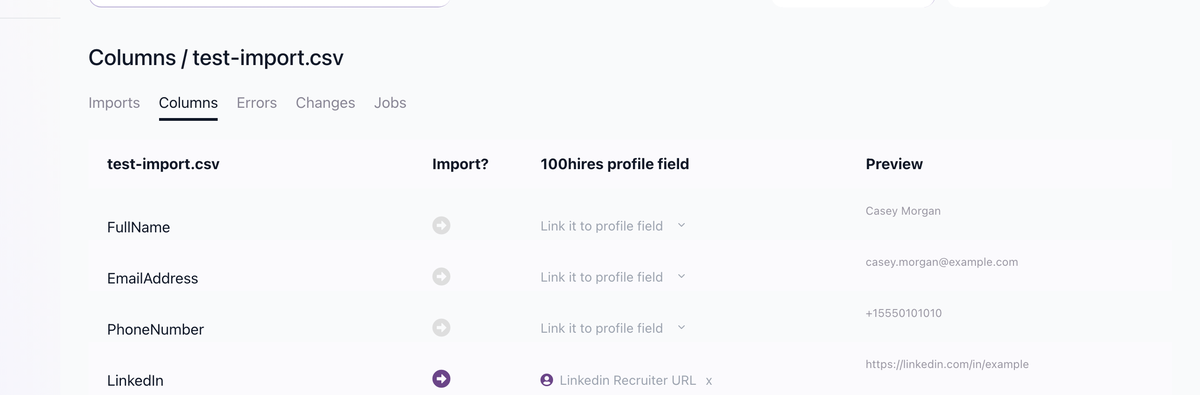
A typical migration review includes:
- Candidates and applications
- Resumes, cover letters, and attached files where the export includes them
- Jobs, locations, and current status
- Pipeline stages and application stage history
- Notes, tags, sources, and owner assignments
- Evaluation history or scorecard exports when available
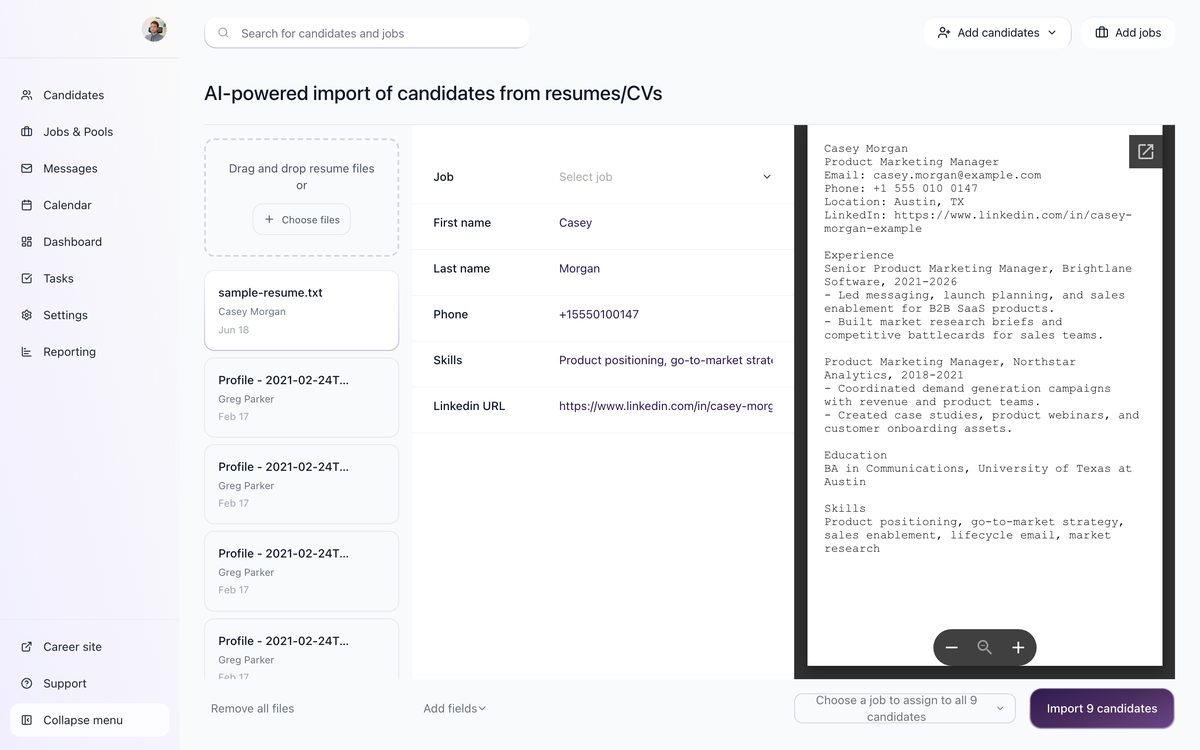
- Custom candidate or job fields that should become 100Hires profile fields or job variables
The support team confirms field-by-field mapping before import. Some items may need to be recreated manually if the source export does not expose them in a structured format, for example complex approval chains, marketplace app settings, or vendor-specific report layouts.
Feature mapping
Workable concept | 100Hires feature | Migration note |
|---|---|---|
Jobs and openings | Jobs | Job title, description, location, status, and hiring team can be reviewed for import |
Candidates and prospects | Candidates and Talent Pools | Active applicants and sourced candidates can be separated during mapping |
Application stages | Workflow stages | Recreate only stages your team still uses |
Scorecards or interview feedback | Evaluation Forms and candidate Discussion | Use structured Evaluation Forms for future feedback |
Custom fields | Profile Fields or Custom Job Variables | Candidate-level fields belong in Profile Fields; job-specific values belong in custom variables |
Job posts | Career Site and Job Boards | Public jobs can be posted to supported boards from 100Hires |
Email templates | Email Templates and Nurture Campaigns | Template variables should be rebuilt in 100Hires syntax |
Integrations | Settings > Integrations | Reconnect mail, calendar, Slack, Zoom, Twilio, Zapier, and other tools as needed |
How to start
- Email support@100hires.com.
- Include the ATS you are migrating from, approximate counts of candidates and jobs, and which data must move.
- Export a small sample first if possible.
- Confirm the mapping for candidates, applications, jobs, stages, files, tags, notes, and custom fields.
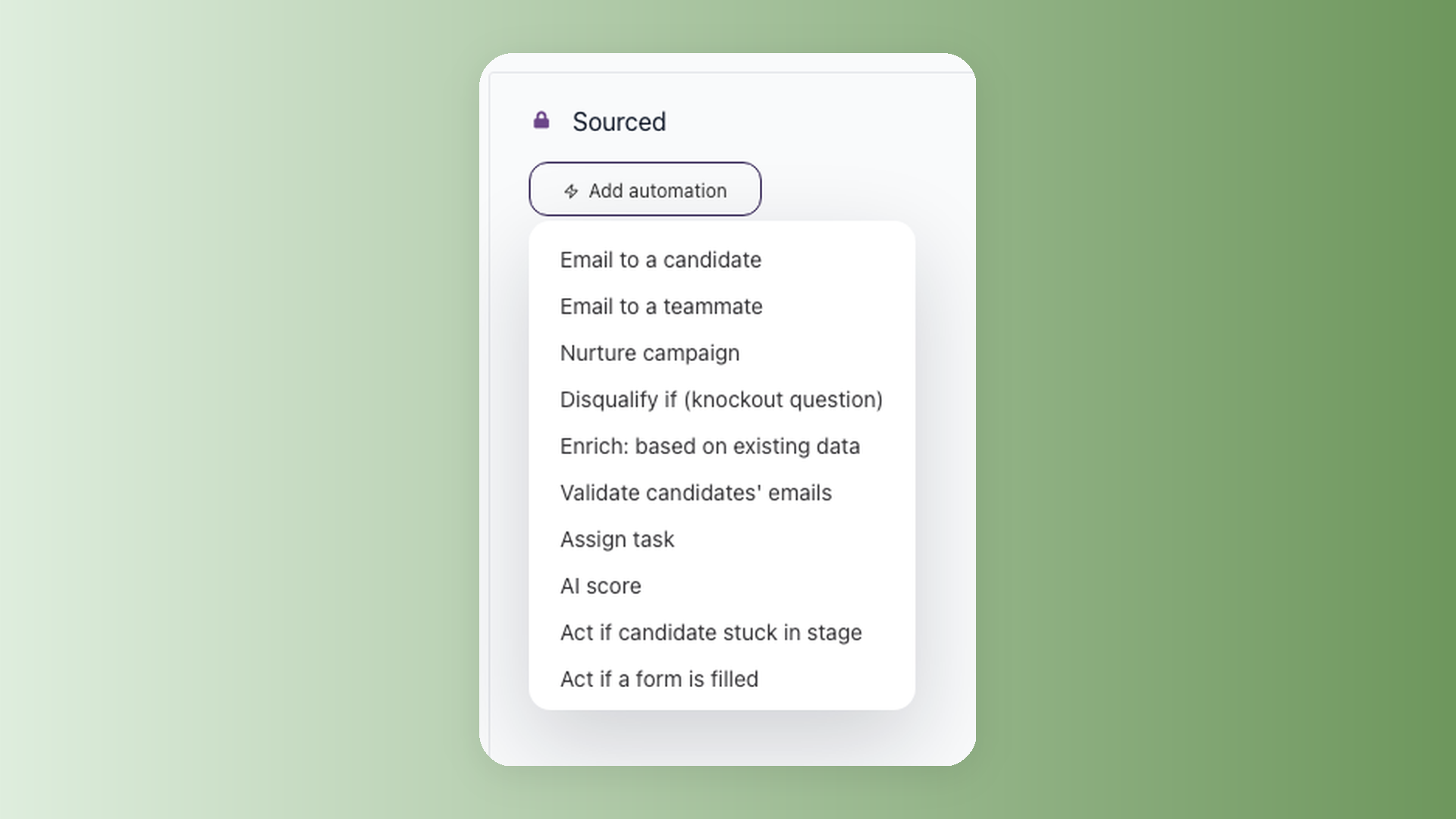
- Run the import, review the result in 100Hires, and only then plan the final cutover.
The timeline is scoped after the export is reviewed. Data volume, attachment size, custom fields, and cleanup work affect the schedule.
Cutover checklist
- Reconnect Gmail or Outlook before sending candidate messages.
- Connect Google Calendar or Outlook Calendar before scheduling interviews.
- Rebuild key workflows and stage automations on the Workflow tab.
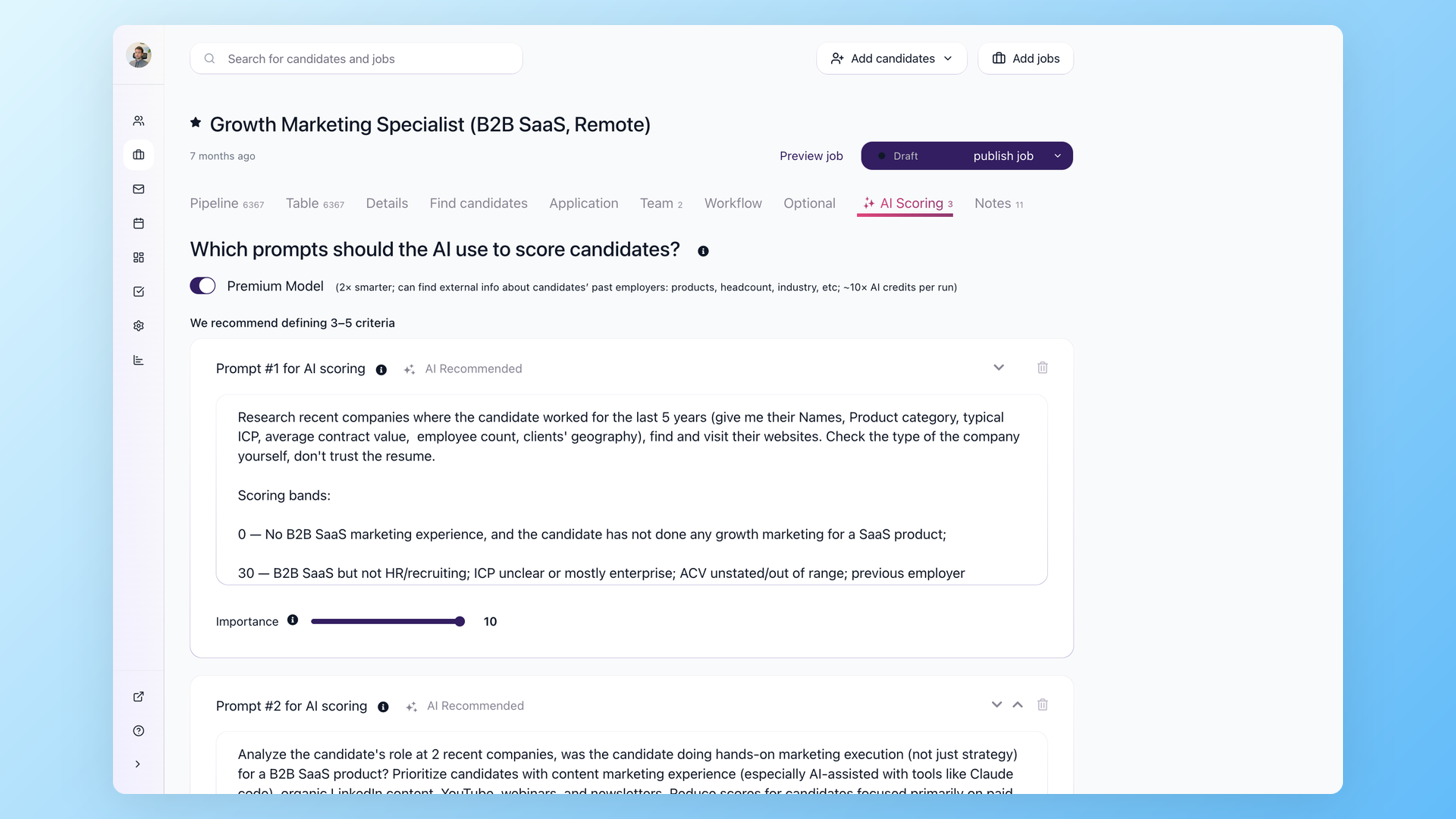
- Recreate AI Scoring criteria for active jobs instead of importing old score rubrics blindly.
- Check public career-site branding, logo, and job board settings before publishing.
- Spot-check candidates from several jobs, including old and recent applications.
100Hires can help with the migration mechanics, but your team should still validate the imported data before using it for live hiring decisions.
Updated on: 05/08/2026
Thank you!