
Custom Job Variables for Email and SMS Templates
Custom Job Variables for Email and SMS Templates
Custom job variables let you put job-specific content (salary range, benefits, perks, location-specific details) inside reusable email and SMS templates. The same template can read different values for each job - so a single Sourcing Outreach template can mention the right salary range and benefits depending on which job a candidate is assigned to.
This is the difference between sending generic outreach to every candidate and sending per-job, per-role outreach without rewriting the template each time.
Create a custom job variable on a job

Custom variables live on the job, not on the template. Each job defines its own values, and the template reads them.
- Open the job.
- Click the Options tab in the job's sub-navigation.
- Scroll to "Custom job variables to insert in email and SMS templates".
- Click the dropdown and start typing the variable name (for example,
salary_range). - Click "Add new custom job variable".
- Enter the content for this job (for example,
$110k - $140k base, plus equity and full benefits). - Save.
Repeat for every variable you want this job to expose - one for salary range, one for benefits summary, one for relocation policy, and so on.
Use the variable in a template
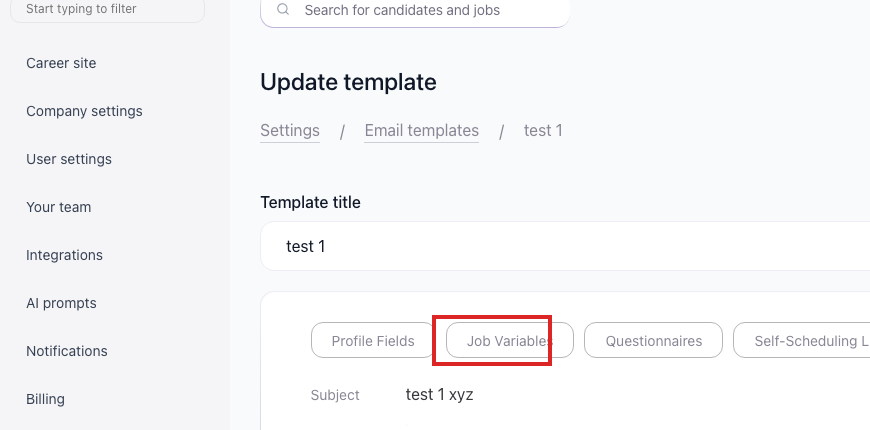
- Go to Settings > Email Templates (or SMS Templates).
- Create or edit a template.
- Click the Job Variables button in the template editor.
- Select the variable you want to insert. A placeholder is inserted into the editor that auto-populates based on the job.

- Save the template.
When you send the template to a candidate, the system reads the variable from the job that candidate is assigned to and substitutes the value before sending. The same template works for every job - no editing required.
Common use cases
- Sourcing outreach with per-job salary and benefits. One template, many jobs, each with its own pitch.
- Per-job perks. Remote-friendly jobs, relocation-supported jobs, equity-bearing roles - all readable from the same template.
- Location-specific details. Office address, on-site days, regional pay band.
- Job-specific deadlines. Application window or interview cycle dates.
Managing variables across jobs
- Variables are job-scoped. Each job defines its own values, so changing the value on one job does not affect another.
- Define the variable on every job whose candidates will receive a template that references it, so the placeholder always has a value to substitute.
- Pick a stable variable name early and keep it consistent across jobs, so the same template works everywhere.
- For a new job similar to an existing one, the fastest setup is to clone the job and adjust the values for the new role.
Combining with other template insertions
The template editor supports several types of insertions you can mix in a single message:
- Candidate fields (such as first name, last name, current title).
- Job variables - job-specific salary range, benefits, and other per-job content.
- Questionnaire links - a unique link to a screening questionnaire for that candidate.
- Self-scheduling links - a link for the candidate to book an interview slot.
That combination is what turns a one-off email into a sourcing system that scales across roles.
Updated on: 18/06/2026
Thank you!