
How to Set Up Email Templates
How to Set Up Email Templates
Create reusable email templates to save time and ensure consistent communication with candidates.
Creating a Template
- Go to Settings / Email Templates
- Click Add Template
- Enter a template name (for your reference)
- Write the email subject line
- Compose the email body
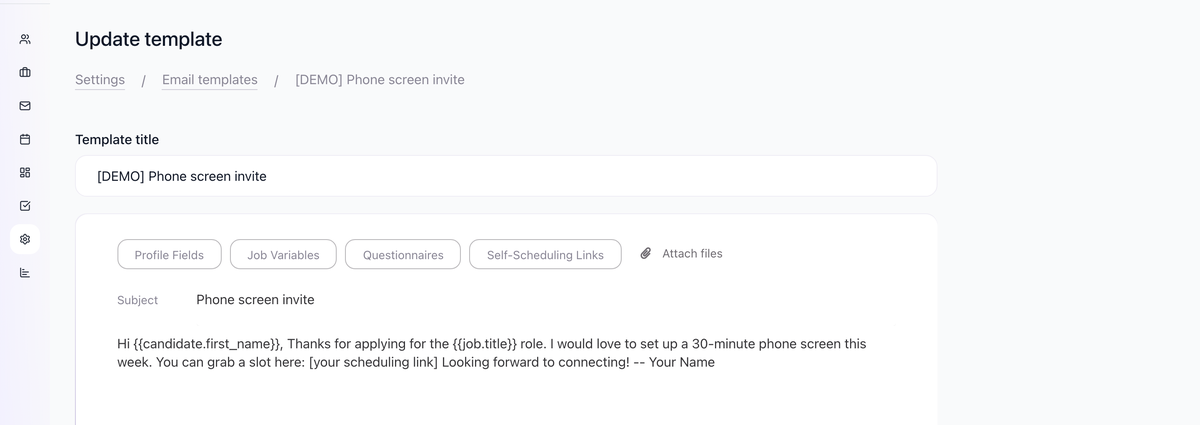
- Click Save
Using Variables
Insert dynamic content that personalizes each email:
- In the template editor, click Profile Fields, Job Variables, Questionnaires, or Self-Scheduling Links depending on what you want to insert
- Select a variable to insert

- The placeholder appears in your template

- When sent, it's replaced with actual values
Common Variables
Variable | Inserts |
|---|---|
| Candidate's first name |
| Last name |
| Job position |
| Job location |
| Your company name |
| Your first name |
Adding Questionnaire Links
Insert a unique questionnaire link for each candidate. Forms are created in Settings / Forms and become "Questionnaires" when sent via email link.
- Click Questionnaires button in the editor
- Select a form from your list (created in Settings > Forms)

- Placeholder is inserted
- Each candidate receives their own unique link
Adding Self-Scheduling Links
Insert your scheduling link:
- Click Variables button
- Select self-scheduling link variable

- Uses the sender's scheduling URL
Formatting Options
The editor supports:
- Bold, italic, underline
- Headers
- Bullet and numbered lists
- Links
- Code blocks
Template Organization
Use clear naming conventions:
- "Outreach - Senior Developer"
- "Follow-up - No Response"
- "Interview Confirmation"
- "Rejection - After Phone Screen"
Using Templates
Manual Emails
- Open candidate profile
- Go to Messages tab
- Click compose
- Select template from dropdown
- Edit if needed
- Send
In Automations
- Add Email to Candidate automation
- Select template

- Emails send automatically
In Nurture Campaigns
- Add email step
- Select template

- Part of automated sequence
Tips
- Create templates for each stage of your process
- Use variables to personalize without manual editing
- Keep templates focused and concise
- Test templates by sending to yourself first
- Update templates based on response rates
Updated on: 07/08/2026
Thank you!