
Email Strategy and Best Practices
Email Strategy and Best Practices
The full email stack
Email is the connective tissue of every recruiting workflow in 100Hires. Whether you are sourcing 200 cold leads, nudging applicants through a pipeline, or sending a final offer, the same four building blocks combine to do the work. Templates carry the content. The carousel keeps your sending reputation healthy at volume. Nurture campaigns string emails into multi-step sequences. Automations fire those emails the moment a candidate hits a stage. This article walks through the recommended order to set them up, and ends with a sourcing playbook that puts all four into one motion.
Step 1: Connect your mailbox

Before anything else, connect a real mailbox in Settings > Integrations. 100Hires supports Gmail (including Google Workspace) and Outlook. Once your mailbox is connected, two-way sync activates - emails you send from 100Hires show up in your normal mailbox, and replies from candidates appear inside the candidate profile.
Connect the mailbox you actually want candidates to see in their inbox - a recruiter alias on your company domain works far better than a personal Gmail. For setup details, see the Gmail and Outlook integration article.
Step 2: Build your template library

Open Settings > Email Templates and create reusable content blocks for the moments you write the same email twice. Common starters: sourcing outreach, application received, interview invite, reference request, offer letter, polite rejection.
The trick that makes templates pay off is placeholders. Instead of typing the candidate's name or the job's salary range, drop in a placeholder and 100Hires fills it in at send time:
- Profile Fields - candidate first name, last name, current company, location, any custom field you have defined.
- Job Variables - job title, location, salary range, hiring manager, or any custom job variable you have configured (see the Custom Job Variables article).
- Questionnaires - insert a unique questionnaire link so each candidate gets their own version of a screening form you can reference in a follow-up (see the Question Types article).
- Self-Scheduling Links - inject a personal Calendly-style link so the candidate can book a slot directly from the email.
A small library of well-written templates with placeholders covers most of the volume in a typical recruiting team.
Step 3: Carousel for volume
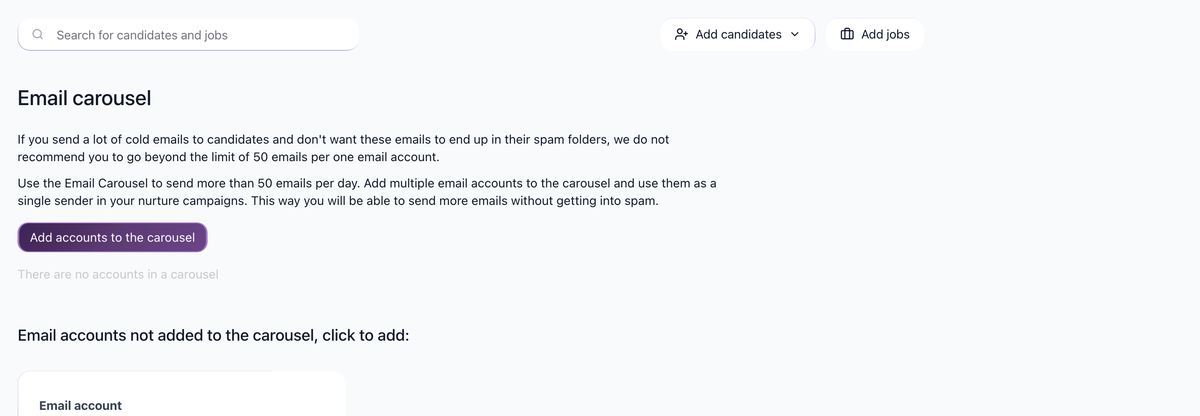
When you send high volumes from a single mailbox, you start to look like a cold-outreach machine to inbox providers. Gmail and Outlook both throttle and spam-classify mailboxes that send too much, too fast, from a cold reputation. For example, one mailbox with a 50 emails/day limit would take many days to send a large multi-step sequence. 100Hires can adjust sending limits based on warm-up stats.
The Email Carousel rotates your sends across multiple connected mailboxes. You add several mailboxes (often a mix of recruiter aliases on the same domain), 100Hires spreads the outgoing volume across them, and each mailbox stays under its safe per-day threshold. The carousel also runs automatic email warm-up and adjusts daily sending limits based on warm-up stats. For warm-up details, see the Email Carousel Warm-up Setup article.
Step 4: Nurture for sequencing
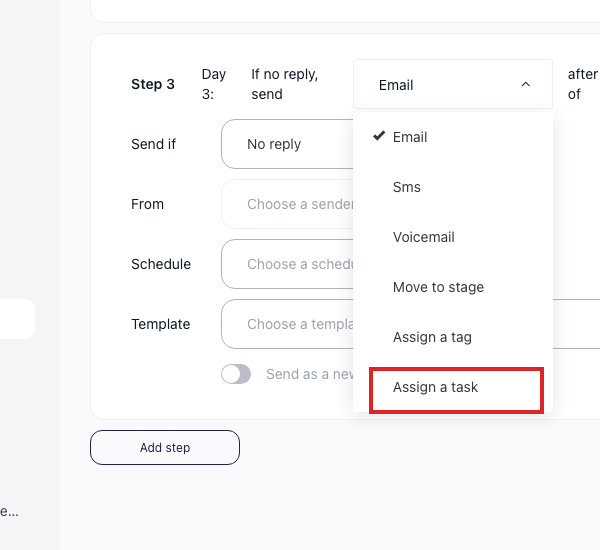
A single email rarely converts a sourced candidate. Nurture campaigns let you string a sequence together: email today, wait a few days, send a reminder, wait a few more, send a break-up email, hand the candidate off to a teammate.
A nurture step can be any of:
- Email - using one of your templates from Step 2.
- SMS - short text message, useful for high-intent moments like interview reminders.
- Voicemail - drop a pre-recorded voicemail without ringing the candidate.
- Move to stage - advance the candidate inside the pipeline.
- Assign a tag - label candidates who reached a certain step.
- Assign a task - hand a manual to-do to a teammate (for example, "call this candidate" after they ignored two emails).
You can also use the "If candidate responds, move to stage" toggle so replies pull the candidate out of the sequence into a separate stage, instead of continuing to receive follow-ups. For the full list of step types, see the Nurture Campaign articles.
Step 5: Automations for triggers
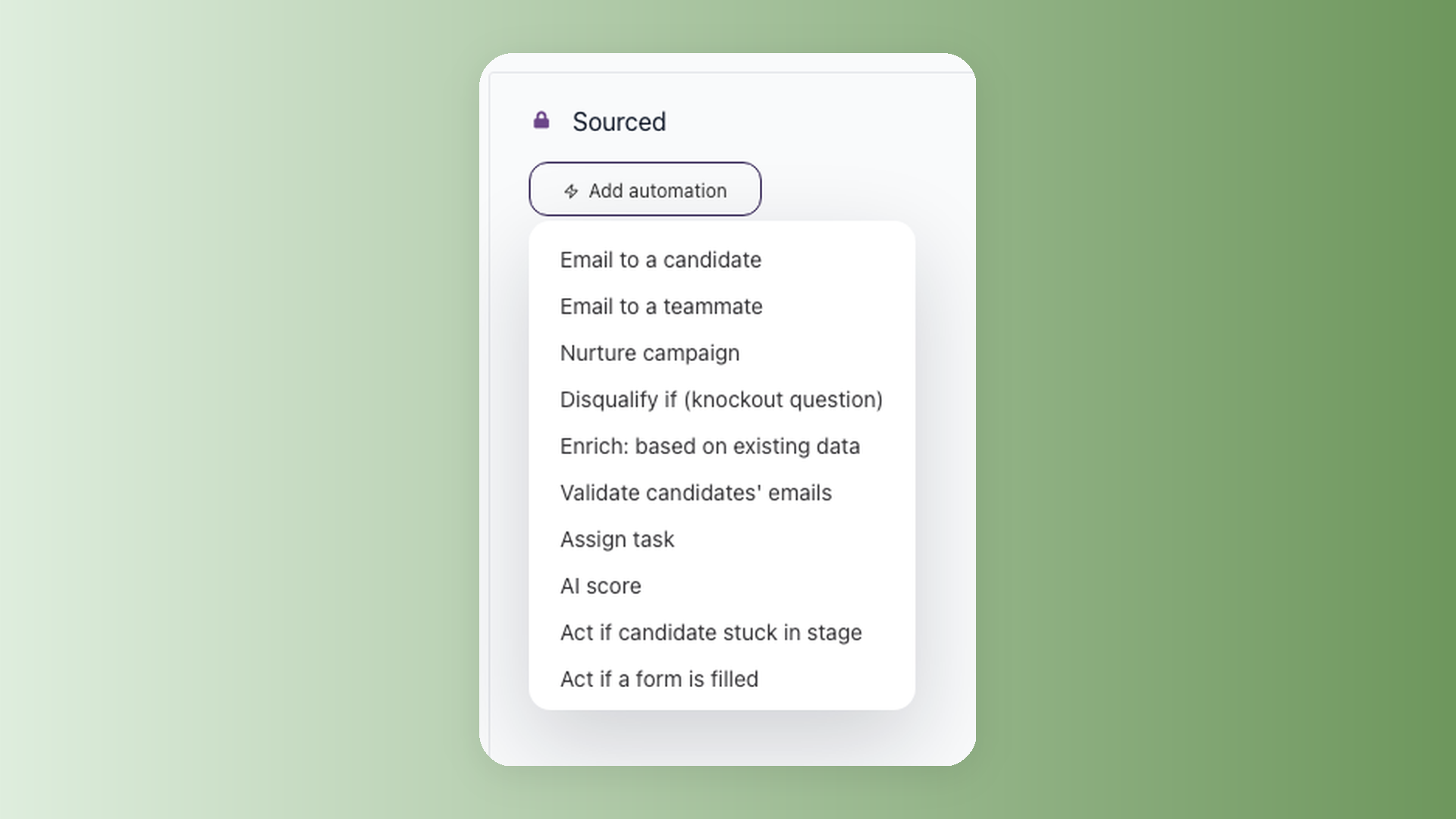
Templates, carousel, and nurture campaigns all need someone to start them. Automations remove the manual trigger. On any job's Workflow tab, click the bolt icon on a pipeline stage to attach automations. When a candidate enters that stage - dragged manually or moved by an AI score - the automation fires.
The two email automations you will use most often:
- Email to Candidate - sends a chosen template to the candidate the moment they reach the stage, with a configurable delay (immediately, hours, same day, next day, etc.). Perfect for "Application received" on Applied, or "Booking link" on Phone Screen.
- Email to Teammate - notifies the hiring manager or recruiter that a candidate moved into a stage that needs their attention.
Automations can also assign tasks, add tags, or kick off a nurture campaign - see the Workflow article and the Assign Tasks Automatically article.
Putting it together: a recommended sourcing playbook
Here is how the four blocks combine on a realistic 200-candidate outreach.
- Connect your mailbox in Settings > Integrations (Step 1).
- Build a "Sourcing Outreach v1" template that uses Job Variables for the role title and salary range, and a Profile Field for first name (Step 2).
- Add multiple mailboxes to the carousel - your own recruiter alias plus teammates - so the 200 sends spread out and stay under each mailbox's safe daily limit (Step 3).
- Create a nurture campaign: Day 0 sends the Sourcing Outreach template, Day 3 sends a soft reminder template, Day 7 sends a break-up email and assigns a "no-response-7d" tag (Step 4).
- Import the 200 sourced leads into the job and assign them to the nurture campaign in one click.
The result: 200 personalized, throttled, multi-step emails go out over several days without anyone writing a manual message. Replies surface inside the candidate profile. Anyone who books a call moves into the next stage automatically, where a stage automation can fire the interview-prep email.
Deliverability best practices
A few habits keep this whole stack out of the spam folder:
- Warm up new mailboxes through the carousel before pointing real volume at them. Sending a wave of cold emails from a brand-new mailbox increases spam-placement risk. 100Hires adjusts limits automatically as warm-up stats improve.
- Let the daily sending limit grow gradually instead of pushing it up manually before your reply rate is healthy. Setting limits too high on a cold mailbox sends emails straight to spam.
- Monitor scheduled emails and bounces via Settings > Integrations > Email stats. Pause any mailbox whose reply rate craters or bounce rate spikes.
- Complete A2P 10DLC registration with Twilio before sending SMS steps to US numbers. Without it, US carriers will silently drop a large share of business SMS - contact support if you need help with the verification setup.
- Always include a real opt-out in cold-outreach templates - one line like "reply STOP and I will not contact you again."
Treat email as a system. Templates, carousel, nurture, and automations are designed to be set up once and rerun forever - the first hour of configuration pays back across every job you open in 100Hires.
Updated on: 18/06/2026
Thank you!