
How to Claim Your Indeed Company Page and Match It in 100Hires
100Hires sends your public jobs to Indeed automatically. On Indeed, your jobs sit under a Company Page for your business, and that page can be claimed by an employer account. Claiming yours puts the page under your control and links it to the account you post from.
Before a job is sent to Indeed, 100Hires checks your company profile. If something is missing, the job's Find candidates tab says so:
Indeed & Glassdoor: Upload your company logo and ensure the company name matches your Indeed profile
This article covers both halves: claiming the page on Indeed, and lining your 100Hires profile up with it.
Step 1: Find your Company Page on Indeed
Go to indeed.com/companies and search for your business name. Open the result that matches you.
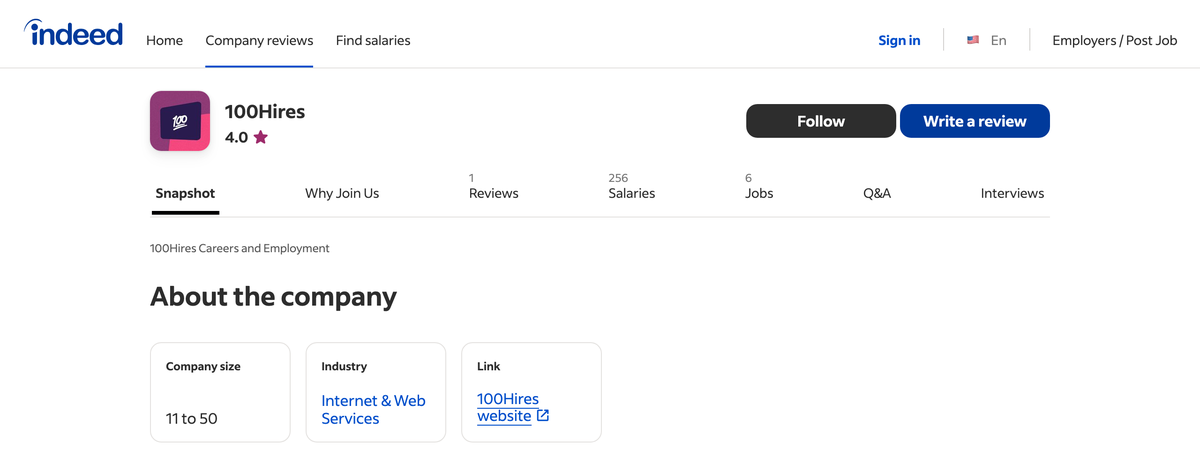
Look directly under the company name. A page labelled Unclaimed has not been claimed by an employer account yet, so you can claim it. A page with no such label has already been claimed, as in the example above — if that is your page but you cannot reach it from your employer account, contact Indeed support to sort out access.
Search for variations of your name as well — you may find more than one page for the same business. Note which page carries your reviews, salary data and existing jobs, and write down its name exactly as Indeed spells it. You will need it in Step 3.
Step 2: Claim the page
If you already have an Indeed employer account and have posted a job on Indeed from it, your Company Page is claimed for you automatically and tied to that account. There is nothing more to do here.
If the page is labelled Unclaimed:
- Open your Company Page on Indeed.
- Go to the Why Join Us tab.
- Select Claim this Company Page and confirm.
Your employer dashboard is at employers.indeed.com.
If Indeed has no page for your business at all
Unlike LinkedIn, you cannot create an Indeed Company Page by filling in a form. Indeed generates the page itself, and it appears the first time a job is published for your business from an employer account. So if your searches in Step 1 turned up nothing, there is no page to claim yet and nothing has gone wrong.
What to do instead:
- Create an employer account at employers.indeed.com using your work email, not a personal address.
- Finish Steps 3 and 4 below so your company name and logo in 100Hires match the business Indeed will see.
- Publish a job. Once 100Hires sends it through, Indeed creates the Company Page and ties it to your employer account automatically, already claimed.
- Come back to indeed.com/companies, open your new page, and fill in the description, photos and work-culture sections. A page with nothing on it converts poorly.
Give it a little time before concluding the page is missing. Search several spellings of your name first, and remember that the page only appears after a job has actually gone out.
Step 3: Match the company name in 100Hires
The message on the job asks you to make your company name match your Indeed profile. In practice that means the name Indeed already has for your business: the name on the Company Page you just claimed.
Go to Settings → Career site and set Company name to that name, matching Indeed's spelling as closely as you can. It is worth checking Website at the same time and pointing it at a working site rather than a placeholder page.
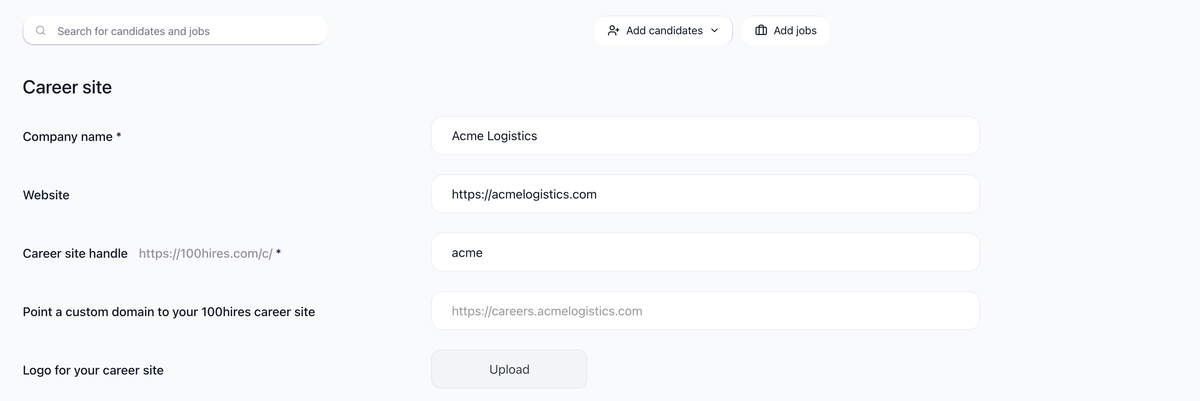
Click Save when you are done.
Step 4: Upload your logo
Until a logo is uploaded, 100Hires does not submit your jobs to Indeed. Everything else can be correct and the jobs will still not appear.
On the same Settings → Career site page, select Upload next to Logo for your career site, choose your image, then Save. Use the same logo as on your Indeed Company Page so candidates recognise you in both places.
Step 5: Confirm your jobs are reaching Indeed
Open a public job and go to the Find candidates tab. Every board reports its own status.
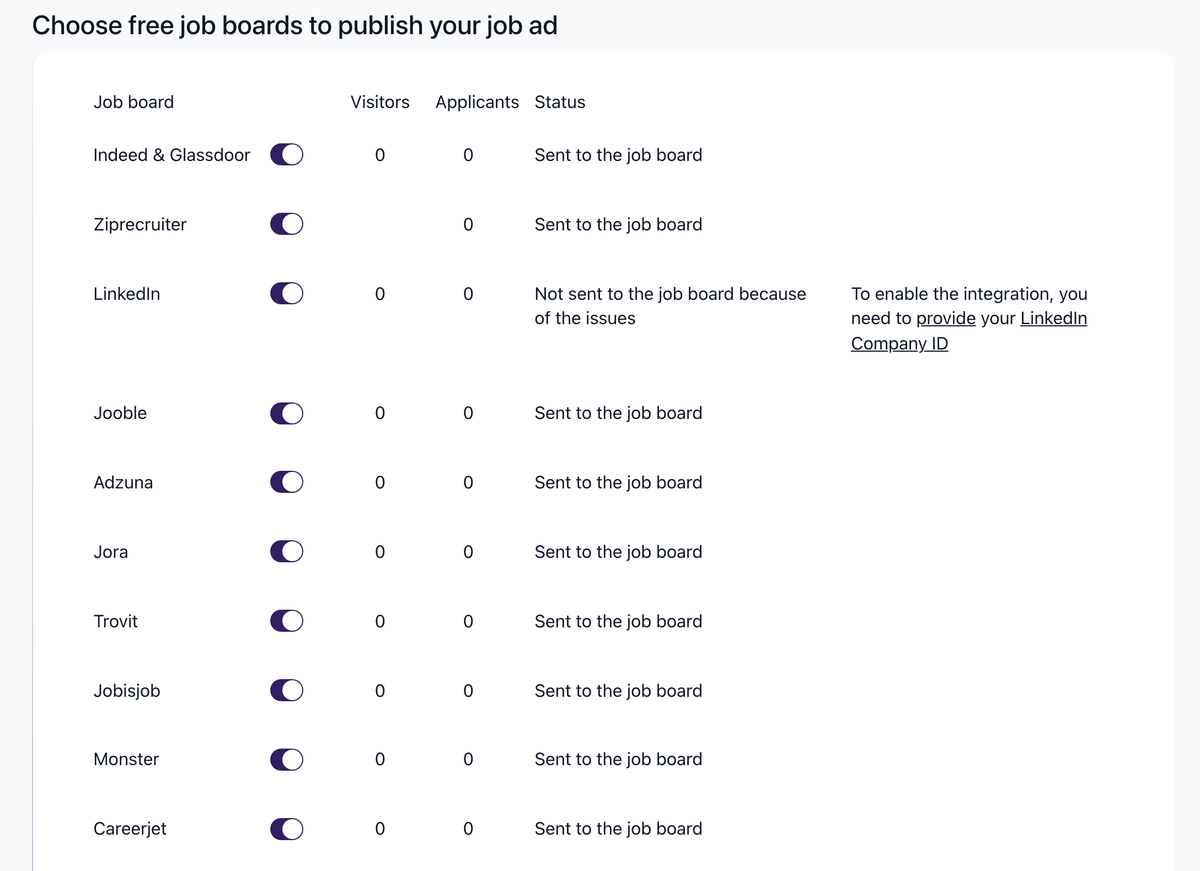
- Sent to the job board — the job has gone out. Some boards show Published instead.
- Not sent to the job board because of the issues — something still needs fixing. The reason appears in the column next to the status, and it is specific to that board.
Give it time before concluding something is broken. Jobs on a free trial go through a verification step that can take up to 72 hours — this is a check on the job before it is distributed, and it is separate from claiming your Company Page. Buying a subscription moves your jobs to the front of that queue. After verification, Indeed itself typically reflects new or edited jobs within about an hour.
Once the job is live, search for it on Indeed to see it the way a candidate would.
If your jobs still are not showing
- The name does not match. Compare the Company name in Settings → Career site against the name on your Indeed Company Page, and correct the 100Hires side.
- The job description is too short. Indeed needs at least 50 words. Other boards set their own minimums, from 10 words up to 100, so the reason you see differs from board to board.
- The location is incomplete. A city plus country is the minimum, and a full address is better even for remote roles, because it improves distribution.
- A required salary is missing. When Indeed needs a minimum salary for your role, you will see a prompt to add it, and the job is not submitted until you do.
- The job is not Public. Only Public jobs are sent to job boards. If the status column tells you to change the job status from Draft to Public, that is what is holding it back.
- You are posting from a personal email address. Indeed and LinkedIn both prefer an address on your company's own domain, and postings can be rejected without one.
- You are a staffing agency. Agencies may need additional verification before jobs are distributed.
Related articles
- Post Jobs to Indeed from 100Hires Automatically
- Job Post Quality Requirements: LinkedIn and Indeed Guidelines
- How to Link Your Indeed Employer Account
Updated on: 22/08/2026
Thank you!