
How to Set Up Your LinkedIn Company Page for Job Posting
No LinkedIn Company Page yet? Start with How to Create a LinkedIn Company Page for Job Posting and come back here afterwards. Everything below assumes the Page already exists.
Use this checklist when jobs sent from 100Hires do not appear on LinkedIn, or when LinkedIn asks you to confirm your company page before it accepts job posts.
100Hires can send the job data to LinkedIn when the job is published, LinkedIn is enabled in job board settings, and the company information is complete. LinkedIn can still apply its own review, company-page, and account requirements.
Before you start
- Make sure you have admin access to the LinkedIn company page, or ask a page admin to help.
- In 100Hires, confirm the job has a complete title, location, and description.
- Open the job board settings for the job and confirm LinkedIn is enabled.
Check that you are a super admin of the LinkedIn page
LinkedIn shows the job posting settings only to super admins of the company page. A content admin sees some settings, such as "Share new jobs", but does not see the job posting section at all. If the section described below is missing for you, this is the most common reason.
To check your role, open your LinkedIn company page, click Admin tools, choose Settings, and then choose Manage admins. Find your own name in the list and look at the role next to it.
If you are listed as a content admin, ask one of the super admins on that page to either change your role or complete the next step for you.
Turn on basic job posting and connect 100Hires
Since the end of March 2026, LinkedIn asks company page admins to switch this on before it will accept jobs from an applicant tracking system. It is a one-time setup, and it is required for pages that are new or that are receiving a free job post for the first time.
On your LinkedIn company page, open Settings, then Job posting, and:
- Switch Enable basic job posting to On.
- Click + Connect ATS.
- Select 100Hires from the list and confirm.
A 44-second video walkthrough of these steps is here: https://www.youtube.com/watch?v=J4n35F_rfZk
After you save, allow up to 24 hours for LinkedIn to pick up the jobs from 100Hires.
Check company information in 100Hires
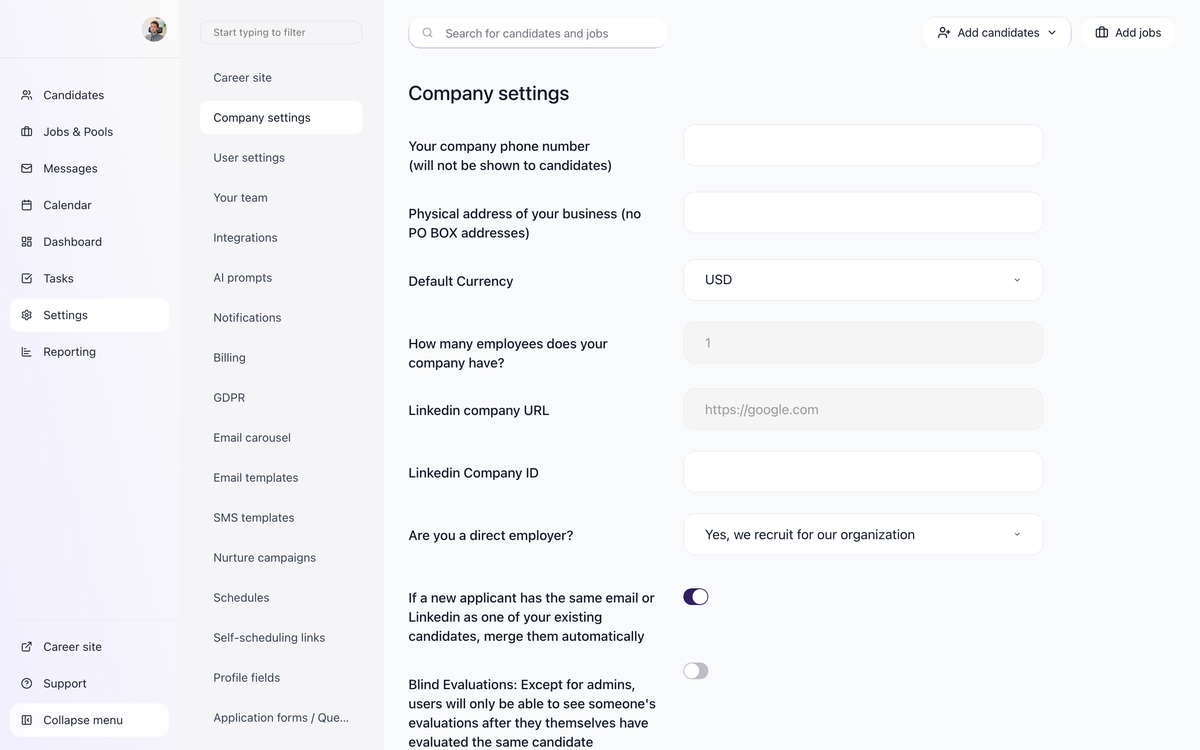
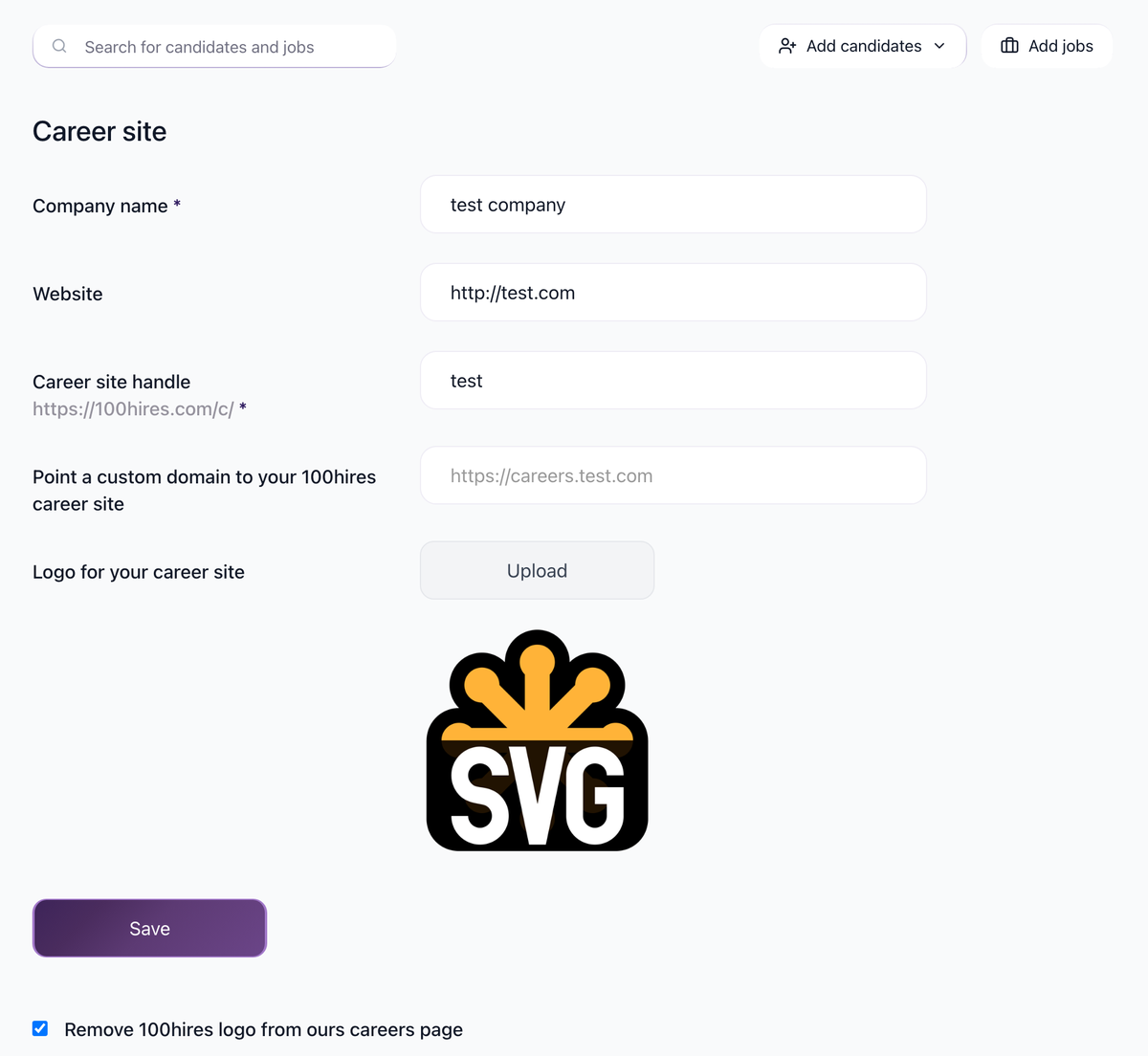
Open company settings and confirm the company name, website, logo, and public career site information are filled in. LinkedIn uses company information to match job posts to the correct company page.
Check the LinkedIn posting status
Open the published job ads or job boards area for the job and review the LinkedIn status or link, when one is available.

If the job still does not appear on LinkedIn
- Confirm the LinkedIn company page is active and publicly accessible.
- Confirm the job poster in 100Hires uses a company-domain email address. LinkedIn does not accept free email addresses such as Gmail or Yahoo on a job post.
- If LinkedIn asks for ATS connection or company-page verification, complete that step in LinkedIn with a page admin.
- Save the job again in 100Hires after updating company or job information.
- Allow time for LinkedIn processing. 100Hires cannot override LinkedIn review, ranking, or account restrictions.

What to send support
If you contact 100Hires support, include the job name, the 100Hires job URL, your LinkedIn company page URL, and a screenshot of the LinkedIn status you see in 100Hires. If the job posting section is missing on your LinkedIn page, also tell us which admin role you have on that page.
Updated on: 22/08/2026
Thank you!