
How to Customize Application Forms
How to Customize Application Forms
Configure which questions candidates answer when they apply to your jobs.
Application Forms vs Questionnaires
All forms are created in Settings / Forms. The same form becomes either an Application Form or a Questionnaire depending on how you use it:
Usage | Name | When Candidate Fills It |
|---|---|---|
Assigned to job's Application tab | Application Form | During initial job application |
Sent via email template link | Questionnaire | After applying, via unique link |
This article covers Application Forms. For Questionnaires, see "How to Assess Candidates with Questionnaires." |
Accessing Application Form Settings
For a Specific Job
- Open the job
- Go to the Application tab
- Edit form fields for this job

For All Jobs (Default Form)
- Go to Settings / Forms
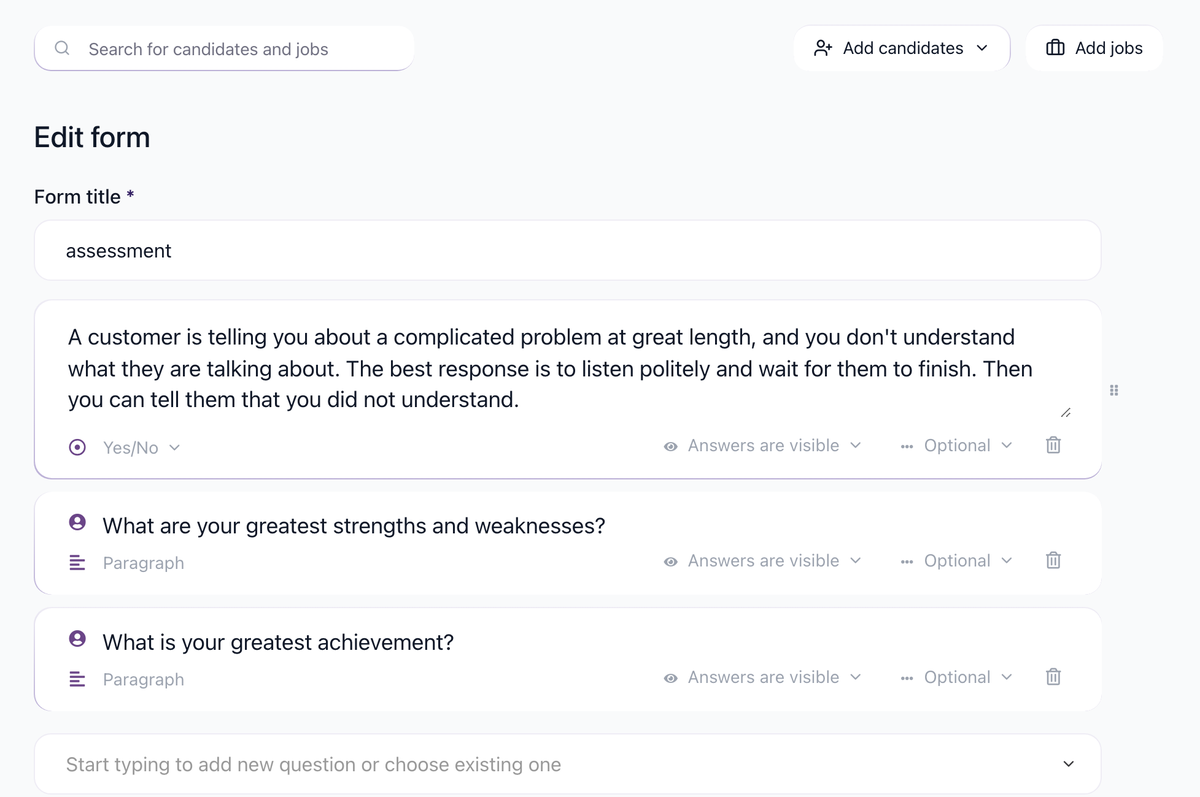
- Edit the default application form
- Changes apply to jobs using the default
Using Different Forms for Different Jobs
- Go to a job's Application tab
- Enable "Use different application forms for different jobs"

- Select an existing form from the dropdown, or

- Type a new name to create a new form

- Customize the form for this job
Adding Questions
- In the form editor, start typing to add new question or choose existing one

- Choose field type:
- Text: Short answer
- Textarea: Long answer
- Dropdown: Select from options
- Checkbox: Yes/No
- Number: Numeric input
- Date: Date picker
- File upload: Resume, portfolio, etc.

- Enter the question text
- Set as required, optional or hidden

Standard Fields
Common application form fields:
- First name (usually required)
- Last name (usually required)
- Email (usually required)
- Phone
- LinkedIn URL
- Resume upload
- Cover letter
Screening Questions
Add questions to pre-qualify candidates:
Yes/No questions (for knockout automation):
- "Are you authorized to work in [country]?"
- "Do you have a valid driver's license?"
- "Are you available to start within 2 weeks?"
Dropdown questions:
- Years of experience: 0-2, 2-5, 5-10, 10+
- Desired salary range
- Preferred work arrangement
Best Practices
Keep Forms Short
- 5-7 questions maximum
- Required fields only for essential info
- More questions = fewer applications
Move Complex Questions to Questionnaires
Instead of long application forms:
- Keep application short (name, email, resume)
- Send questionnaire after they apply
- Higher completion rates
- Can still use responses for AI scoring
Reordering Fields
Drag fields to reorder them. Put most important questions first.
Deleting Fields
Remove fields you don't need. Deleted fields won't affect existing applications.
Updated on: 07/08/2026
Thank you!