
How to View Job Change History
How to View Job Change History
Track all changes made to a job including field edits, status changes, and team activity.
Viewing change history
- Open the job
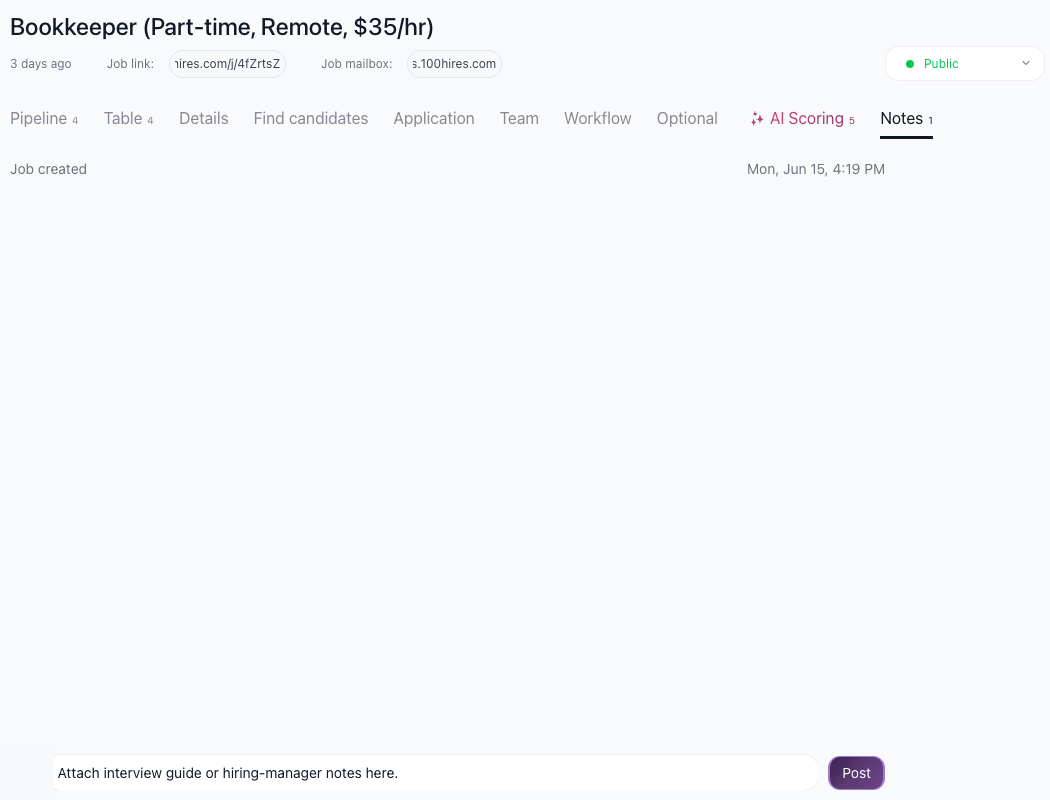
- Go to the Notes tab

- Scroll through the activity log
What's tracked
Job creation
- When the job was created
- Who created it
Status changes
- From Draft to Public
- Any status transitions
- Who made the change
- Date and time
Field edits
- Title changes
- Description edits
- Location updates
- Salary changes
- Any modified field
Team activity
- Notes and comments
- @mentions
- File attachments
Activity log format
Each entry shows:
- What changed
- Previous value (for edits)
- New value
- Who made the change
- Timestamp
Use cases
- Audit trail: See who approved job posting
- Version control: Track description changes over time
- Collaboration: See colleague comments and updates
- Troubleshooting: Find when settings were changed
Adding notes
Add your own notes to the history:
- Use the comment field at the bottom
- @mention colleagues to notify them
- Post comments about the job's progress
- Attach files with context
Filtering history
The Notes tab shows all activity chronologically. For specific information:
- Scroll through the timeline
- Look for specific change types
- Use browser search (Ctrl+F) to find keywords
Related screenshots
These screenshots show the 100Hires areas used in this workflow.

Updated on: 18/06/2026
Thank you!