
How to Handle Stuck Candidates
How to Handle Stuck Candidates
Get notified when candidates remain in a stage too long without progress.
What Are Stuck Candidates
Candidates become "stuck" when they remain in a pipeline stage beyond an expected timeframe. This often indicates:
- Waiting for feedback
- Forgotten follow-up
- Scheduling delays
- Decision bottlenecks
Setting Up Stuck Candidate Alerts
- Open a job
- Go to the Workflow tab
- Click the bolt icon on a stage
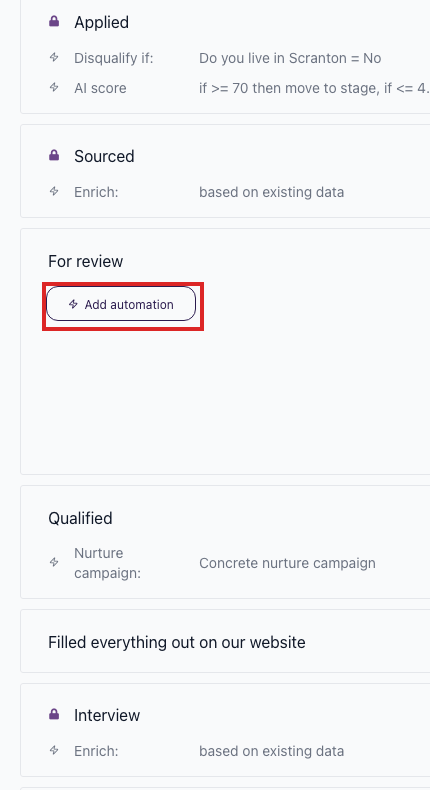
- Click Add Automation
- Select Act If Candidate Is Stuck

- Configure the trigger and action
Configuration Options
Days Until Considered Stuck
Set how many days a candidate can stay in this stage before triggering the alert.
Examples:
- Applied stage: 3 days
- Phone Screen: 5 days
- Interview: 7 days
- Offer: 3 days
Action When Stuck

Email to Teammate:
- Select recipient
- Customize message
- Include candidate link
- Set repeat frequency (e.g., every 3 days)
Move to Stage:
- Automatically advance or archive
- Use for: cleanup after extended periods
Disqualify:
- Auto-reject after timeout
- Use carefully, mainly for unresponsive candidates
Repeat Notifications
Set how often to resend alerts if candidate remains stuck:
- Every 1 day (urgent)
- Every 3 days (normal)
- Every 7 days (low priority)
- Never repeat
Example Configurations
Applied Stage
- Stuck after: 3 days
- Action: Email to recruiter "Review pending candidates"
- Repeat: Every 2 days
- Purpose: Prevent application backlog
Phone Screen Stage
- Stuck after: 5 days
- Action: Email to recruiter "Schedule phone screen"
- Repeat: Every 3 days
- Purpose: Keep screening moving
Waiting for Feedback Stage
- Stuck after: 2 days
- Action: Email to hiring manager "Submit interview feedback"
- Repeat: Every 1 day
- Purpose: Get timely decisions
Offer Stage
- Stuck after: 7 days
- Action: Email to HR "Follow up on pending offer"
- Repeat: Every 2 days
- Purpose: Close deals faster
Manual Stuck Candidate Report
For candidates already stuck:
- View the pipeline in the job
- Look for candidates with long stage duration
- Use filters to find candidates by date added to stage
Tips
- Set realistic timeframes for each stage
- Shorter delays for competitive roles
- Don't over-notify—balance with workload
- Review and adjust based on actual hiring pace
- Combine with task assignments for accountability
Related screenshots
These screenshots show the 100Hires areas used in this workflow.
Updated on: 18/06/2026
Thank you!