
How to Notify Hiring Managers About Candidates
How to Notify Hiring Managers About Candidates
Keeping hiring managers in the loop is one of the most common asks in any recruiting workflow. In 100Hires there are two ways to do it, and one of them scales much better than the other.
Two ways to notify a hiring manager
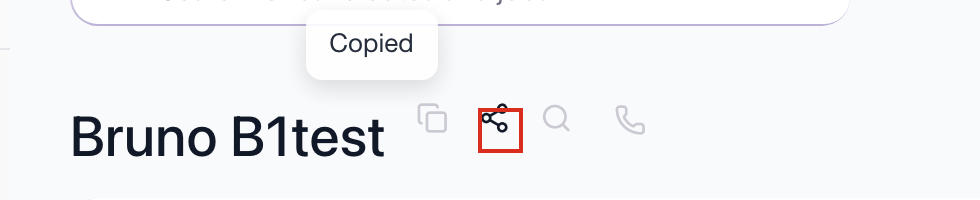
Manual share. Open the candidate profile and copy the profile link to send to a colleague. Good for one-off cases.
Automated Email to Teammate. Add the Email to Teammate automation to a pipeline stage. Every candidate who lands in that stage triggers an email with candidate data to the chosen teammate.
For ongoing hiring, automation is the recommended path. It is consistent and removes the "I forgot to forward that resume" failure mode.
The recommended pattern: a "For Review" stage
Most teams set this up the same way:
- Add a pipeline stage called For Review (or HM Review, Manager Approval, whatever fits your workflow).
- Attach the Email to Teammate automation to that stage.
- Whenever a candidate moves into For Review, either manually or via another automation, the hiring manager gets an email with the candidate's details.
Setting up the automation
- Open the job and go to the Workflow tab.
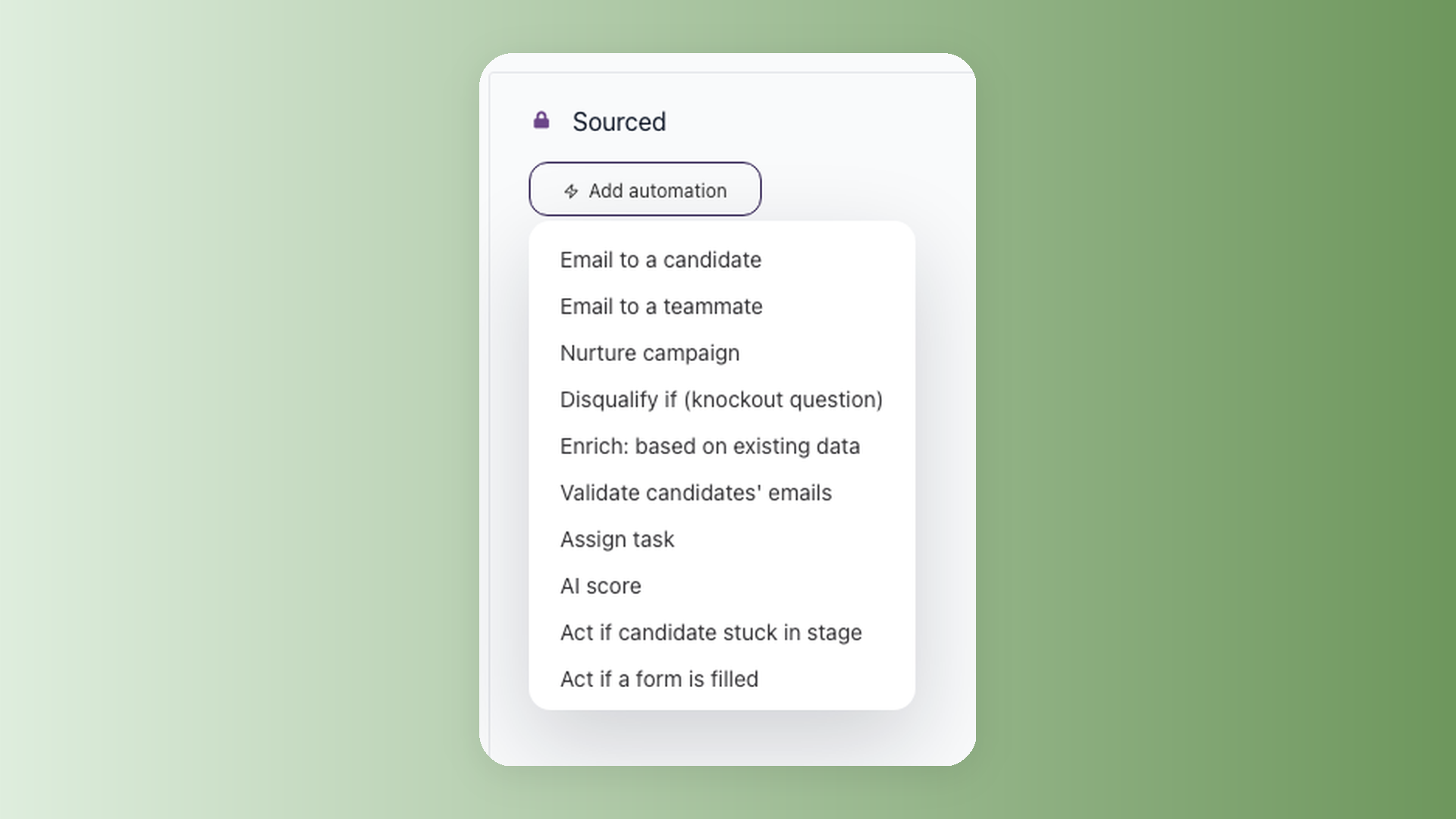
- On the For Review stage, click the bolt icon to add an automation.
- Pick Email to Teammate from the automation list.
- Choose the teammate who should receive the email.
- Set the delay (for example: immediately, or a few hours after the candidate lands in the stage).
- Choose an email template (managed in Settings > Email Templates).

- Save.
From that moment on, every candidate who reaches this stage triggers the email automatically.
Customizing the email body
The Email to Teammate uses an email template from Settings > Email Templates, so you can shape it to fit how your hiring managers prefer to review candidates. Templates support placeholders that auto-populate per candidate (such as candidate name and job title), plus custom job variables you can define for your jobs.
A short intro plus a few placeholders is usually enough, for example: "Hi, here's a new candidate for the Senior Engineer role." If you want different teammates to see different details, create multiple Email to Teammate automations on the same stage, each with its own recipient and template.
Manual share for one-off cases
Sometimes you want to ping someone outside the regular hiring team, for example a department head who is not part of the workflow, or a colleague whose opinion you want on a specific candidate.
For that, open the candidate profile and copy the profile link from the profile header (next to the candidate's name). Share that link with your colleague. This skips the workflow entirely and is meant for ad hoc situations.
Combining with AI Score
A pattern that works well: put AI Score automation on the application stage, then have it move candidates above a certain score to For Review. The Email to Teammate automation on For Review fires only for those AI-pre-qualified candidates.
End result: the hiring manager's inbox only shows candidates worth their time.
Why automation beats manual forwarding
- Consistency. Every candidate at this stage triggers the same notification. Nothing falls through the cracks during busy weeks.
- No missed handoffs. Manual forwarding depends on the recruiter remembering. Automation does not forget.
- Scales with your team. Add more hiring managers, more jobs, more stages, and the workflow keeps running without extra coordination.
Manual share still has its place for one-off cases, but for the steady stream of candidates moving through your pipeline, the For Review stage with Email to Teammate is the setup that holds up over time.
Updated on: 06/08/2026
Thank you!