
How to Use Knockout Questions to Auto-Disqualify Candidates
How to Use Knockout Questions to Auto-Disqualify Candidates
Knockout questions are application questions tied to Disqualify If automation. Use them for hard requirements where one answer should stop the candidate from moving forward.
Step 1: Add the requirement to the application form
Add the question as a profile field or application form question. Good knockout questions are simple and objective:
- Are you authorized to work in this country?
- Do you have the required license?
- Can you work the required shift?
- Are you located in the required region?

Mark the question required if the automation depends on the answer.

Step 2: Add Disqualify If automation
Open the job workflow, choose the stage where new applications arrive, and add Disqualify If automation.

Choose the field and the answer that should disqualify the candidate.

Step 3: Decide what notification should happen
If the disqualification email notification is enabled in settings, applicants who came through the application form can receive an automatic notification. Candidates added manually, imported from CSV, or uploaded from resumes do not necessarily go through the same application-form flow, so send manual communication when needed.

Screen multiple-choice or text answers (Contains / Doesn't contain)
Disqualify If works on simple yes/no fields. When the deal-breaker is one option inside a multiple-choice list (a language level, a certification, a city), use Act if a form is filled instead - it can disqualify based on whether an answer Contains or Doesn't contain a value.
Say you are hiring a German copywriter and only candidates at level C2 qualify.
- Quick option: add a yes/no question like "Is your German C2?" and a Disqualify If rule for the No answer. Fast, but only two buckets.
- Precise option: ask for the exact level and disqualify every answer that isn't the one you want.
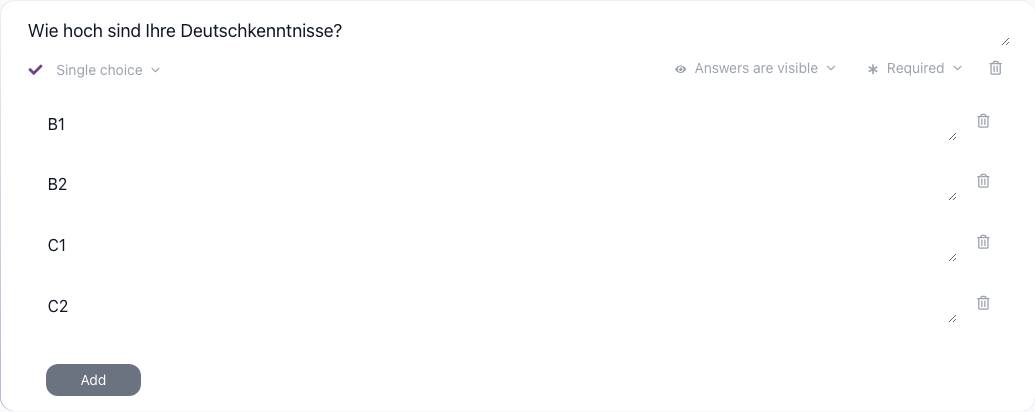
Step 1 - Add a single-choice question. On the job's Application tab, add a custom question (e.g. "Wie hoch sind Ihre Deutschkenntnisse?"), set the answer type to Single choice, add the options B1, B2, C1, C2, and mark it Required.
Step 2 - Add the automation. On the Workflow tab, open the stage where applications arrive and click Add automation, then choose Act if a form is filled. Under Conditions, click + Add condition, pick your question, set the operator to Doesn't contain, and enter the value that should pass - C2. Leave Then on Disqualify and click Save.
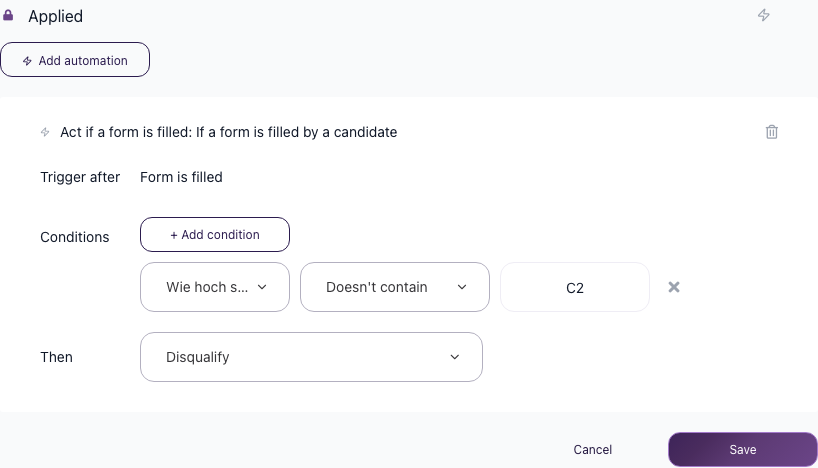
This reads as "when the form is filled, if the German-level answer doesn't contain C2, disqualify." An applicant who selects B1 is disqualified automatically; one who selects C2 stays active.


Operator tips:
- Doesn't contain a value disqualifies everyone except the exact match - use it when only one option should pass.
- Contains a value disqualifies anyone who chose it - add one condition per option you want to knock out.
- Keep the question Required. A condition is only ever checked against an answer that exists, so an unanswered question can never match - the candidate slips past the knockout and stays active. Making the question required is what closes that gap.
- Using two or more conditions in one automation? How they combine is a setting, and the default may not be what you expect. See the next section.
Accept more than one answer (Match: Any / All)
A single condition covers the simple case: one option passes, everything else is out. Often more than one answer qualifies - C1 or C2 are both fine, or you accept any one of several certifications.
Add one condition per option, then tell the automation how to combine them. As soon as an action has two or more conditions, a Match switch appears at the top of the Conditions block, next to + Add condition:
- Match: Any - the action runs when at least one condition is true. This is the default, and it is what every automation created before this switch existed still uses.
- Match: All - the action runs only when every condition is true.
The label between the condition rows shows which one is active, OR or AND, so you can read the rule top to bottom.
Example - let C1 and C2 through, reject everything below. Add two conditions on the German-level question, Doesn't contain C2 and Doesn't contain C1, and set Match to All.
Read it as "disqualify only if the answer is neither C2 nor C1." Someone who picks C1 stays active: their answer does contain C1, so not every condition is true. Someone who picks B2 is disqualified, because both conditions hold.
Leaving that same pair on Match: Any does the opposite of what you intended. A C2 answer still "doesn't contain C1", and one true condition is enough to fire, so every applicant gets disqualified - including the qualified ones. Any two Doesn't contain conditions that exclude each other behave this way. Set them to Match: All.
The rule read the other way round: when you knock out several options with Contains - say B1 and B2 - keep Match: Any, because each condition should be able to fire on its own.
When to use AI Scoring instead
Use Disqualify If for clear yes/no requirements. If several answers should contribute to a weighted decision, use AI Scoring instead. For example, a valid license might be a hard knockout, while years of experience and industry background are better handled as scoring criteria.
Best practices
- Use knockout questions only for true deal-breakers.
- Keep the wording clear and candidate-friendly.
- Test the automation with a sample application before turning on job-board traffic.
- Review disqualified candidates periodically to confirm the rule is working as intended.
Updated on: 28/07/2026
Thank you!