
How to Trigger Actions Based on Form Responses
How to Trigger Actions Based on Form Responses
Automatically route candidates or take actions based on their questionnaire answers.
How it works
When a candidate completes a questionnaire:
- System checks their answers against your conditions
- If conditions are met, action triggers
- Actions include: move stage, disqualify, assign job
Setting up form-based actions
- Open a job
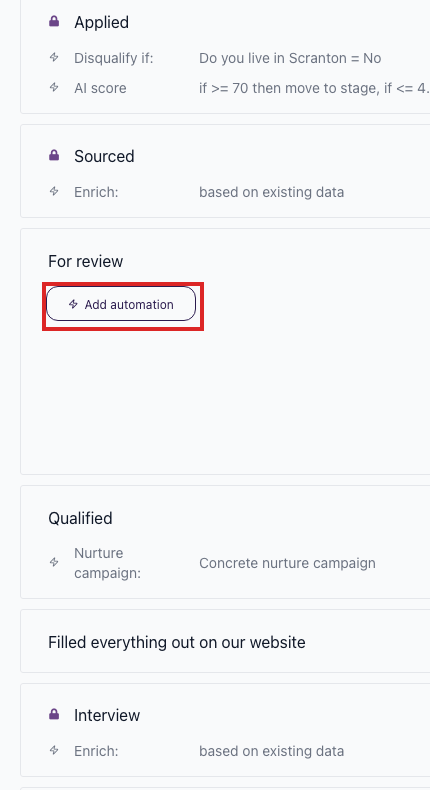
- Go to the Workflow tab
- Click the bolt icon on the stage where candidates receive questionnaires
- Click Add Automation
- Select Act If a Form Is Filled

- Configure conditions and actions

Configuration options
Select form field
Choose which questionnaire field to check.
Condition types
Condition | Use Case |
|---|---|
Contains | Keyword in text response |
Does not contain | Missing required information |
Equals | Exact match |
Empty | Field not answered |
Not empty | Field was answered |
Greater than | Numeric comparison |
Less than | Numeric comparison |
Actions
Move to Stage:
Route qualified candidates forward automatically.
Disqualify:
Reject candidates with disqualifying answers.
Assign Job:
Add candidate to additional positions based on their interests.
Example use cases
Skills assessment
Condition: "Years of experience" greater than 5
Action: Move to "Senior Interview" stage
Interest-based routing
Condition: "Preferred department" contains "Engineering"
Action: Assign to Engineering jobs
Disqualification
Condition: "Can work weekends" equals "No"
Action: Disqualify (for roles requiring weekend availability)
Completion check
Condition: "Portfolio URL" is not empty
Action: Move to "Portfolio Review" stage
Multiple conditions
Set up multiple Act If Form Filled automations for different scenarios:
- Experience check:
- If "Years" > 5 → Move to "Senior Track"
- Junior routing:
- If "Years" < 2 → Move to "Junior Track"
- Missing info:
- If "Portfolio" is empty → Stay for follow-up
Questionnaire + AI scoring flow
Combine questionnaires with AI scoring:
- Candidate applies (short form)
- Nurture campaign sends questionnaire link
- Candidate completes questionnaire
- Act If Form Filled: If key question answered → Move to "Ready for AI Score"
- AI Score automation: Evaluate based on questionnaire + resume
- High scorers advance automatically
Tips
- Test conditions with sample responses
- Use clear, specific question wording
- Combine multiple automations for complex routing
- Review edge cases manually at first
- Document your routing logic for team reference
Related screenshots
These screenshots show the 100Hires areas used in this workflow.
Updated on: 07/08/2026
Thank you!