
How to Use AI Email Composer
How to Use AI Email Composer
AI Email Composer helps draft candidate emails from the candidate profile. Use it when you want a personalized first draft based on candidate and job context, then review and edit before sending.
Where to find it
- Open a candidate profile.
- Go to the Messages tab.
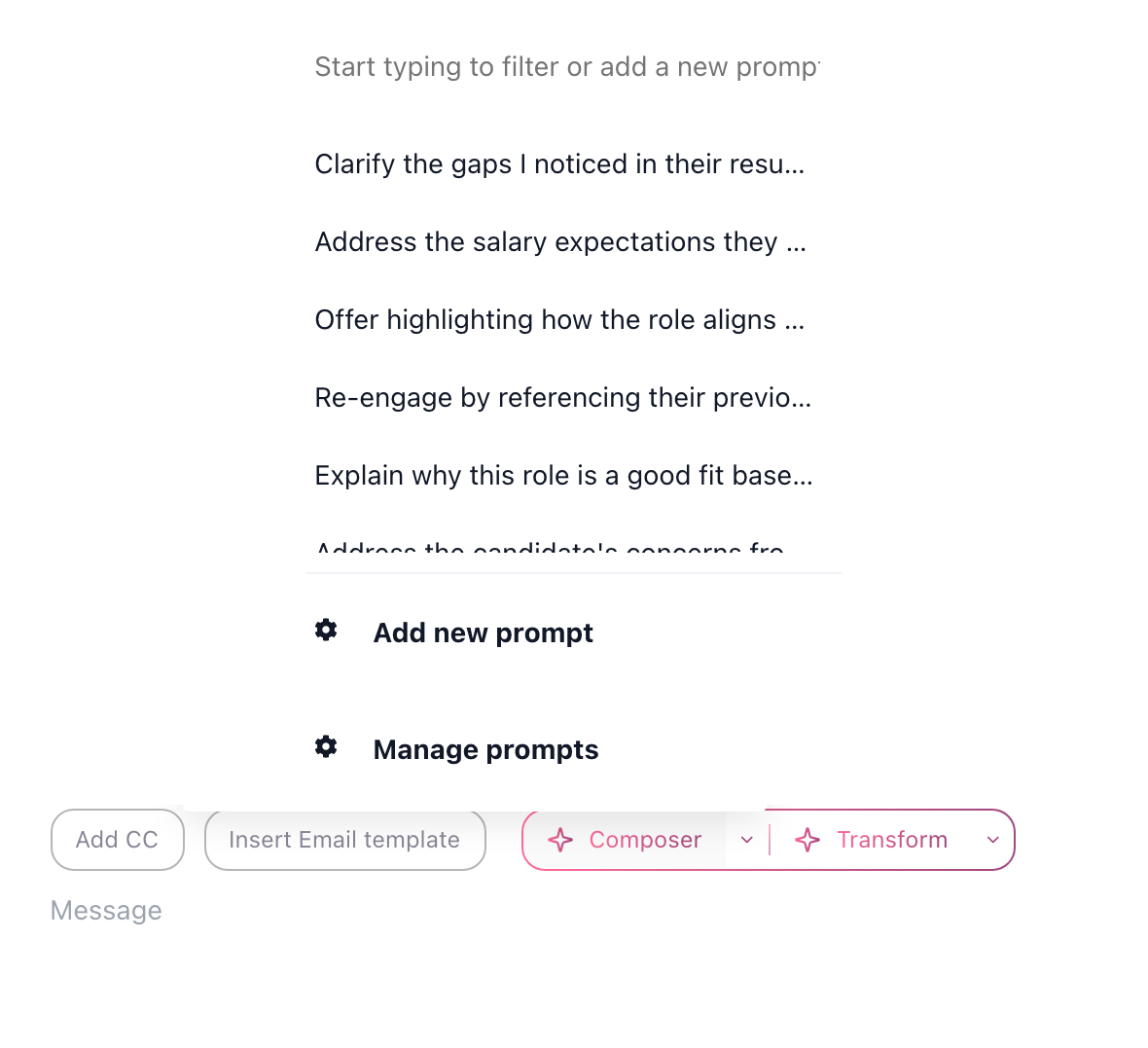
- Click AI Email Composer next to the email template control.
- Choose a saved prompt or type a custom instruction.
- Review the draft, edit if needed, and send.
What the AI can use
The composer uses the same kind of candidate and job context as AI Copilot: resume transcript, profile fields, application answers, prior messages, discussion notes, evaluation forms, job description, job title, and Job Notes. It can only use information that is documented in 100Hires.
Use templates and variables with AI drafts
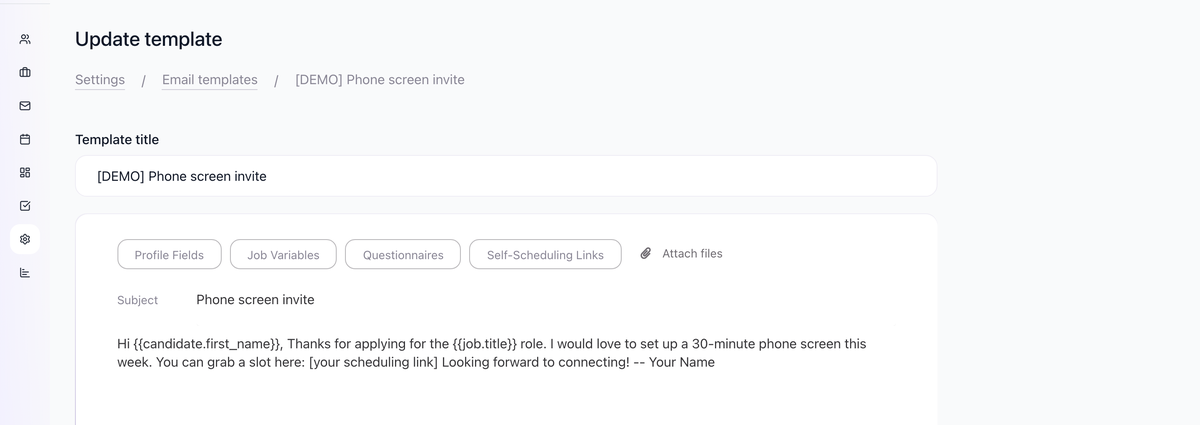
Email templates are still useful. Use templates for standard structure and variables, then use AI Composer when the message needs candidate-specific wording.

Prompt examples
- "Draft a short invitation to a 30-minute founder screen. Mention the Senior Backend Engineer role and keep the tone direct."
- "Write a polite rejection email after a phone screen. Do not include detailed feedback."
- "Draft a follow-up asking for availability next week and a portfolio link."
- "Rewrite this draft to be shorter and warmer."
Review before sending
Always check the final email for names, role title, interview stage, dates, and reasons. If the context is incomplete, add the missing note to the candidate profile or rewrite the draft manually.
Manage saved prompts
Go to Settings > AI Prompts and use the AI Email Composer tab to create reusable prompts for the team. Keep prompts specific to message type: outreach, scheduling, rejection, follow-up, or offer-process updates.
Related articles
Updated on: 07/08/2026
Thank you!