
How to Upload Resumes in Bulk
How to Upload Resumes in Bulk
Upload multiple resume files at once and let 100Hires automatically parse candidate information.
How to Upload Resumes
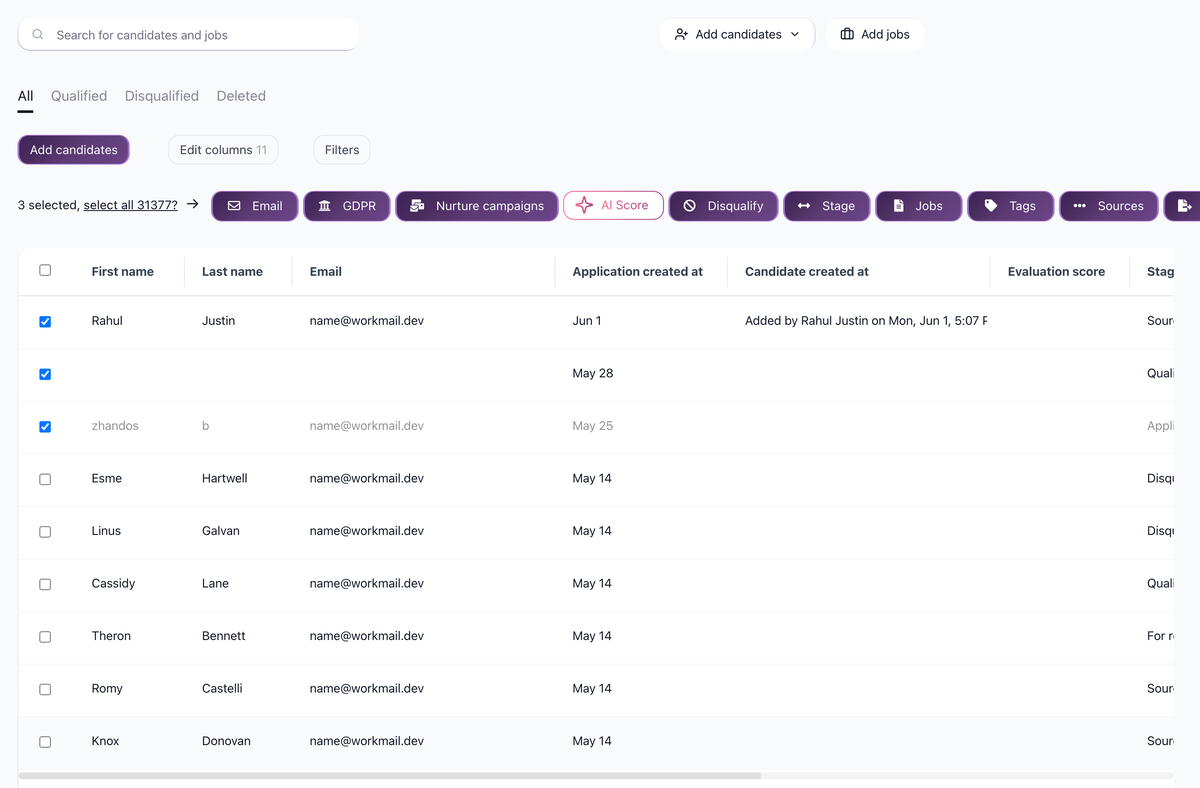
- Click Add Candidates in the header
- Select Upload Resumes/CV from the dropdown

- Drag and drop your resume files into the upload area
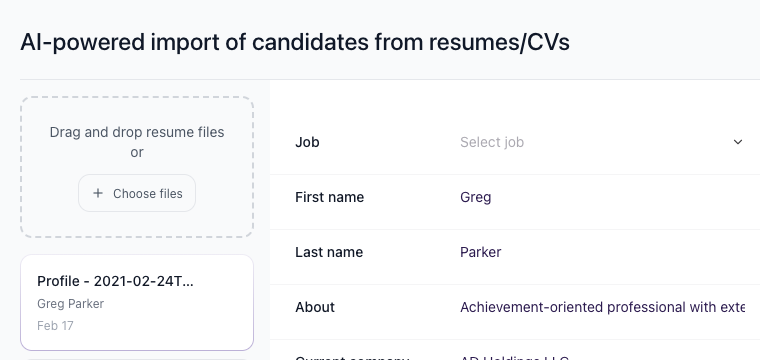
- Wait for parsing to complete
- Review the extracted information
- Click Create Candidates
Direct link: Upload resumes
Supported File Formats
- DOC, DOCX (Microsoft Word)
- RTF
- TXT
What Gets Parsed
The system extracts:
- Name
- Email address
- Phone number
- Work experience
- Education
- Skills
- LinkedIn URL (if present)
Assigning to Jobs
After uploading:
- Select a job to assign all candidates to
- Choose a pipeline stage
- All uploaded candidates are assigned together
Review Before Creating
Before finalizing the import:
- Check that names are parsed correctly
- Verify email addresses are accurate
- Confirm phone numbers look right
- Edit any incorrect fields
Tips for Better Parsing
- Use standard resume formats
- Ensure resumes have clear section headings
- PDF resumes with selectable text parse better than scanned images
Resume Storage
After import, resumes are attached to each candidate profile. View them in the Resume tab of any candidate's profile.
Related screenshots
These screenshots show the 100Hires areas used in this workflow.
Updated on: 18/06/2026
Thank you!