
Integrate 100Hires with Gmail or Outlook
Integrate 100Hires with Gmail or Outlook
Connecting your mailbox to 100Hires lets you send candidate emails from your own address, keeps every reply on the candidate timeline, and threads conversations correctly. Without a connected mailbox you can still draft messages, but you cannot actually send them, and incoming replies will not be associated with the right candidate.
Why connect a mailbox
A connected mailbox is required for normal candidate emailing from your own address and for two-way email sync. Without it, candidate replies will not be captured into the candidate timeline from that mailbox. Once a mailbox is connected, 100Hires uses your address as the sender, captures replies into the candidate profile, and threads every message together.
What gets connected
- Two-way synchronization - messages you send from 100Hires appear in your Gmail or Outlook Sent folder, and replies that land in your inbox appear on the candidate timeline.
- Reply threading so the full conversation reads as one chain.
- Send-as identity so messages come from your address.
Connect Gmail (Google Workspace)

- Go to Settings > Integrations.
- Find the Gmail for G Suite (Google Workspace) section and click Connect.
- Complete the connect flow and authorize 100Hires.
Your Google Workspace administrator must install the 100Hires Google Workspace app and grant the requested permissions. Once the app is installed, every user in your organization can connect their own mailbox the same way. If you hit an error during connect, the most common cause is that the app is not installed or not all permissions were granted - ask your Workspace admin to verify.
We recommend connecting a Google Workspace account on your corporate domain rather than a free personal Gmail. Workspace addresses have better deliverability and look more credible to candidates.
Connect Outlook
- Go to Settings > Integrations.
- Find the Outlook section and click Connect.
- Sign in with your Outlook account and approve the prompts. If Microsoft warns you about an "unverified app," click Yes to continue.
The Outlook flow is simpler than Google Workspace - there is no admin app installation step.
Daily sending limit
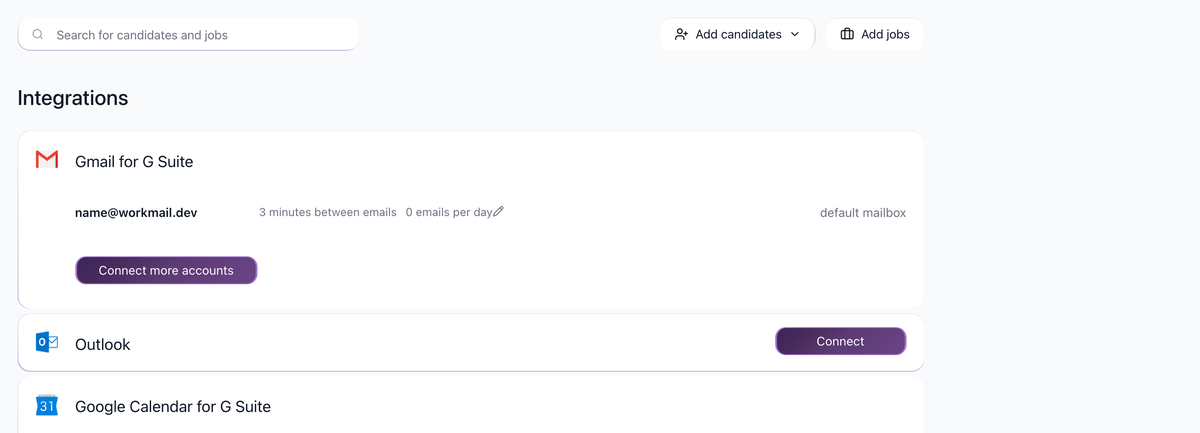
Every connected mailbox has a daily send limit you can edit - click the pencil icon next to the mailbox on the Settings > Integrations page. You can monitor scheduled and sent volume from Settings > Integrations > Email stats.
If you plan to push cold outreach through the mailbox, keep the limit conservative and let 100Hires raise it over time via warm-up (see below).
Connect multiple mailboxes
You can connect more than one mailbox and route high-volume sends through the Email Carousel. The carousel splits a campaign across several connected mailboxes so a single address doesn't burn through its daily limit or hurt deliverability. For example, 200 cold emails can be spread across 5 mailboxes instead of being sent from one.
Email warm-up for cold outreach
100Hires includes automatic email warm-up. When you enable it on a connected mailbox, 100Hires gradually increases the daily sending volume based on warm-up performance, which protects deliverability for newly connected addresses. Add brand-new mailboxes to the carousel during the warm-up window so they build reputation alongside your established sender.
Disconnect or re-authorize
If sending stops working from a previously connected mailbox, the authorization may have expired or been revoked. Open Settings > Integrations, disconnect the affected mailbox, then reconnect it through the connect flow to refresh the authorization. Sending resumes once the mailbox is reconnected.
Related screenshots
These screenshots show the 100Hires areas used in this workflow.

Updated on: 18/06/2026
Thank you!