
AI Scoring Setup and Best Practices
AI Scoring Setup and Best Practices
AI Scoring ranks candidates on a 0 to 100 scale against criteria you define for each job. Use it to surface the strongest applicants first, set a disqualify threshold, and skip generic screening when you have a large volume.
AI Scoring is separate from AI Copilot. Scoring is numerical and runs against criteria you save on a job. Copilot is free-form question answering in the Discussion tab. Both are explained below in the right places.
Where AI Scoring lives
Two places matter:
- Job > AI Scoring tab. Open any job and click the AI Scoring tab in the sub-navigation. This is where you write the criteria the AI uses to score candidates for that job.
- Candidate Discussion tab. Open a candidate and look at the top right of the Discussion tab. The "Get AI score" button runs scoring on demand for that one candidate, using the criteria from whichever job the candidate is assigned to.
You can also run AI Score automatically as part of a workflow, and in bulk on the Candidates page (covered below).
Set up scoring criteria on a job
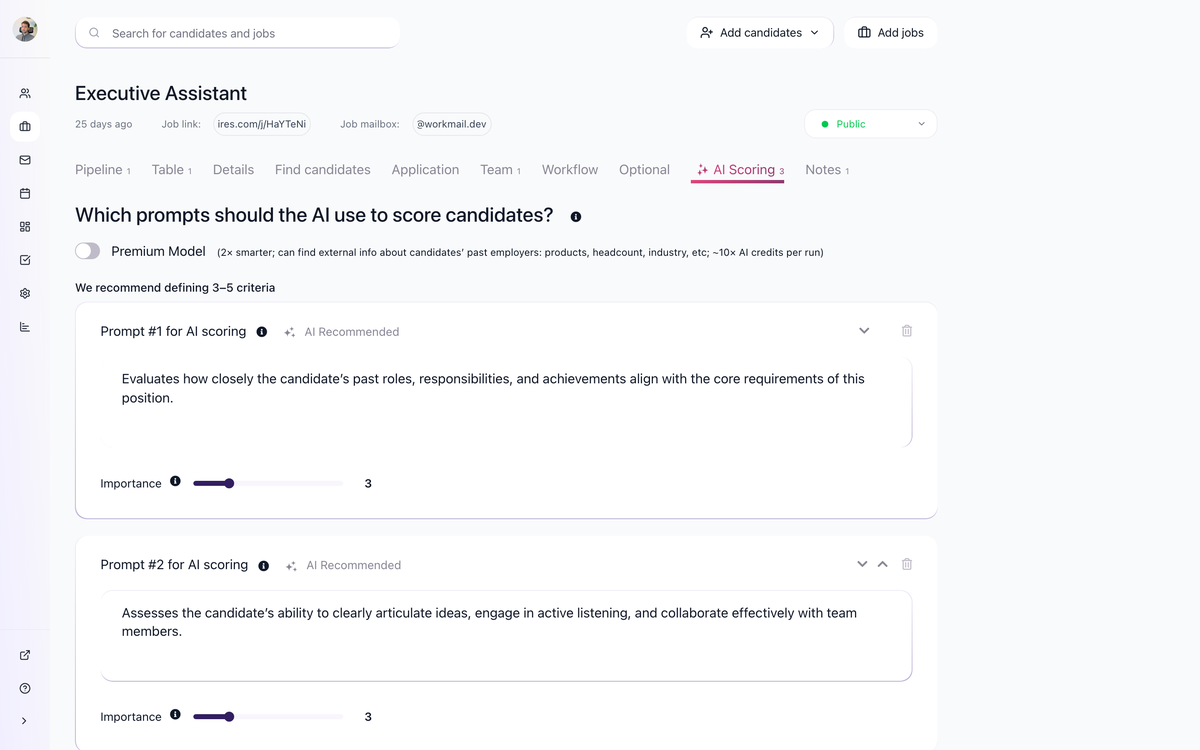
- Open the job and go to the AI Scoring tab.
- Click "Add new prompt" to add a criterion. You can have multiple criteria. We recommend defining 3 to 5 criteria per job - enough to be specific, few enough to keep each criterion focused.
- For each criterion, write a clear prompt. Be very specific about what counts as a low, medium, and high score.
- Set the Importance for each criterion. Importance is a level from 1 to 10 that signals the priority of that criterion.
Each criterion is scored from 0 to 100. After scoring, the AI returns a total score, a quick summary, and the per-criterion breakdown.
Example of a specific criterion prompt
Analyze the candidate's role at their last two companies. Was the candidate a recruiter doing screening interviews and active head hunting? Scoring: 0 points for no recruiting experience. 20 points for HR experience without clear recruitment focus. 35 points for recruitment experience but unclear if screening or headhunting. 100 points for clear evidence of screening calls, sourcing, outreach to passive talent, building a recruitment function, and a strong headhunting track record.
A prompt this specific produces consistent, defensible scores. A prompt like "rate recruiting experience" produces vague results.
Shortcuts on the AI Scoring tab
- AI recommend prompts generates scoring criteria based on your job description that you can adapt.
- Import from existing job copies the criteria you have already set up on another job. Useful if you hire for similar roles repeatedly.
- Premium Model is a smarter AI option that can find external information about candidates' past employers (products, headcount, industry, etc.) and uses roughly 10x more AI credits per run. Turn it on for jobs where this kind of external context matters.
Run a score on one candidate
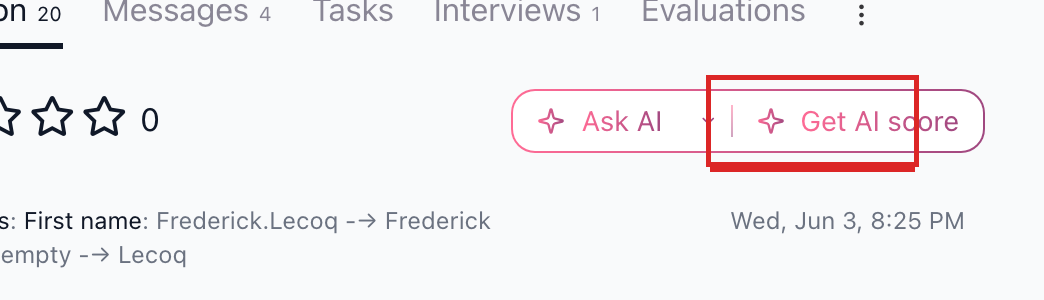
- Open a candidate and go to the Discussion tab.
- Click the "Get AI score" button at the top right (highlighted above).
- The AI scores the candidate against the criteria on the job they are assigned to. The result appears in the Discussion tab and shows the total score, a quick summary, and the score on each individual criterion. A "More details" option expands the reasoning.
Run scoring automatically on a workflow stage
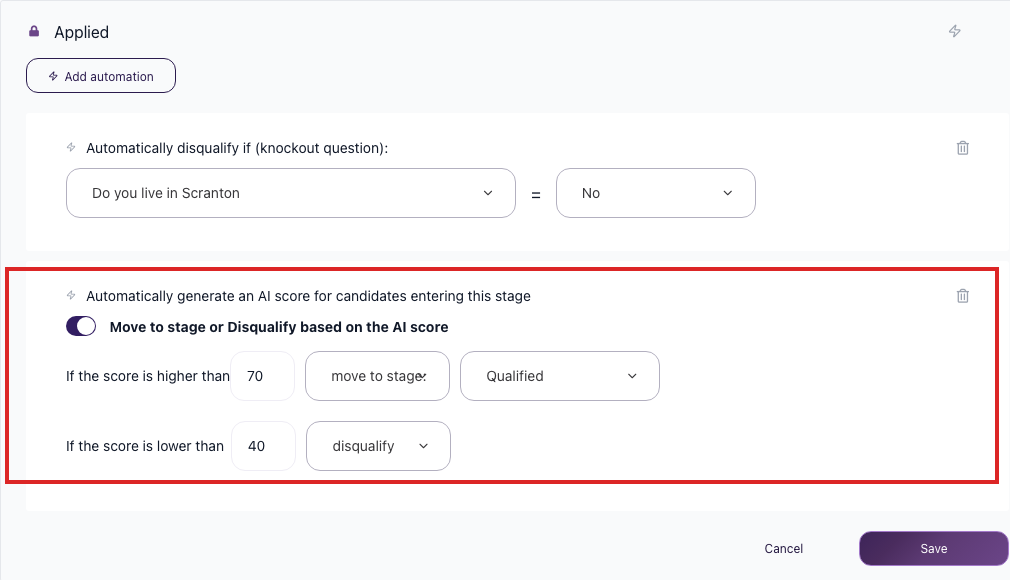
You can have AI Scoring fire automatically when a candidate reaches a specific pipeline stage:
- Open the job and go to the Workflow tab.
- Click the bolt (automation) icon on the stage where you want scoring to run.
- Add the AI Score automation so candidates entering this stage are scored automatically.
- Optionally set thresholds: candidates above a higher threshold move to another stage you choose; candidates below a lower threshold are disqualified.
Run scoring in bulk
On the Candidates page, select multiple candidates with the checkboxes and use the bulk action menu to run AI Score on all of them at once.
Sort and filter by AI score
Both the Pipeline view and the Table view of a job support sorting by AI score. Open the sort dropdown and choose AI score (descending) to see the highest-scoring candidates first. On the Candidates page, AI score is one of the default visible columns and can be added or removed via "Edit columns".
AI Scoring as an alternative to Disqualify If
For multiple yes or no screening questions, consider using AI Scoring with weighted points instead of stacking Disqualify If rules. Put the questions on the application form, then write an AI Scoring criterion that awards points based on the answers. For example:
- "Do you have a valid driver's license?" - 50 points for Yes, 5 points for No.
- "Are you 18 or older?" - high points for Yes, low points for No.
Set a threshold below which the AI Score automation disqualifies the candidate. You get nuanced screening - a candidate who is strong elsewhere does not get auto-disqualified for one weak answer. Simple yes or no Disqualify If rules are an instant no.
AI Scoring vs AI Copilot
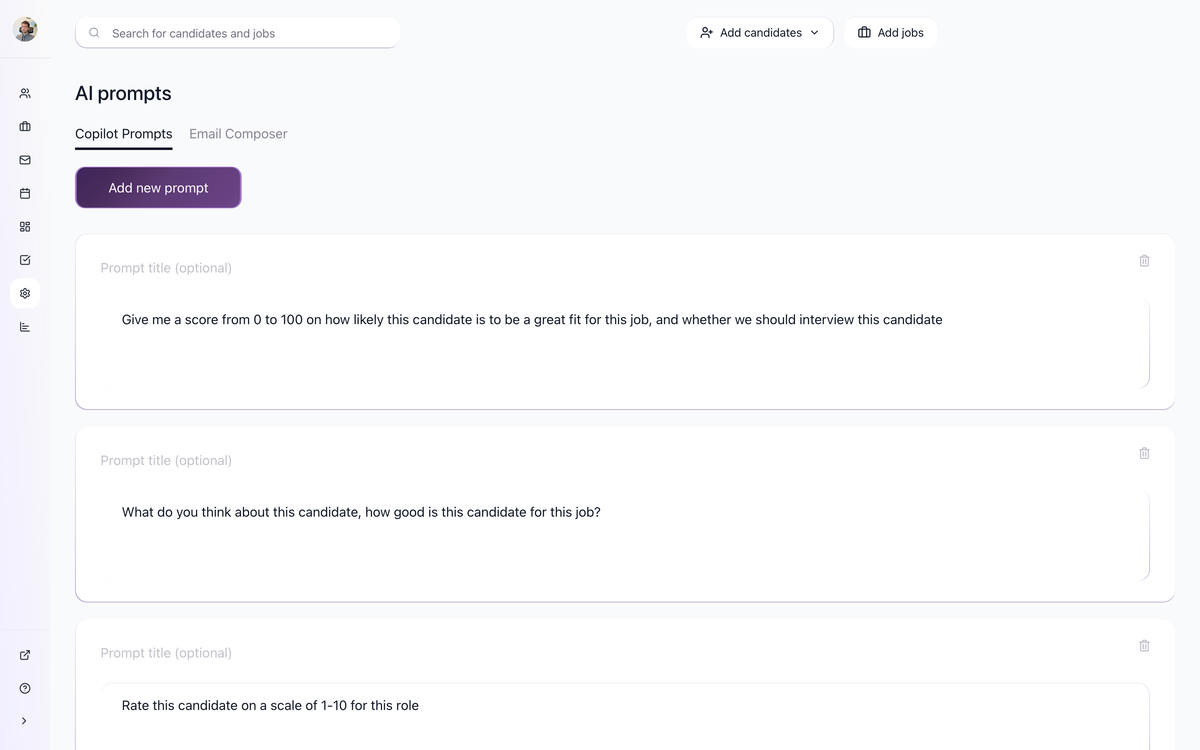
The two AI features are easy to confuse. Use the right one for the job.
AI Scoring | AI Copilot | |
|---|---|---|
What it produces | A numerical score (0-100) per criterion plus a total | A free-form text answer to a question you typed |
How to trigger | "Get AI score" button on Discussion, AI Score workflow automation, or bulk action on the Candidates page | "Ask AI" button on Discussion, or @AI Copilot in a discussion note |
Where you configure it | Job > AI Scoring tab (criteria are per job) | Settings > AI Prompts (prompts are per company) |
Best for | Ranking large candidate batches, threshold-based auto-disqualify | One-off questions about a specific candidate, summaries, comparing against the role |
AI Copilot reads the candidate's resume, all profile fields, application answers, discussion notes (including interview transcripts), emails, evaluation form answers, and the job description, job title, and Job Notes tab. Putting non-public selection criteria into Job Notes improves AI Copilot output without exposing those criteria to the candidate.
Best practices
- Aim for 3 to 5 criteria per job. Specific enough to differentiate candidates, focused enough to keep each criterion meaningful.
- Be specific in each prompt. Spell out what a low, medium, and high score look like for that criterion.
- Set Importance deliberately. A "must-have" criterion deserves higher Importance than a "nice-to-have".
- Test on a few known candidates first. Run scoring on a handful of candidates you have already manually assessed. If the AI scores disagree with your judgment, adjust the prompts.
- Combine scoring with the application form. Add the yes or no questions you care about as profile fields on the application, then reference them explicitly in the scoring prompts.
- Reuse across similar roles. Once you have a strong set of criteria for one job, use "Import from existing job" on the next similar job and adapt.
- Turn on Premium Model when you want external context. Premium Model can find information about candidates' past employers (products, headcount, industry, and similar) and uses roughly 10x more AI credits per run.
- Pair AI Scoring with a threshold automation, not just sorting. Sorting helps you see the top of the list; an automation threshold also disqualifies the bottom.
Updated on: 18/06/2026
Thank you!