
Use AI to Write Rejection Emails with the Right Tone
Use AI to Write Rejection Emails with the Right Tone
AI Email Composer helps draft candidate emails from the Messages tab. For rejection emails, use it to get a warm, stage-appropriate draft, then review every detail before sending.
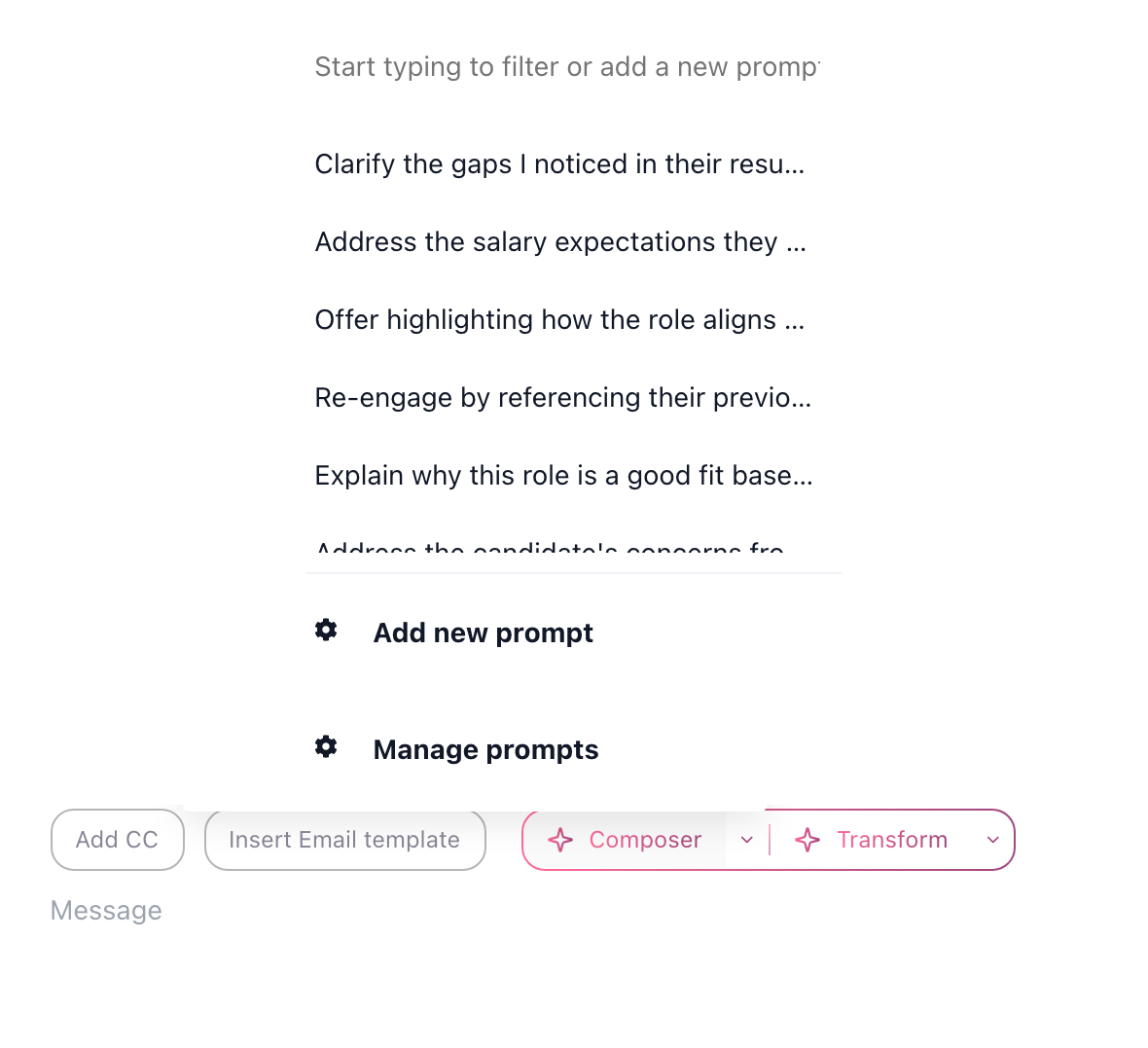
Workflow
- Open the candidate profile.
- Go to Messages.
- Click AI Email Composer next to Insert email template.
- Tell the AI the stage and reason for the rejection, for example: "after phone screen, not enough manager experience, warm and brief."
- Review the draft for accuracy, tone, and legal/compliance wording.
- Send the email from your connected Gmail or Outlook account.
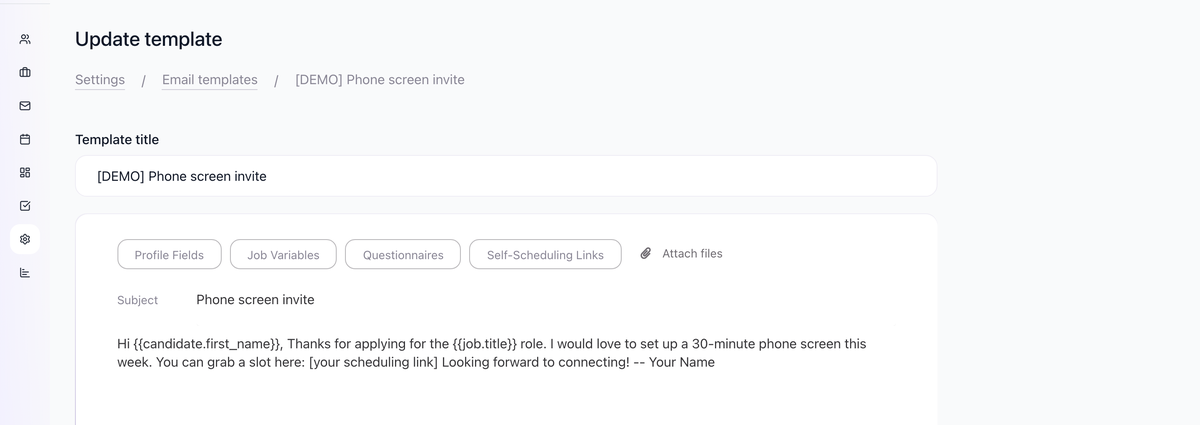
Prompt examples
- "Decline after technical interview. Mention that Python experience was strong, but distributed systems depth was not yet senior level. Warm, concise."
- "Decline after resume review. No detailed feedback. Encourage future applications."
- "Decline after final round. Thank them for the time invested and keep the door open."
Save reusable prompts in Settings > AI Prompts under the AI Email Composer tab.

Guardrails
Do not let AI invent detailed feedback. If you want to give a reason, include the exact reason in the prompt and confirm it against interview notes or evaluation forms. For sensitive cases, use a short template instead of a custom AI-generated explanation.
Use templates for repeatable messages and AI Composer when the candidate's stage or context deserves a more tailored draft.
Related articles
Updated on: 07/08/2026
Thank you!