
How to Add Candidates Manually
How to Add Candidates Manually
Add individual candidates to 100Hires by entering their information directly.
How to add a candidate
- Click Add Candidates in the header

- Select Add Manually from the dropdown
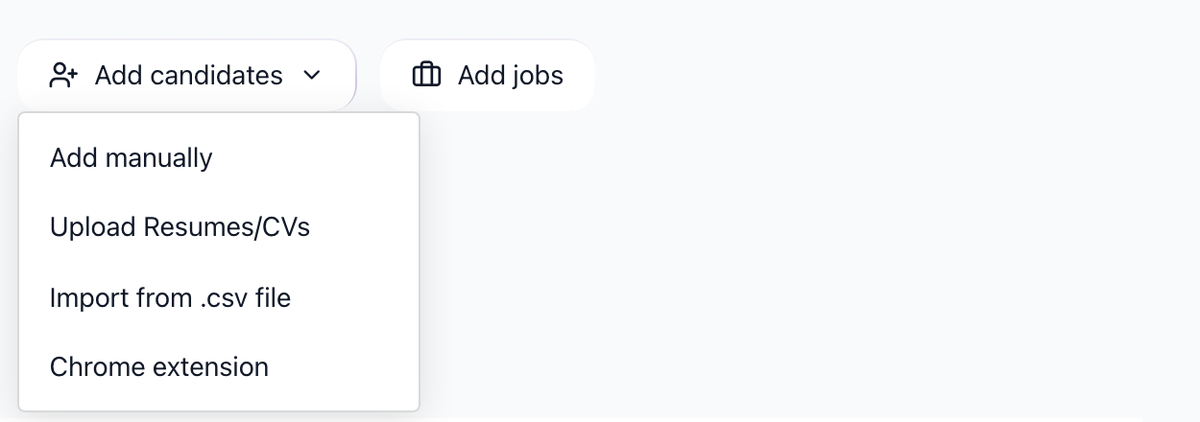
- Fill out the candidate form:
- First name
- Last name
- Email address
- Phone number
- Any other profile fields you need

- Click Save
Direct link: Add candidate manually
Assigning to a job
During manual entry, you can:
- Select a job to assign the candidate to
- Choose a pipeline stage
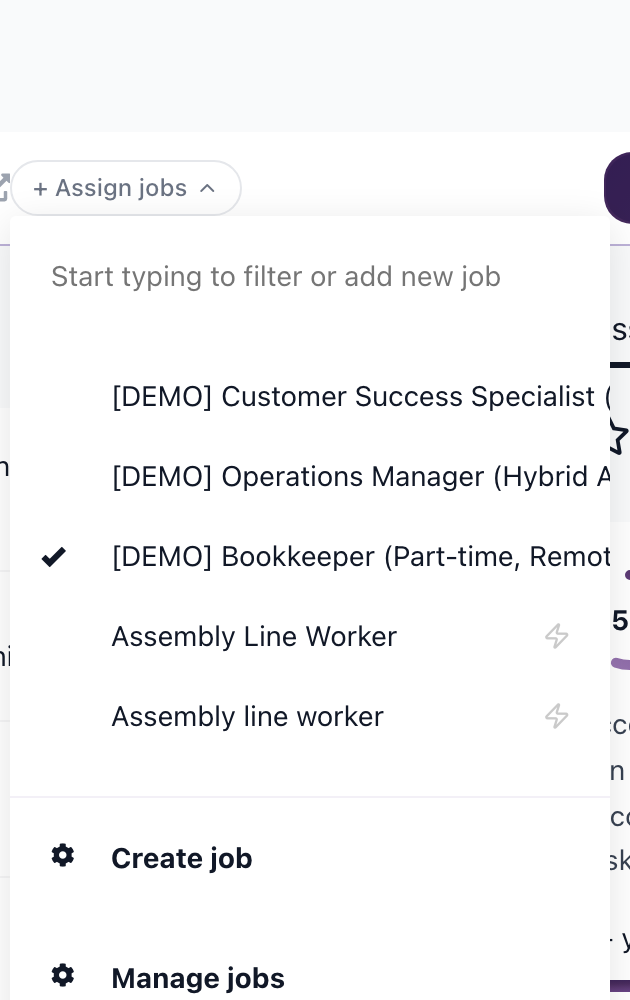
- The candidate appears in that job's pipeline

Profile fields
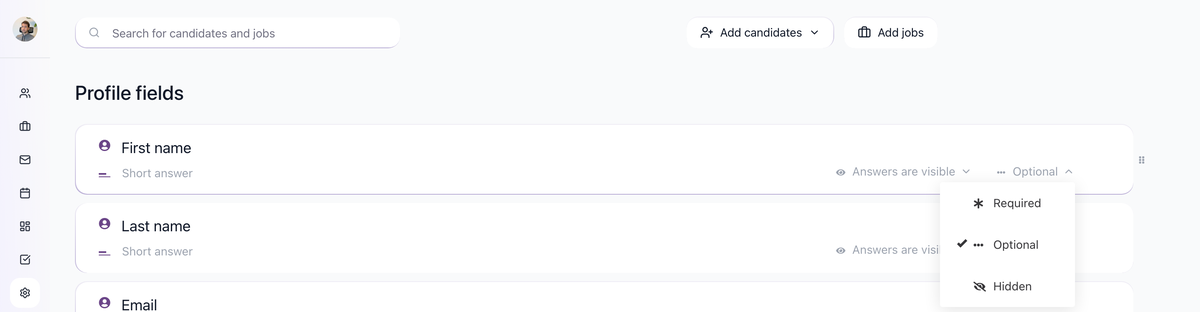
The form shows profile fields configured in your account. To customize which fields appear:
- Go to Settings > Profile Fields
- Add, remove, or reorder fields
- Set fields as optional or required
Tip: Avoid making too many fields required. It becomes frustrating when editing profiles and required fields are empty.
Other ways to add candidates
- Upload resumes: Add candidates / Upload resumes - Bulk upload resume files
- Import from CSV: Add candidates / Import from CSV - Import from spreadsheets
- Chrome extension: Source candidates from LinkedIn, Gmail, and other sites
Updated on: 07/08/2026
Thank you!