
How to Clone a Job
How to Clone a Job
Clone jobs when you need a reusable copy of an existing job, want to publish one role in several locations, or need to rotate older satellite jobs.
Start from the Jobs list
- Go to Jobs.
- Find the job you want to copy.
- Click Clone on the job row.

- Choose the cloning option that matches your goal.
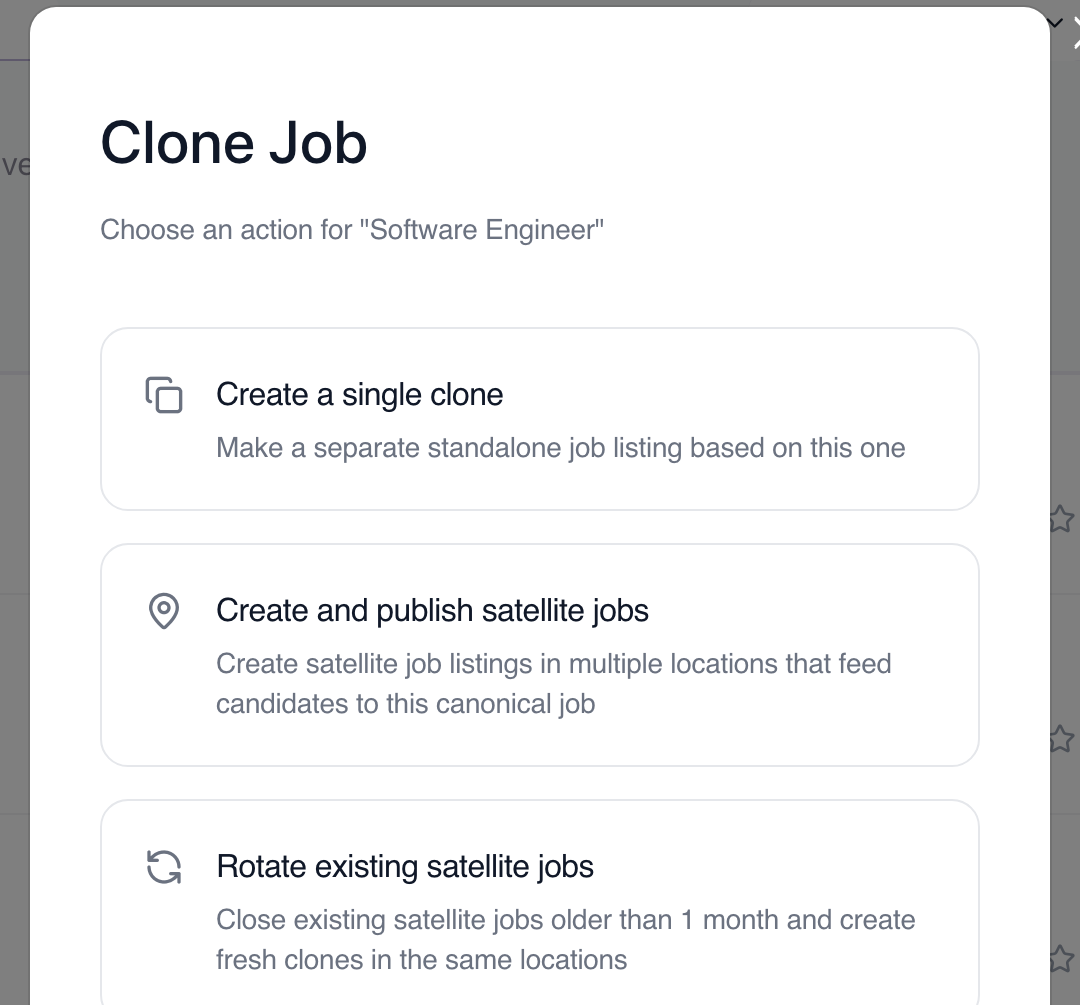
Option 1: Simple Clone

Simple Clone creates one standalone copy in Draft status. The new job is independent from the original. Use it when you need a similar role, a reusable template, or a draft you plan to edit before publishing.
Option 2: Create and Publish Satellite Jobs
Use this option when the same role should be posted in multiple locations while candidates remain connected to the canonical job.

You can add locations manually or use AI Recommend to suggest similar cities based on the job title and current location.

When ready, click Create X Satellite Jobs.

Option 3: Rotate Existing Satellite Jobs
Rotation closes satellite jobs older than one month and creates fresh clones in the same locations. Use it when you need to refresh older satellite listings without creating duplicate pipelines.
Which option should I choose?
Goal | Use this option |
|---|---|
Create a similar independent job | Simple Clone |
Post the same role in several locations | Create and Publish Satellite Jobs |
Refresh older satellite jobs | Rotate Existing Satellite Jobs |
Notes
- Review the draft before publishing a cloned standalone job.
- Satellite applicants flow into the canonical job.
- Satellite jobs should be used only when the hiring process and requirements are the same across locations.
Updated on: 07/08/2026
Thank you!