
How to Customize Table Columns and Pipeline Cards
How to Customize Table Columns and Pipeline Cards
Configure which information appears when viewing candidates in table view or pipeline view.
Customizing Table Columns
Table view shows candidates in a spreadsheet-like format. Customize visible columns:
- Go to any job or the Candidates page in table view
- Click Edit Columns link above the table

- In the popup:
- Remove columns by clicking the delete icon

- Add columns from the dropdown
- Reorder by dragging the six-dot icon

- Click Save
Available Columns
Choose from all profile fields including:
- First name, Last name
- Email, Phone
- AI Score
- Source
- Tags
- Location
- Resume transcript
- Custom profile fields
Customizing Pipeline Cards
Pipeline view shows candidates as cards in columns. Customize card content:
- Go to a job's Pipeline tab
- Click Edit Cards link

- In the popup:
- Remove fields by clicking the X
- Add fields from the dropdown
- Reorder by dragging
- Click Save
What Shows on Cards
By default, cards show:
- Candidate name
- Key profile fields
- Tags
- Time in stage
Add more fields to see additional information at a glance without opening each profile.
Creating New Profile Fields
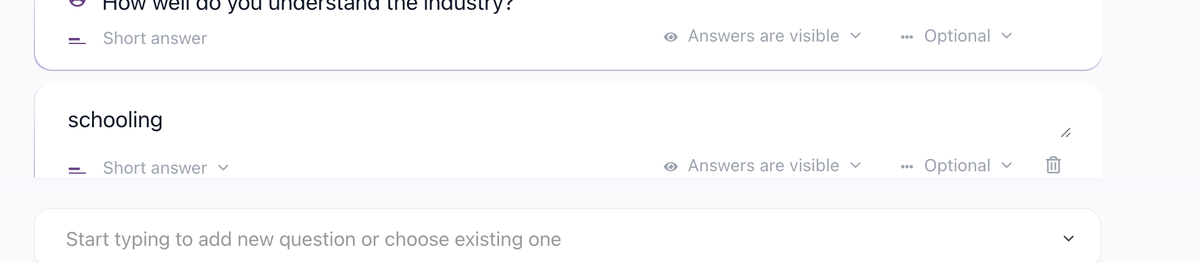
The customization popup only shows existing profile fields. To add new fields:
- Go to Settings / Profile Fields
- Click Add field
- Name the field and set its type
- Save
- Return to Edit Columns or Edit Cards to add the new field
Settings Apply Per User
Column and card customizations are saved for your account. Other team members can have their own view preferences.
Updated on: 24/07/2026
Thank you!