
How to Disqualify Candidates: All Methods
How to Disqualify Candidates: All Methods
100Hires gives you four ways to disqualify candidates, each suited to a different situation. This article shows all four side by side, helps you pick the right one, and explains what happens after a candidate is disqualified.
Four ways to disqualify
- Manual disqualification
 - open a candidate's profile and click the rejection icon next to the pipeline stage dropdown, then pick a reason. One candidate at a time, with full context in front of you.
- **Disqualify If rule
 (knockout automation)** - a stage automation that auto-disqualifies any candidate whose application answer matches a knockout condition (for example, "No" to "Are you authorized to work in this country?"). Runs the moment the application lands in the stage.
- Bulk action
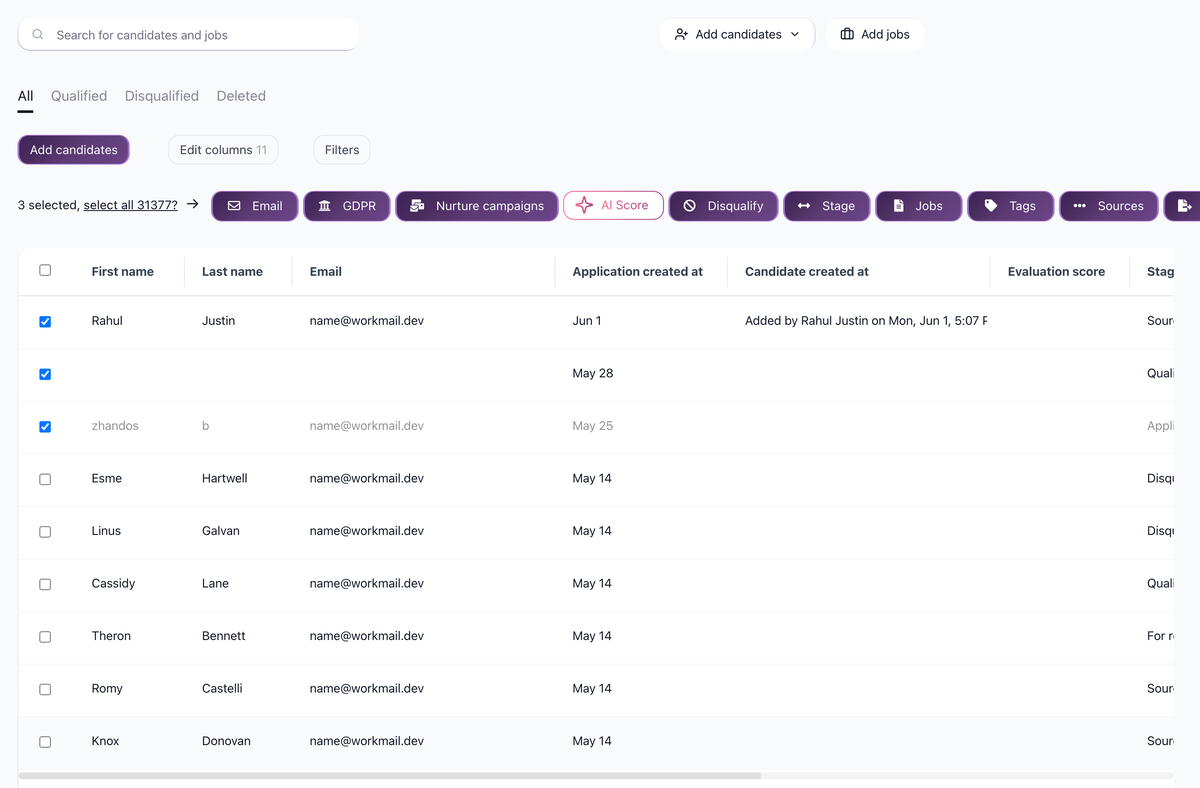 - select multiple candidates on the Candidates page or in pipeline view and choose Disqualify from the bulk actions, then pick a reason. Best for clearing out a batch you have already reviewed.
- AI Score threshold
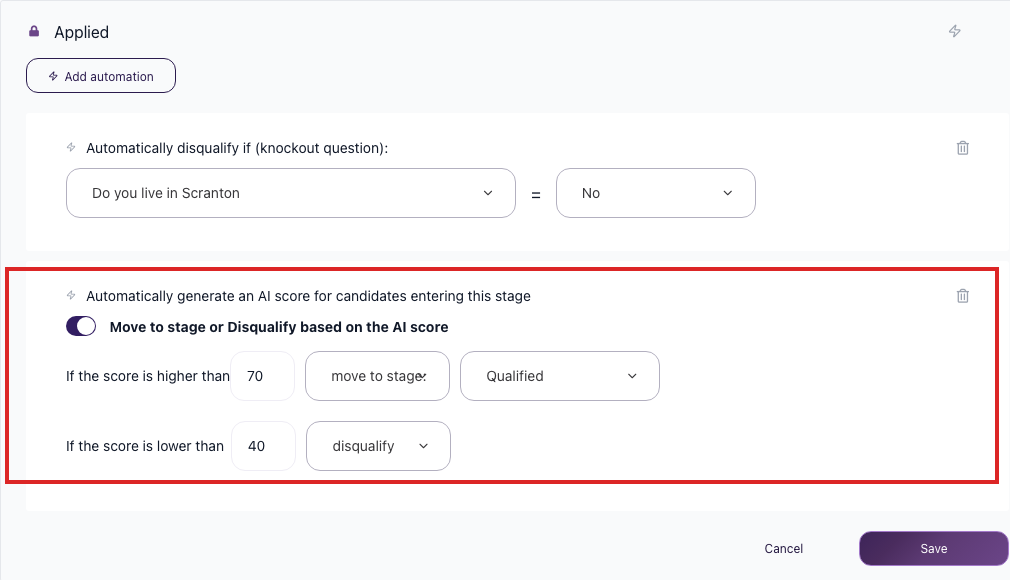 - a stage automation that disqualifies any candidate whose AI Score falls below a threshold you set across your scoring criteria. Lets the AI do the first pass.
Decision tree: which one should you use?
Pick the path based on what you are trying to do:
- One candidate, after you've reviewed their profile -> Manual. Open the profile, click the rejection icon, pick a reason.
- "Anyone who answered 'No' to a knockout question" -> Disqualify If rule. Set it once per job and it runs in the background as applications arrive.
- "These 30 candidates we just reviewed in a screening session" -> Bulk action. Select them on the Candidates page and disqualify in one click.
- "Anyone scoring below our threshold across our criteria" -> AI Score threshold. The AI grades every application against your rubric, and anything under the threshold drops automatically.
If you are unsure, start manual. Move to a rule or bulk action once you see the same pattern repeating.
Disqualification reasons
All four methods ask you to attach a reason to the disqualification (for example: "Failed knockout", "Not enough experience", "Location mismatch", "Withdrew", "Hired elsewhere"). Reasons are configurable in Settings -> Disqualification reasons - add, rename, or reorder them to match how your team thinks about pipeline drop-off.
Why this matters: reasons feed your reporting. When you review a job's funnel, you can see exactly why candidates left the pipeline - whether it's mostly knockout failures (a sign your sourcing channels are off-target) or "not enough experience" (a sign the job description is attracting the wrong level). Without reasons, disqualification is just a number; with reasons, it's a diagnostic tool.
What happens to disqualified candidates
When a candidate is disqualified, a few things happen:
- Their application is moved to the Disqualified tab of their current pipeline stage. You can still see them in their last stage, but they are no longer in the active Qualified view, so your stage columns stay focused on candidates you are still considering.
- They remain fully searchable in your candidate database. You can find them by name, email, tag, or any filter - disqualification does not delete data.
- Any active nurture campaign on that candidate stops automatically, so they will not receive further sequence emails.
- You can bring a candidate back at any time by opening the disqualify dropdown on their profile and unchecking "Disqualified" - they return to the stage they were in.
In other words: disqualification is reversible and non-destructive. Use it freely - the candidate is still in your talent pool for future roles.
Sending or suppressing rejection emails
Rejection email behavior is controlled from Settings > Notifications and by the automation path you use.
- Send a rejection email - 100Hires can send a rejection email based on a template you configure in Settings -> Notifications. By default this email goes out a few hours after disqualification (the delay is editable), so candidates do not get a notification at odd hours.
- Stay silent - skip the rejection email on a manual or bulk disqualification, or leave the email template empty on an automation rule. The candidate is disqualified silently. Useful when you plan to send a personalized note later, or when the candidate has already withdrawn.
If you don't have a rejection template yet, use the AI Email Composer to draft one in a few seconds - it writes a candidate-respectful rejection that matches your brand voice, ready to be reused across every job and every disqualification path.
Related articles
- Knockout questions - how to set up Disqualify If rules step by step
- AI Scoring - how AI Score is calculated, and how to set the threshold
- Bulk Actions - the full list of things you can do to selected candidates at once
- Bulk Actions - operating on selected candidates
- AI Email Composer - drafting your rejection email template
Updated on: 24/07/2026
Thank you!