
How to Manage AI Prompts
How to Manage AI Prompts
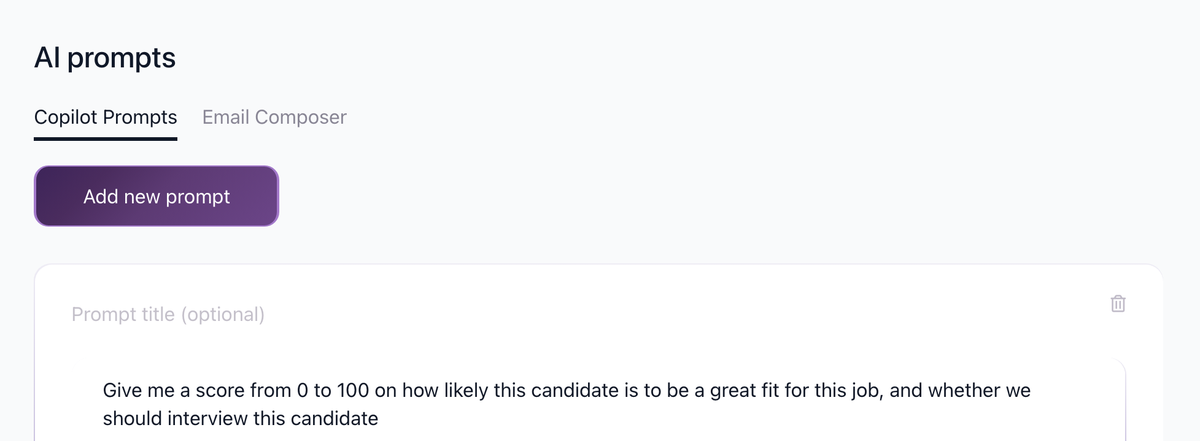
Saved AI prompts help you reuse the same instructions in AI Copilot and AI Email Composer.
Create prompts for repeated tasks such as summarizing candidates, comparing experience with job requirements, drafting rejection emails, or writing outreach.
Open AI Prompts settings
- Go to Settings / AI Prompts
- Choose the tab you want to manage:
- AI Copilot prompts
- AI Email Composer prompts
Add a prompt
- Click Add prompt
- Give the prompt a clear name
- Write the instruction you want the AI to follow
- Save
The prompt appears in the dropdown when you use the related AI tool.
Edit or delete a prompt
- Go to Settings / AI Prompts
- Open the relevant tab
- Select the prompt
- Edit the prompt text or delete it
- Save your changes
Prompt tips
Good prompts are specific. Include:
- What the AI should produce
- What criteria it should consider
- The desired length or tone
- Any format you want, such as bullets or a score
Example:
Summarize this candidate's strongest and weakest fit for the job. Use bullet points and end with a 0-100 recommendation score.
Prompts are sorted by recency in the AI dropdown, so prompts you use often are easier to find.
Related screenshots
These screenshots show the 100Hires areas used in this workflow.


Updated on: 07/08/2026
Thank you!