
How to Manage Notification Settings
How to Manage Notification Settings
Control which email notifications you receive from 100Hires and customize notification templates.
Accessing notification settings
Go to Settings / Notifications
Types of notifications
For jobs where you're on the hiring team
These notifications only trigger for jobs where you're a hiring team member:
- New applications: When candidates apply to your jobs
- New SMS from candidate: Text message replies
- New email from candidate: Email replies
- Questionnaire completed: When candidates fill out questionnaires
- Evaluation submitted: When colleagues complete evaluations
- Discussion notes: When notes are added to candidate profiles
- Task updates: Created, edited, closed, or deleted tasks
For all jobs
These notifications apply regardless of hiring team membership:
- Daily evaluation reminders: Until you complete interview evaluations
- @mentions: When colleagues mention you in discussions
- Calendar integration requests: When colleagues ask you to connect your calendar
- Interview reminders: Upcoming interview notifications
- Interview invitations: When you're added as an interviewer
- Job posting issues: When jobs can't be posted to boards
- Stuck candidate alerts: From automation rules
- Due tasks: Reminders about assigned tasks
Enabling or disabling notifications
- Go to Settings / Notifications
- Find the notification type
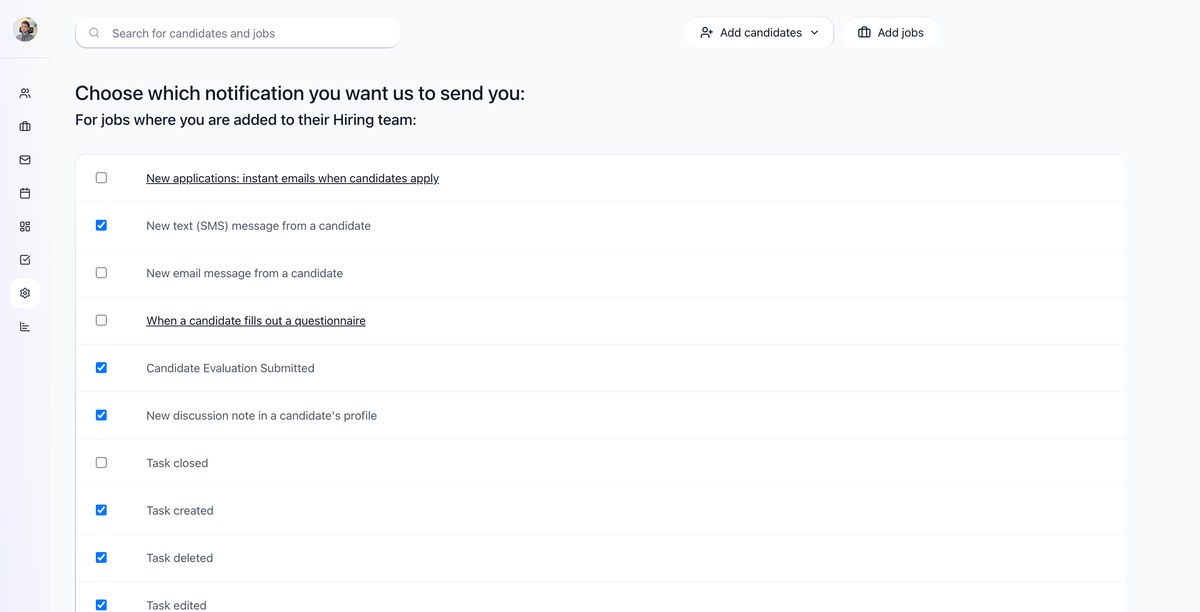
- Toggle it on or off
Customizing notification templates
Some notifications have customizable email templates:
- Go to Settings / Notifications
- Click the notification name or the pencil icon

- Edit the email subject and body
- Use available variables (candidate name, job title, etc.)
- Save changes
Not receiving expected notifications?
Check these common causes:
- Notification is disabled: Go to Settings / Notifications and verify it's toggled on
- Not on hiring team: For job-specific notifications, you must be on the job's hiring team
- Check spam folder: Some email providers may filter notifications
- Email delivery issues: Verify your email address is correct in User Settings
Related screenshots
These screenshots show the 100Hires areas used in this workflow.

Updated on: 07/08/2026
Thank you!