
How to Use Bulk Actions
How to Use Bulk Actions
Perform actions on multiple candidates at once to save time when managing large numbers of candidates.
Selecting Candidates
Select Individual Candidates
Click the checkbox next to each candidate you want to include. 
Select All on Current Page
Click the checkbox in the table header to select all visible candidates.
Select All Matching Filters
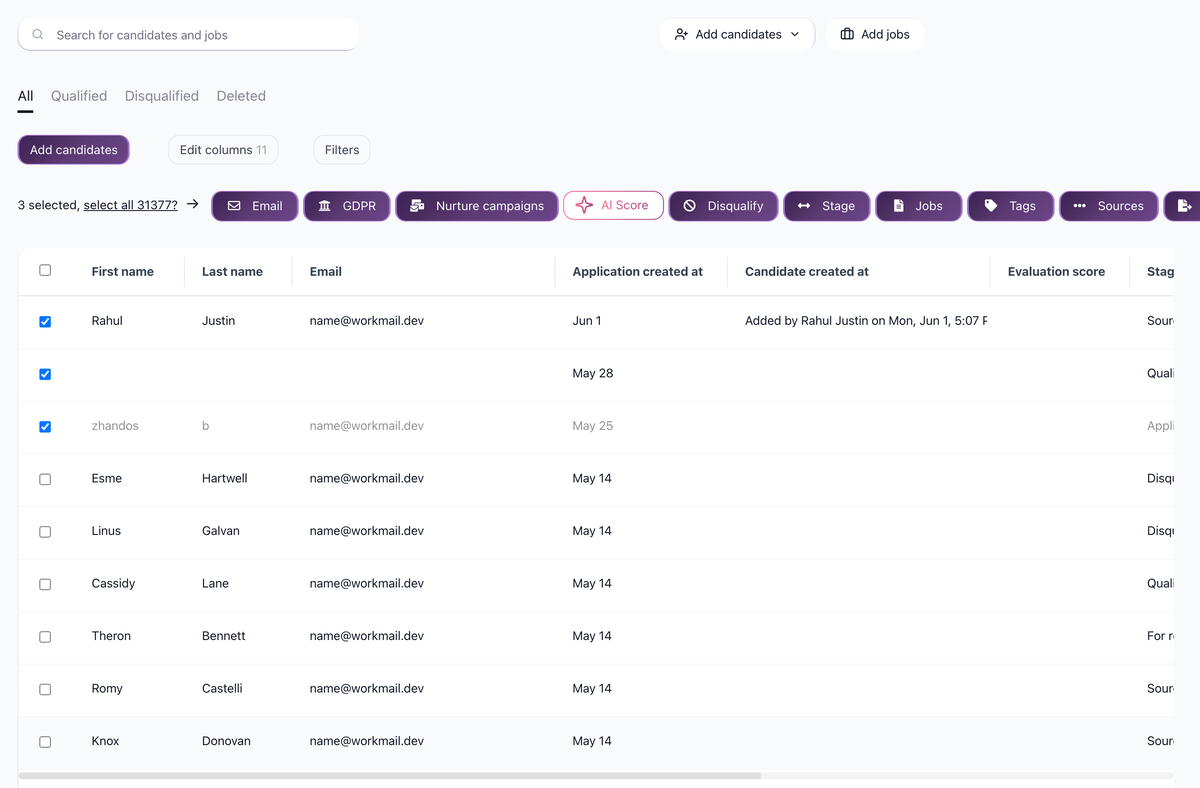
After selecting all on the page, click "Select all X candidates" link that appears above the table. This selects everyone matching your current filters, including candidates on other pages. 
Available Bulk Actions
After selecting candidates, these buttons appear:
Action | Description |
|---|---|
Send Email | Send an email using a template |
Nurture Campaigns | Add to or remove from nurture campaigns |
AI Scoring | Run AI scoring on selected candidates |
Disqualify | Disqualify with a reason |
Pipeline Stages | Move to a different stage |
Assign Jobs | Assign to one or more jobs |
Tags | Add or remove tags |
Sources | Add or remove sources |
Export | Export to CSV |
Delete | Move to deleted |
Cancel Send | Cancel scheduled emails |
GDPR | Manage consent status |
Common Use Cases
Mass Disqualification
- Filter candidates (e.g., by a specific stage or tag)
- Select all
- Click Disqualify
- Choose a reason
Bulk Email
- Select candidates
- Click Send Email
- Choose a template
- Emails are scheduled and sent
Change Pipeline Stage
- Select candidates
- Click Pipeline Stages
- Choose the destination stage
- All selected candidates move together
Add Tags
- Select candidates
- Click Tags
- Select tags to add
- Tags are applied to all selected candidates
Bulk Actions on Deleted Tab
The Candidates page has a Deleted tab. Here you can:
- Restore deleted candidates back to the main list
- Permanently delete (if needed)
Tips
- Use filters to narrow down before selecting
- Start with a small batch to test automations
- Check the selected count before executing
- Some actions (like export) may take time for large sets
Related screenshots
These screenshots show the 100Hires areas used in this workflow.
Updated on: 18/06/2026
Thank you!