
How to Use Job Notes and Timeline
How to Use Job Notes and Timeline
The Notes tab on a job is for private internal context: hiring criteria, handoff notes, files, @mentions, and the job's change history. Candidates do not see these notes.
Why Job Notes matter
Job Notes are useful because they keep the hiring brief next to the job itself. AI Copilot can also use Job Notes as context when you ask questions about candidates for that job. Put non-public selection criteria here if they should influence internal analysis but should not appear on the public job description.
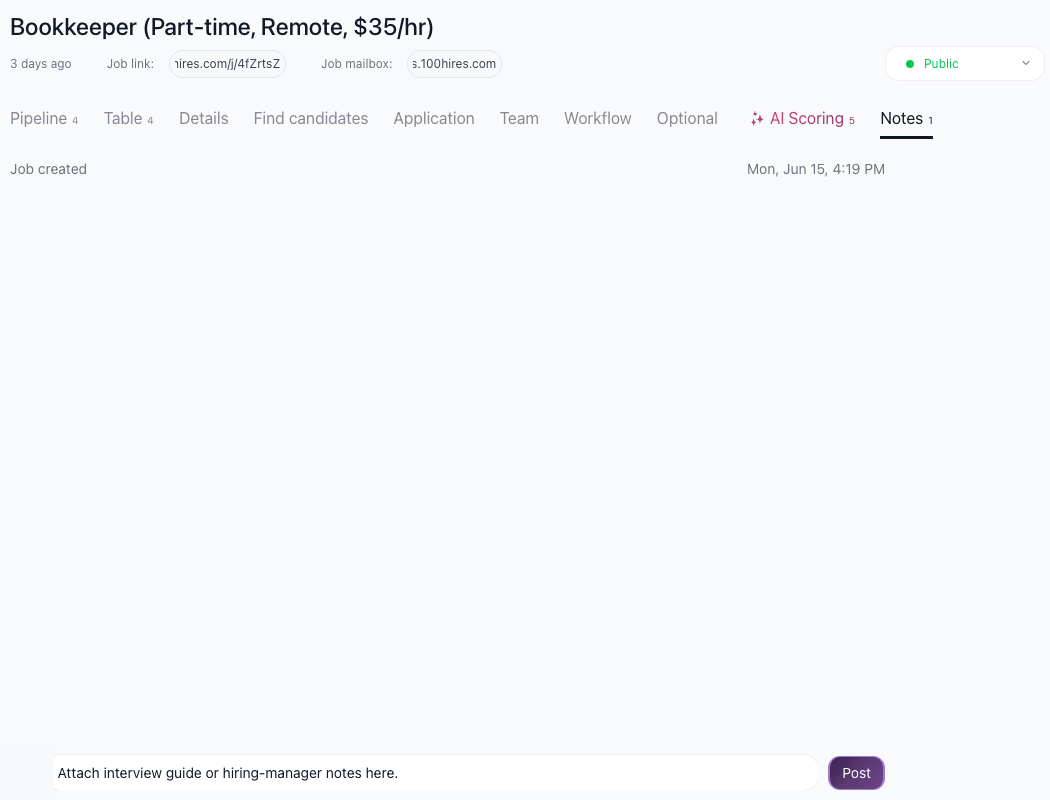
Add a note or file
- Open the job.
- Go to the Notes tab.
- Type your internal note.
- Attach files if the hiring team needs them.
- Post the note.

Good uses for Job Notes:
- Hiring-manager calibration notes.
- Compensation or location constraints.
- Links to internal scorecards or role briefs.
- Reasons a job description changed.
- Candidate-review guidance for recruiters.
Mention teammates
Type @ in a note to mention a teammate. Mentions are useful when a recruiter needs a hiring manager to review a requirement, approve a change, or answer a role-specific question.

Review the job timeline
The Notes/timeline area can show job events such as creation, status changes, and field changes. Use it when you need to understand who changed a job and when.

Best practices
- Keep Job Notes factual and role-specific.
- Do not paste sensitive candidate data into a job note unless the whole hiring team should see it.
- Use @mentions for decisions that need a named owner.
- Add internal criteria here instead of hiding them in personal notes.
- Update notes when the hiring brief changes so AI Copilot and the team use current context.
Updated on: 18/06/2026
Thank you!