
Resume Parsing and AI Profile Field Population
Resume Parsing and AI Profile Field Population
Bulk resume upload in 100Hires is more than file ingestion. The system reads each resume, extracts structured data into your Profile Fields automatically, and can even answer yes/no screening questions about the resume content - so you do a form of AI pre-screening before candidates ever enter your pipeline.
This article explains how the parsing works, how to use it well, and how to extend it with screening questions on your Profile Fields.
What gets parsed
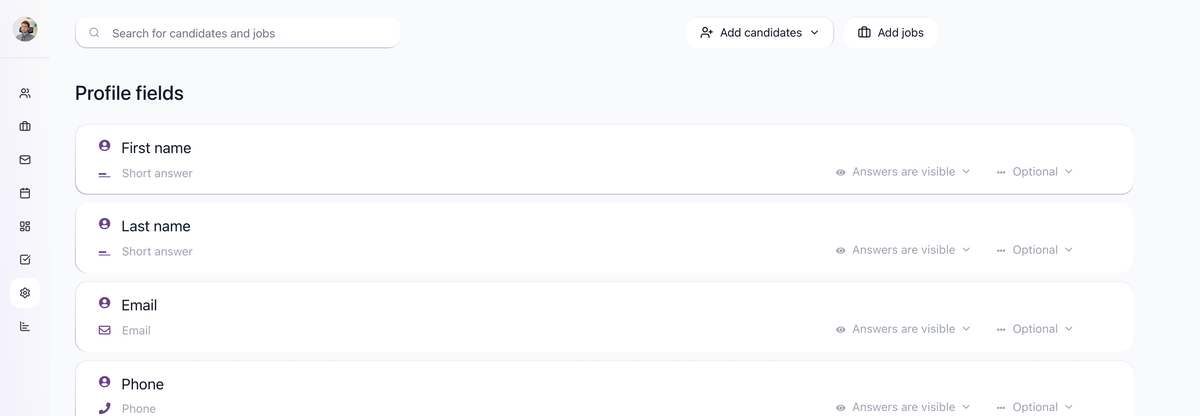
When you upload one or more resumes, the AI extracts candidate data into the Profile Fields you have configured. Typical fields populated include:
- Identity fields - first name, last name, email, phone, LinkedIn URL.
- Work history - current job title and company, previous roles.
- Education - schools, degrees, fields of study.
- Skills - explicit skills lists from the resume.
- Location - city, country.
- Answers to your custom yes/no questions - see "AI screening at import" below.
The exact set of fields populated depends on what you have configured in Settings > Profile Fields. Anything in your Profile Fields list is a candidate for population.
Bulk upload workflow
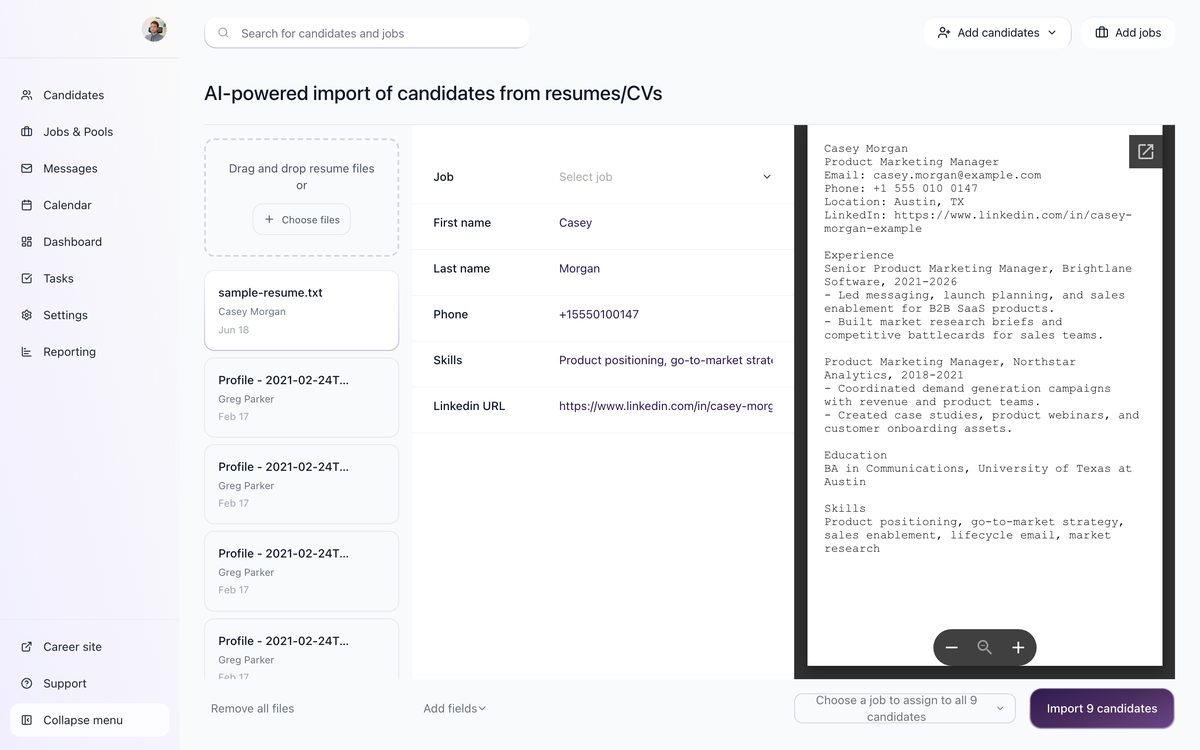
- Click Add candidates in the top header.
- Choose Upload Resumes/CV from the dropdown.
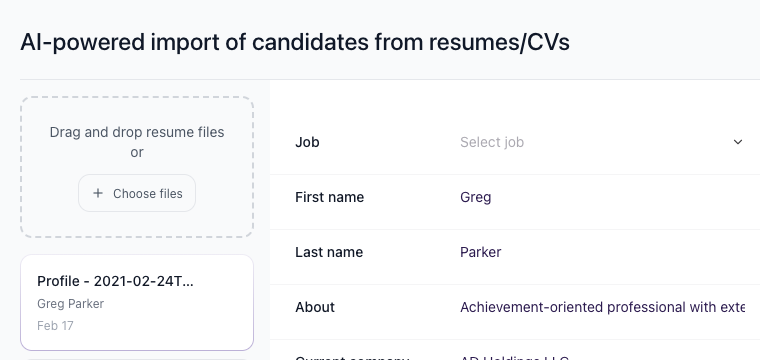
- Drag and drop multiple resume files into the upload area.
- The AI parses each file and extracts the data into your configured Profile Fields.
- Preview each parsed resume to verify the data is correctly extracted before importing.
- Choose a job to assign all candidates in the batch to (bottom right corner).
- Click Import candidates to commit.
Use the "Remove all files" button (bottom left) to clear and start over if you need to re-do the batch.
AI screening at import
The most underused feature of resume parsing is screening-at-import: add a yes/no question to your Profile Fields, the AI answers it from the resume content, and the answer is set on the candidate before you ever open their profile.
The setup:
- Go to Settings > Profile Fields.
- Add a Yes/No question that the AI should answer from the resume. For example:
- "Does this candidate have higher education?"
- "Does this candidate have at least 3 years of management experience?"
- "Has this candidate worked at a B2B SaaS company?"
- Save.
- Next time you bulk-upload resumes, the AI reads each resume and populates that yes/no field automatically.
After import, you can sort or filter candidates by the answer - so a long resume batch becomes a short list of "Yes" candidates in one click.
Combine with AI Scoring
Profile field answers feed AI Score automation cleanly. A recommended pattern:
- Add a few yes/no questions on Profile Fields, focused on knock-out criteria for the role.
- On the job's AI Scoring tab, add a criterion that awards points based on each answer (for example, Yes = 50 points, No = 5 points).
- Add an AI Score automation on a pipeline stage that disqualifies candidates whose score falls below a threshold you choose.
The result: by the time a recruiter looks at the pipeline, the obvious "no" candidates are already disqualified and the obvious "yes" candidates are sorted to the top.
Accuracy tips
The AI is good but not infallible. To get the best results:
- Phrase questions specifically. "Does the candidate have a degree?" is vague. "Does the candidate have a Bachelor's degree or higher from an accredited university?" is specific. Specific prompts return consistent answers.
- Anchor to common keywords. If your "yes" condition usually shows up as a specific phrase ("MBA", "PhD", "Senior Engineer"), mention that phrase in the question. The AI will look for it.
- Preview before importing. Step through each candidate's parsed data and verify the critical fields before clicking Import.
What it costs
Resume parsing consumes AI credits per resume. Check your plan's AI credit limits and current usage in your billing settings. Heavier imports and more AI-populated fields can use more credits. Check your plan and current usage before running large batches. If you run out of AI credits, you can contact support to buy extra credits as an add-on.
Common patterns
- Sourcing-heavy team. Use the Chrome extension to capture candidates from LinkedIn and other supported sites, then bulk-upload their resumes through this workflow. The AI fills in your standard Profile Fields and your custom screening questions in one pass.
- Pre-screen incoming applicants. Combine yes/no Profile Fields with the "Disqualify If" knockout automation, or with an AI Score threshold automation, so the obvious "no" candidates never reach your recruiters.
Correcting misparses
If the AI gets a field wrong on a candidate, you can:
- Edit the field value directly on the candidate's profile.
- Adjust the Yes/No answer manually on the profile.
- Re-upload the resume via "Upload Resumes/CV". Auto-merge will combine the data into the existing candidate (not create a duplicate) as long as the email or LinkedIn matches.
Updated on: 07/08/2026
Thank you!