
Understanding 100Hires AI: Copilot vs Score vs Composer
Understanding 100Hires AI: Copilot vs Score vs Composer
100Hires ships three distinct AI features, and most teams mix them up. They sit in different places in the UI, they produce different things, and they answer different questions. This article lays out what each one does, what they share, and how to pick the right one for a given moment in your hiring workflow.
The three AI features at a glance
AI Copilot is free-form question answering on a single candidate.
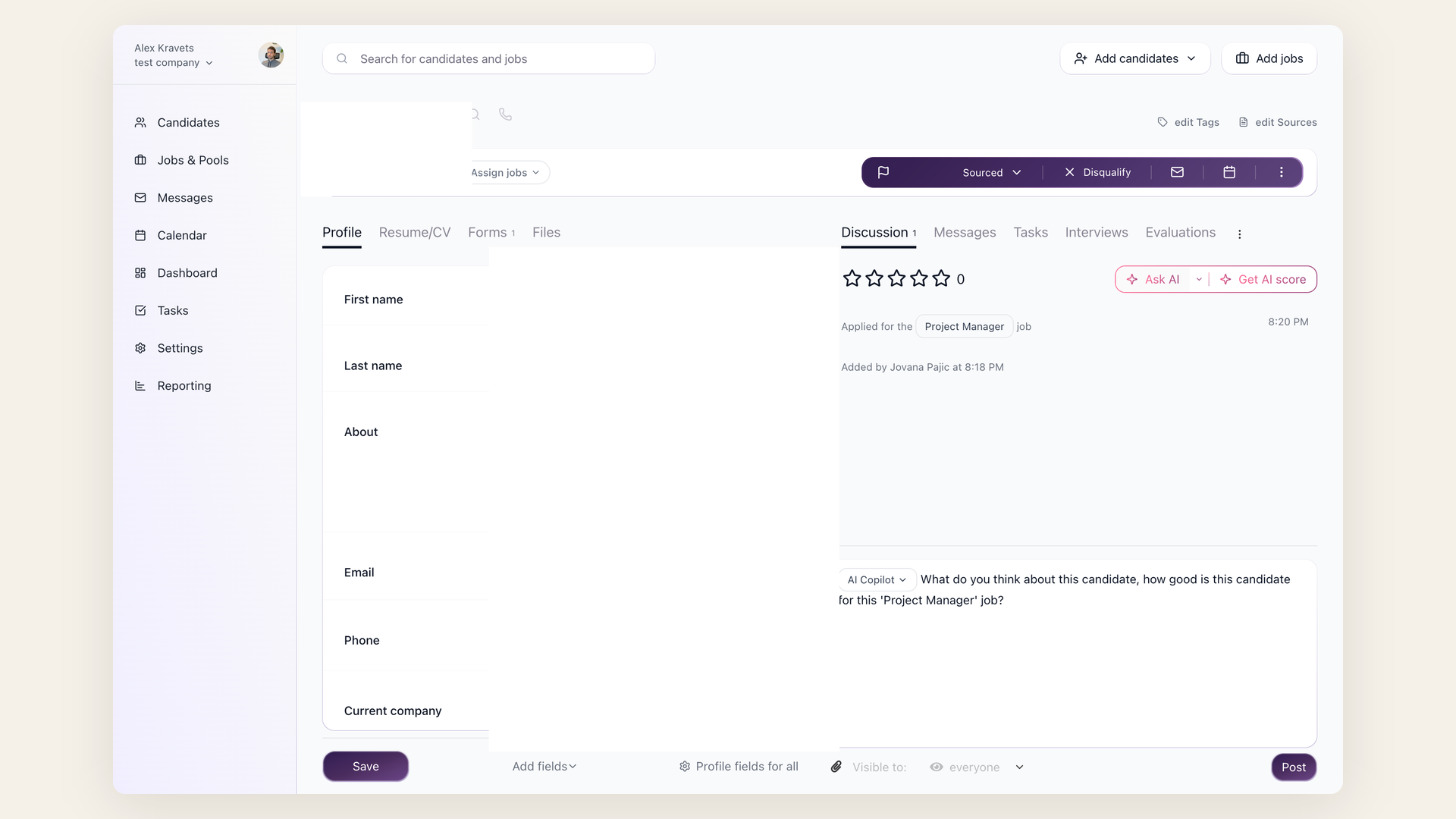 You open a candidate, go to the Discussion tab, and click "Ask AI" in the top right corner (or type @ in the comment field and select AI Copilot from the dropdown). You can type anything: "Has this candidate ever managed a team of more than five people?", "Summarize their last three roles", "Why did they leave their previous job?". The Copilot reads everything 100Hires knows about that candidate and writes a short prose answer. By default it returns prose, though you can also prompt it for a quick numerical assessment if you want one. It does not write emails and it does not act on its own; it just answers the specific question you typed.
AI Scoring produces a numerical score against the criteria attached to a specific job
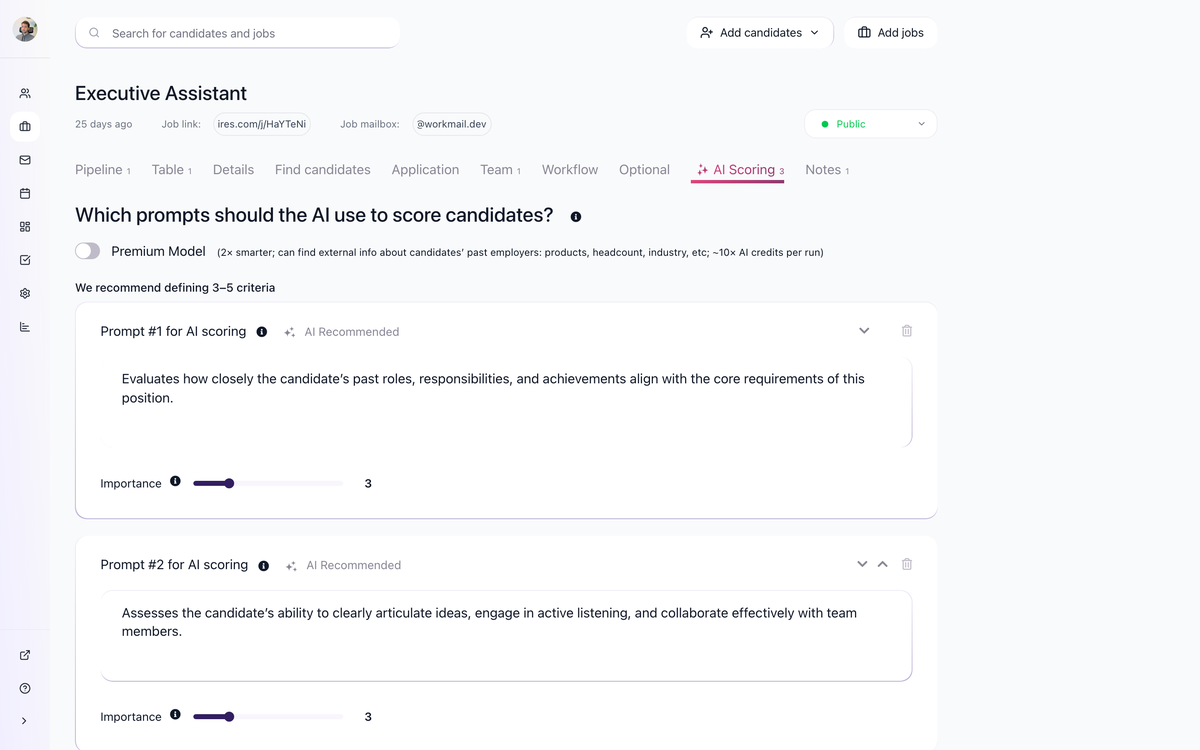 (0-100 per criterion, with a total score, quick summary, and per-criteria breakdown). You click "Get AI Score" on the Discussion tab to score a single candidate, run it as a bulk action across many applicants at once, or wire it into a workflow stage so every new applicant gets scored automatically as they arrive. The score is reproducible, comparable across candidates on the same job, and designed for ranking and filtering.
AI Email Composer writes outreach.
 It generates new emails from scratch based on the candidate, the job, and a short brief from you. A related mode called AI Email Transform takes an existing draft you have already typed and reworks it in one of three ways: rewrite it in a different tone, shorten it, or expand it with more detail. Neither mode sends anything automatically; you always review and click send.
Side-by-side comparison
AI Copilot | AI Scoring | AI Email Composer | |
|---|---|---|---|
What it produces | A short written answer to your question | A total score plus per-criteria scores (0-100 each) and a quick summary | A draft email (or a rewrite of your draft) |
How to trigger | "Ask AI" button on the Discussion tab, or @ AI Copilot in the comment field | "Get AI Score" button on the Discussion tab, bulk action on candidate lists, or workflow stage automation | "AI Email Composer" button in the Messages tab, next to email templates |
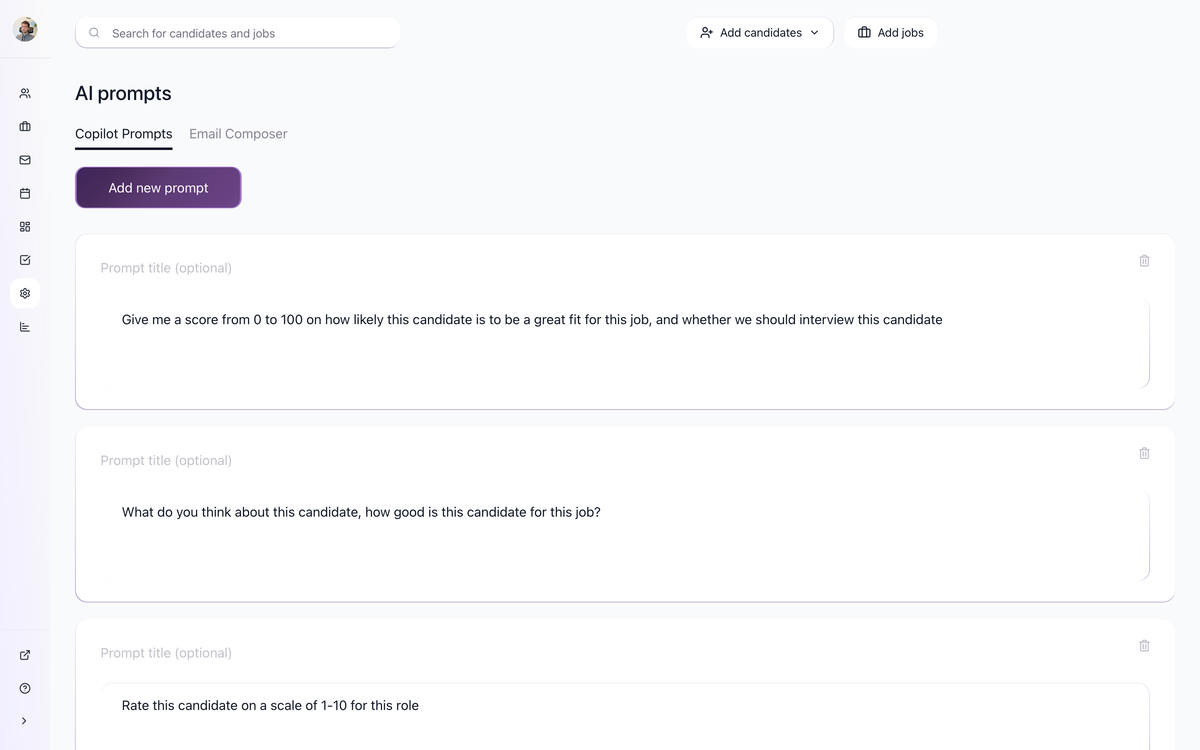
Where you configure it | Saved prompts in Settings > AI Prompts; nothing else to configure - it just reads candidate context | AI Scoring tab on the job (criteria, weights, Premium Model toggle) | Saved prompts in Settings > AI Prompts (AI Email Composer tab); tone and instructions you type into the prompt at compose time |
Best for | One-off questions about one candidate | Ranking, filtering, and auto-disqualification at scale | Drafting and polishing candidate-facing messages |
Shared data sources
The AI features use overlapping candidate and job context, but the exact inputs depend on the feature and settings. AI Scoring with Premium Model can also use external context about candidates' past employers. That context includes:
- The candidate resume and parsed profile fields
- Application form answers
- Discussion notes (including interview transcripts added by the team)
- Email messages and conversation history with the candidate
- Evaluation form responses from your hiring team
- The job description and job title
- The Job Notes tab on the job
This last one matters. The Job Notes tab is not shown to candidates, but the AI features on that job read it alongside the job description. If you put your non-public selection criteria there (must have worked at a Series B or later startup, no current employees of competitor X, prefers candidates in EU timezones), the AI features become meaningfully smarter without leaking those criteria into anything the candidate sees. Teams that get the most out of 100Hires AI treat Job Notes as the central briefing document.
When to use which
Use this rough decision tree:
- "I want to rank a large batch of candidates by fit for this job" -> AI Scoring, run as a bulk action, then sort by score.
- "I want to write a rejection email in the right tone for this candidate" -> AI Email Composer to draft it, or AI Email Transform if you have already written a draft and want it rewritten in a different tone, shortened, or expanded.
- "I want to ask a specific question about this one candidate" (does their experience match a niche requirement, is there a gap in their timeline, how senior were they really at company -> AI Copilot.
- "I want to auto-disqualify everyone below a threshold without touching each candidate" -> AI Scoring plus workflow stage automation. Add an AI Score automation on the Applied stage that disqualifies candidates whose score falls below your cutoff.
A typical full workflow combines all three: AI Scoring filters down the strongest applicants automatically, AI Copilot answers your specific questions on the survivors, and AI Email Composer writes the outreach to the ones you want to advance.
Cost
AI features can consume AI credits from your 100Hires plan. Check your plan and current credit usage before running high-volume scoring. The Premium Model toggle, available on the AI Scoring tab of each job, switches the underlying engine to a stronger reasoning model that can also reach out and fetch public information about candidates' past employers (products, headcount, industry). It produces noticeably smarter scoring on senior and niche roles, but it costs around 10x more AI credits per run. Most teams keep it off for high-volume early-funnel scoring and turn it on for shortlist review.
Ways to save credits:
- Pre-screen with knockout questions before AI scoring
- Add yes/no screening questions to the application form
- Set up "Disqualify If" automation on the Applied stage
- Only AI score candidates who pass initial screening
If you run out of credits, contact support to buy extra credits as an add-on.
Related articles
For setup and deeper detail on each feature, see:
- AI Scoring Setup - how to define criteria, weights, and the Premium Model toggle on a job.
- AI Copilot in Candidate Profiles - prompt patterns and example questions.
- AI Email Composer - tone presets, Transform mode, and best practices for candidate-facing AI-written email.
Updated on: 18/06/2026
Thank you!