
How to Pause, Downgrade or Cancel Your Subscription
Hiring is seasonal, and you should not have to delete your account to stop paying for a quiet quarter. From Settings / Billing you can pause your subscription for up to three months, move down to a smaller plan, or cancel — all yourself.
This article covers all three options, what each one does to your data and your jobs, and how to undo them.
Which option do I want?
You want to… | Choose | What happens to billing | What happens to your jobs |
|---|---|---|---|
Stop paying while you are not hiring, and come back later | Pause | Nothing is charged for 1-3 months, then billing restarts at your current price | Jobs go offline and stop collecting applications until you resume |
Keep hiring but spend less | Downgrade | Applies immediately, and your next invoice is at the lower price | Nothing is deleted, but the smaller plan's limits apply from that moment |
Stop using 100Hires | Cancel | No further charges after the current period | Full access until the end of the paid period, then jobs come down |
If you are unsure, pause. It keeps your configuration, your candidates and your current price untouched. In exchange, your jobs are offline for the length of the pause, the pause runs for a maximum of three months, and billing restarts automatically on the end date unless you resume or cancel before then.
How to pause your subscription
The two links sit under your plan on the Billing page:

- Go to Settings / Billing.
- Click Pause subscription.
- Choose 1, 2 or 3 months. One month is selected by default.
- The date of your next payment updates as you change the length, so you can see exactly when billing restarts before you confirm.
- Click Pause my subscription.
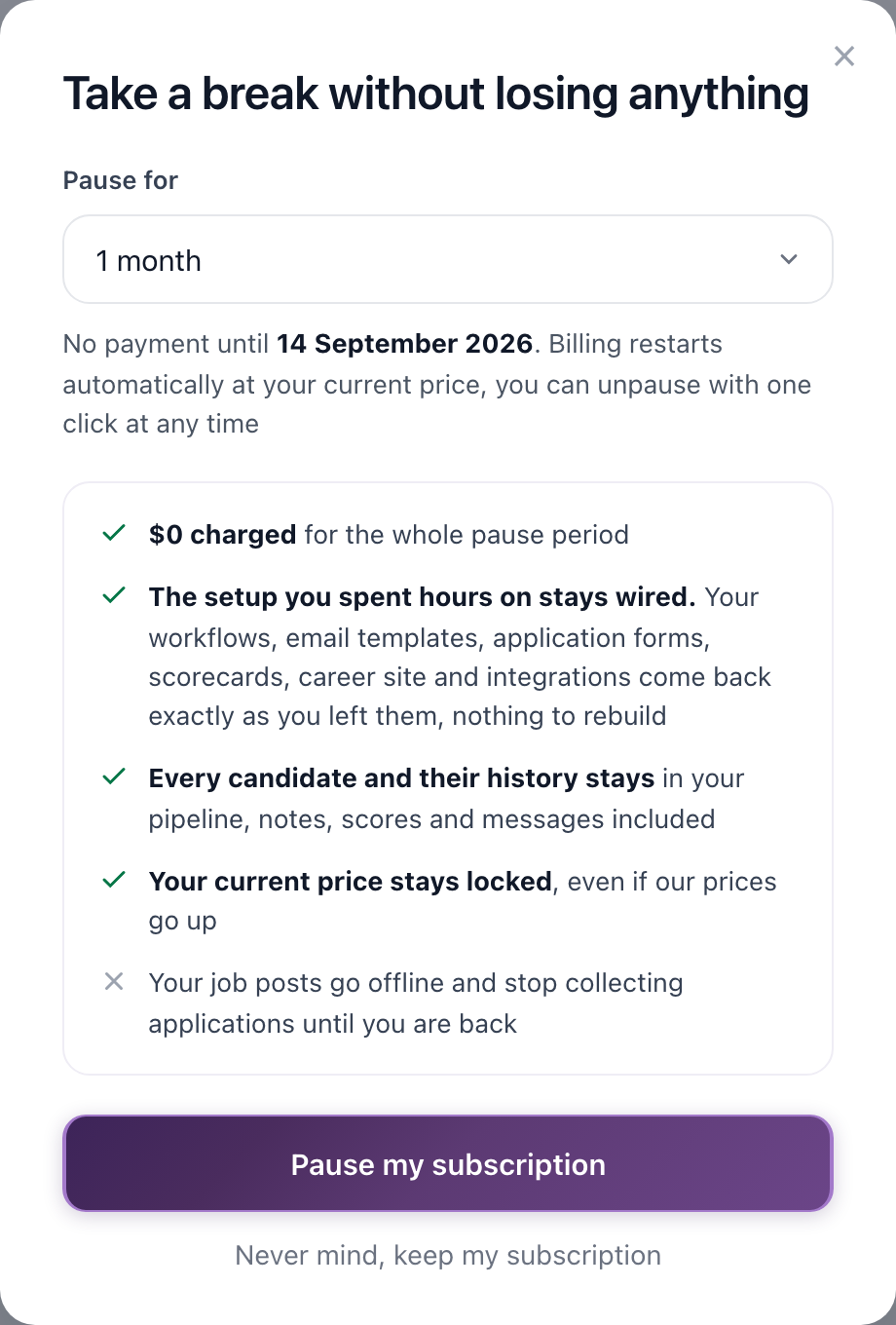
What a pause keeps and what it stops
While the subscription is paused:
- You are charged nothing for the whole pause period.
- Your price is locked. Billing restarts at the price you are on today, even if our prices go up in the meantime.
- Everything you configured stays: workflows, email templates, application forms, scorecards, your career site, and your integrations.
- Every candidate stays, with their full history — notes, evaluations and correspondence.
- Your jobs go offline. They are removed from the job boards and stop collecting applications until you resume.
A banner across the top of your account shows that the subscription is paused, along with the resume date, so nobody on your team wonders why applications stopped. We also send you an email before the pause ends, so you know the restart payment is coming.

Three months is the maximum
You can pause for up to three months at a time. If you need longer, resume on the end date and start a new pause straight away for another three months.
Resuming
While the subscription is paused, the Billing page carries a PAUSED badge, the limit rows read Paused until, and a Your pause summary shows who paused it, what is paid through, and when and at what price billing restarts.
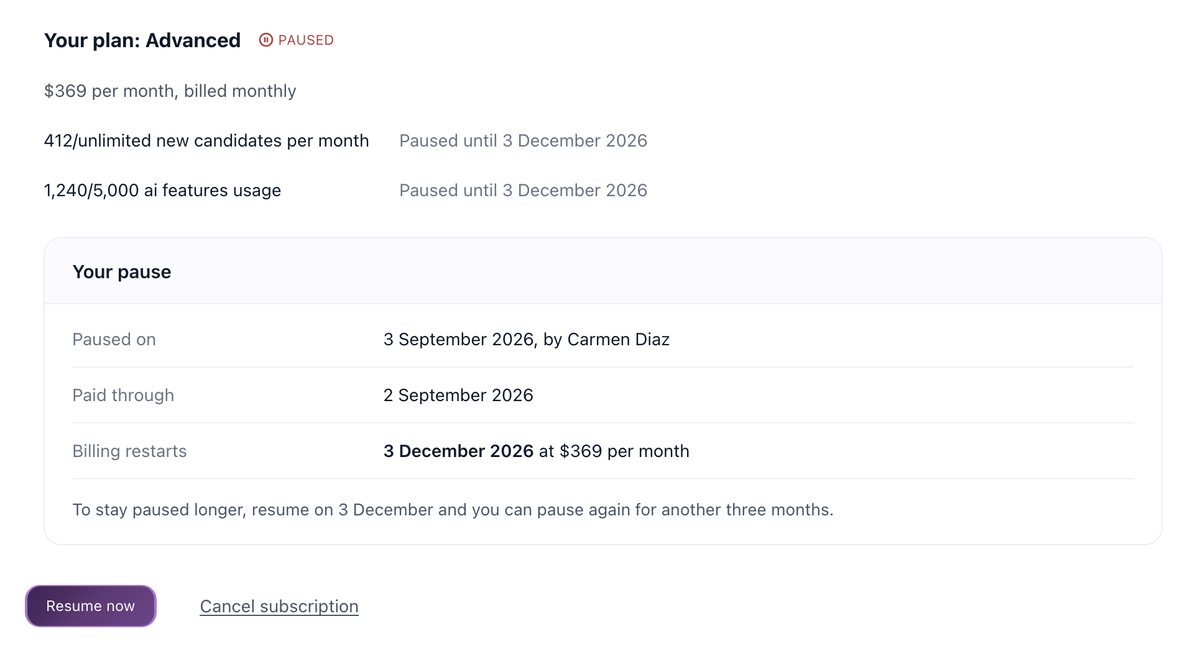
Click Resume now at any point during the pause. You will see what is charged today and which card it goes to, then confirm with Resume and pay.
After resuming, open each job and confirm its status is Public and that the board toggles on the Find Candidates tab are on. For how long a job takes to appear on each board once it is live again, see All Supported Job Boards: Posting, Timing, Requirements.
How to move to a smaller plan
If you are still hiring but the current plan is more than you need, downgrade instead of cancelling. The first screen of the cancellation flow offers an immediate move to the Start plan on a button that names the price: Downgrade to Start, $99/mo.
There is no intermediate plan picker: the change applies the moment you click. You then see a confirmation with the new price, the date of your next invoice, and the limits that now apply.
No data is deleted by a downgrade — your candidates, jobs and settings are all untouched. What changes is the limits, and they apply immediately: Start allows 3 active jobs and 100 new candidates per monthly billing period, while Advanced and Pro have unlimited jobs, candidates and users. If you have more than three jobs running, or you receive a lot of applications, read these two first:
- What Happens When You Reach Candidate Limits on Start Plan
- Start vs Advanced vs Pro: Which Plan Do I Need
If you are already on the smallest plan there is no downgrade button, and pause is offered as the main alternative instead.
How to cancel your subscription
- Go to Settings / Billing and click Cancel subscription.
- The first screen shows an In your account today summary — how many candidates you have, how many jobs and on how many boards, how many notes and scorecards, how many email templates and workflows, your integrations and your career site. Cancelling schedules all of it for deletion, which is why the screen shows you the numbers before you go further. Pause and downgrade are both offered on this screen, and both keep your work.
- If you still want to cancel, continue and tell us why. You pick one reason from a short list — Too expensive, We are done hiring for now, We are not using it enough, Missing a feature we need, Switching to another tool, Too hard to use, Something else — and you can add a comment.
- Click Send Request to Cancel.
What happens after you cancel
- You get a confirmation by email.
- You keep full access until the end of the period you have already paid for. Nothing is deleted before that date, and candidates that arrive in the meantime are still yours to work with.
- Your data is not deleted the moment the subscription ends. For the retention period that applies after cancellation, see our Security FAQ.
- The Billing page shows the end date and a Keep my subscription button. Use it any time before the end date and the plan simply carries on.
Cancelling does not refund the period you are in — you keep the access you have paid for until it runs out. If cost is the reason you are cancelling, pausing or downgrading is usually the better move: a pause keeps your current price, and a downgrade keeps all of your data at a lower one.
Cancelling is not the same as deleting your account
Cancelling stops the subscription, and you can reverse it with Keep my subscription at any point before the end date.
Deleting your account is a separate, permanent request that removes your profile, candidates, jobs, messages and files — see How to Delete Your Account.
Related articles
- How to Upgrade Your Plan
- Start vs Advanced vs Pro: Which Plan Do I Need
- How to View Invoices
- How to Update Your Credit Card
- EU Customers: How to Provide VAT Number to Avoid Paying VAT
- No Applicants? Read This First — if applications stopped and you are not sure whether a pause is the cause
Still need help?
Write to support@100hires.com from the email address on the account, or start a chat from inside the app. Tell us your company name and what you are trying to change, and we will take it from there.
Updated on: 01/09/2026
Thank you!